USB Device Not Recognized in Windows 11: What to Check
Short answer: First try another port directly on the PC (not a hub) and another cable. If Windows still says the USB device is not recognized, open Device Manager: an 'Unknown USB Device (Device Descriptor Request Failed)' entry with Code 43 means Windows couldn't read the device at all, which points to the cable, port or device; uninstall it, then use Action > Scan for hardware changes. A drive that appears in Device Manager but not in File Explorer usually just needs a drive letter in Disk Management. A device that drops out after a few minutes idle is usually USB power saving.
When Windows 11 says a USB device is not recognized, the device usually never managed to identify itself, so the fix depends on how far it got. Try a different port directly on the PC (not a hub or dock) and a different cable first. If that doesn’t help, Device Manager tells you which of three situations you’re in, and each has its own fix.
The message itself reads: “The last USB device you connected to this computer malfunctioned, and Windows does not recognize it.” On older systems the notification header says “Windows Explorer”, which is why some people search for it that way. Microsoft describes the cause as the device reporting a problem or a problem with its driver, on its USB troubleshooting page, and leaves the rest to you.
The 30-second checks
- Plug it into another port, directly on the PC. On a desktop, use a rear port: those are on the motherboard, while front ports go through an internal cable. Skip hubs, docks and monitor USB ports for now.
- Change the cable. Many USB cables, especially the ones that come with phones and power banks, only carry power. A device that charges but never shows up is often on a charge-only cable.
- Unlock your phone and choose File transfer when it asks how to use the USB connection. A locked phone shows up as nothing useful.
- Try the device on another computer. If it fails there too, the problem is the device or its cable, not Windows.
If the device works on another PC but not this one, open Device Manager: right-click Start and choose Device Manager, then expand Universal Serial Bus controllers. On most PCs you’ll see one or more host controllers (on a typical Windows 11 machine, entries such as “USB xHCI Compliant Host Controller” or “Standard USB 3.0 eXtensible Host Controller”) and a USB Root Hub for each of them. Leave the window open while you plug the device in and out, and watch what changes.
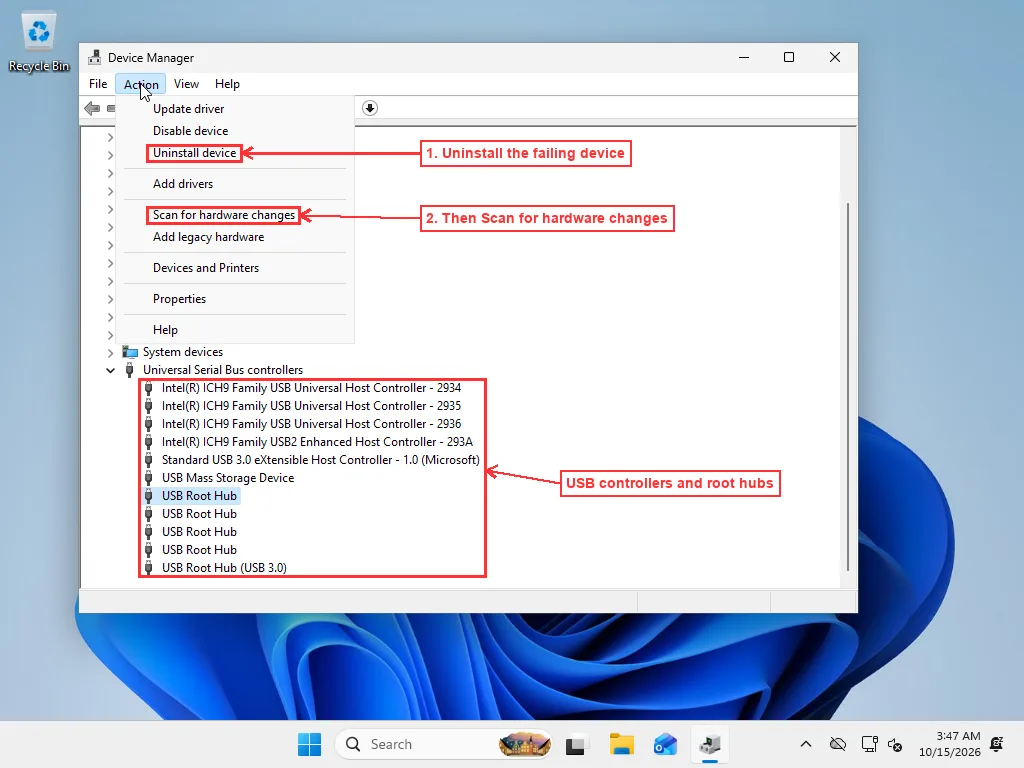
What Device Manager shows decides the fix
Nothing changes when you plug it in
If no entry appears or disappears anywhere in Device Manager when you connect the device, Windows isn’t seeing any data from it at all. That points to power or the physical connection: a dead port, a charge-only cable, or a device that needs more power than the port gives. A USB 2.0 port supplies up to 500 mA and a USB 3 port up to 900 mA, which isn’t enough for some external hard drives and bus-powered hubs. Use the drive’s own power adapter if it has one, or a powered USB hub.
If no USB port works at all, including for a keyboard or mouse, check that USB isn’t disabled in the BIOS/UEFI settings and that the front-panel USB cable inside the case is connected.
”Unknown USB Device (Device Descriptor Request Failed)” or Code 43
This entry, with a yellow warning icon, means the device connected but Windows couldn’t read its device descriptor, the small block of data that says what the device is. Without it no driver can be matched. Double-click the entry and the Device status box usually shows “Windows has stopped this device because it has reported problems. (Code 43)”. Variants such as “(Port Reset Failed)” and “(Set Address Failed)” mean the same thing in practice.
Microsoft’s fix for Code 43 is to remove the device and let Windows detect it again:
- Right-click the Unknown USB Device entry and choose Uninstall device.
- Unplug the device, wait a few seconds and plug it back in, or use Action > Scan for hardware changes.
- If it comes back the same way, restart the PC with Restart, not Shut down. With Fast Startup turned on, Shut down doesn’t fully reset the USB controllers; Restart does.
If that doesn’t help, you can make Windows reinstall the whole USB stack: uninstall every USB Root Hub and host controller entry under Universal Serial Bus controllers, then restart. If your keyboard and mouse are USB, they can stop responding as soon as you uninstall the controller they’re connected to. Leave that controller until last; afterwards, a short press of the PC’s power button shuts Windows down normally on most PCs, and Windows reinstalls the controllers when it starts again.
When the Unknown USB Device keeps coming back on every port, after a restart and on another PC, the device or its cable is faulty. No driver can fix a device that can’t identify itself.
The device is listed, but there’s no drive in File Explorer
If a USB stick or external drive shows up in Device Manager under Disk drives but not in File Explorer, the volume usually just has no drive letter.
- Right-click Start and choose Disk Management.
- Find the USB disk (it’s labelled Removable or by its size), right-click its volume and choose Change Drive Letter and Paths….
- Click Add, pick a letter and click OK.
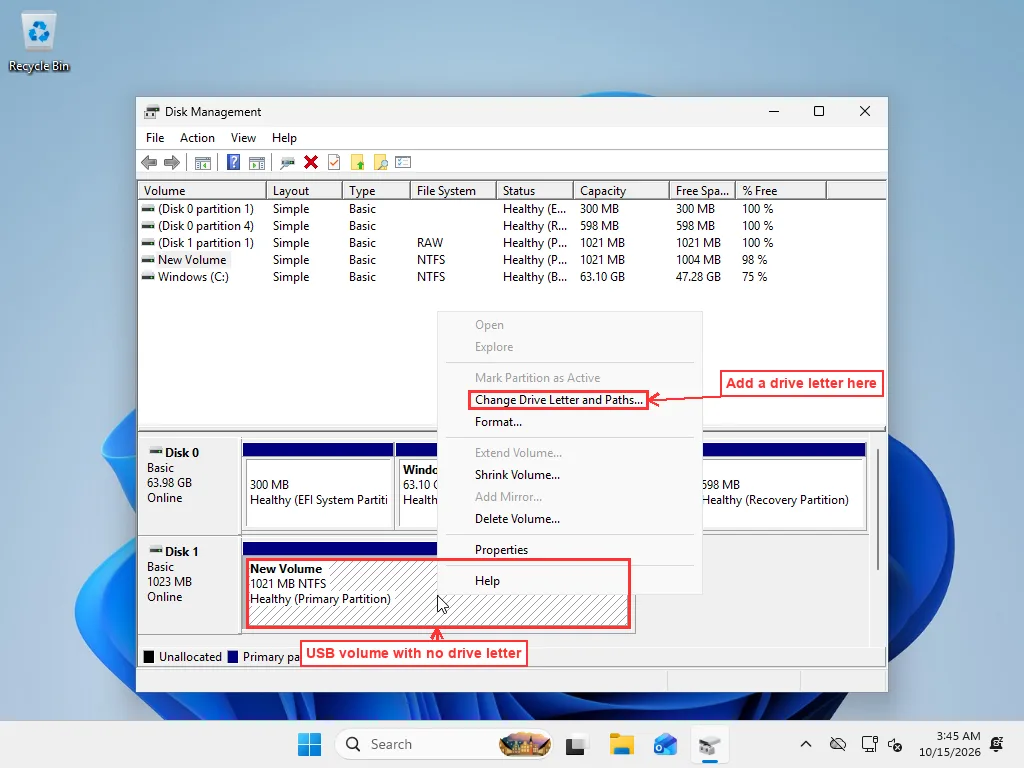
Microsoft documents the same steps for changing a drive letter. If the disk shows as Not Initialized or the space is Unallocated, stop there if the data matters: initializing or formatting erases it. The external hard drive not showing up guide covers those cases.
It works, then drops out after a few minutes
A device that connects fine but disconnects after sitting idle is usually being switched off by Windows’ power saving. There are two settings.
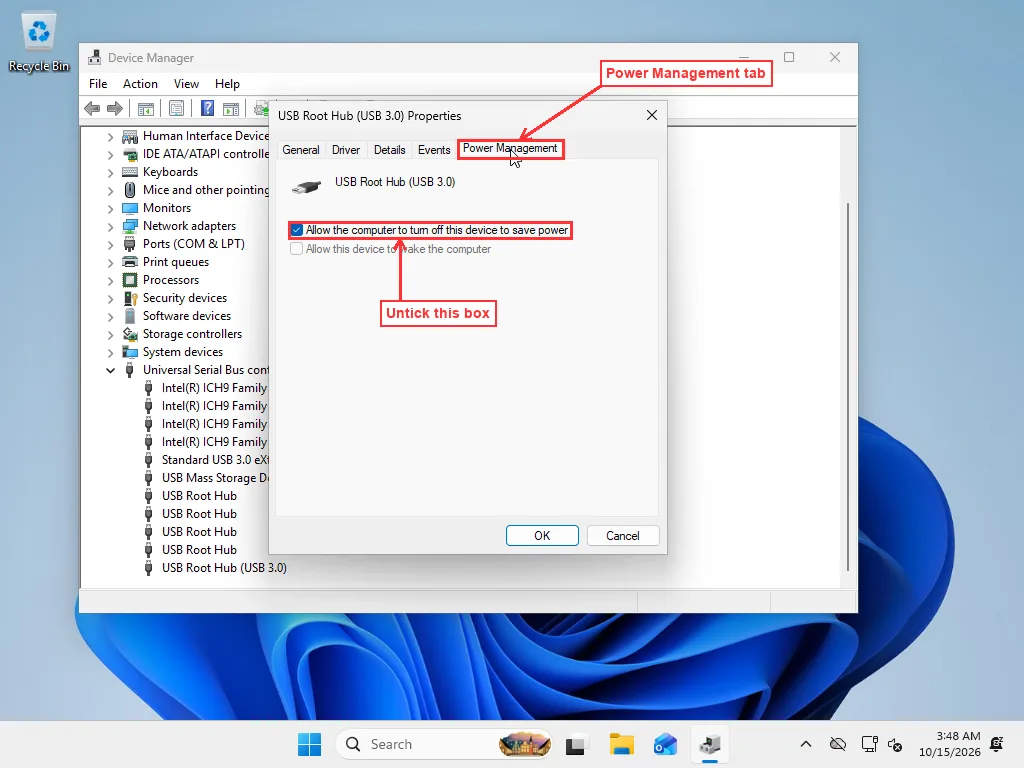
USB Root Hub power management. In Device Manager, double-click each USB Root Hub entry, open the Power Management tab and untick Allow the computer to turn off this device to save power. Some hubs don’t have this tab; that’s normal.
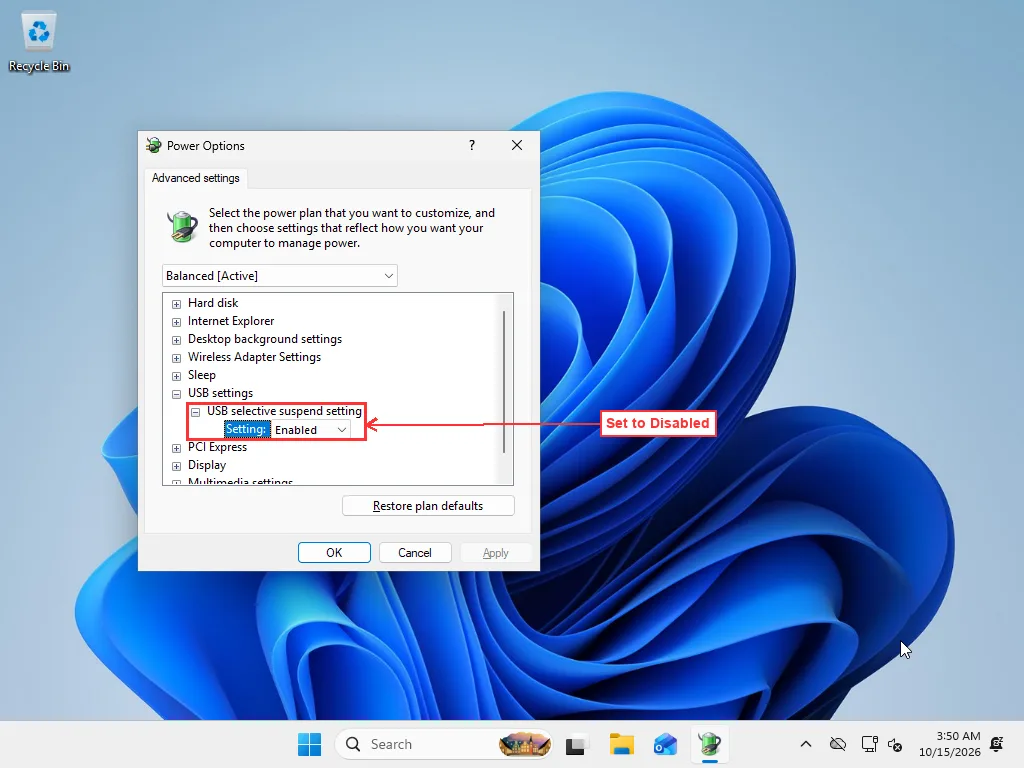
USB selective suspend. Selective suspend lets Windows suspend individual USB ports. To turn it off, open Control Panel > Hardware and Sound > Power Options, click Change plan settings next to your plan, then Change advanced power settings. Expand USB settings > USB selective suspend setting and set it to Disabled.
On many recent laptops that use Modern Standby, the USB settings section is hidden. You can make it visible by running this in Terminal as administrator, then reopening the advanced settings:
powercfg -attributes 2a737441-1930-4402-8d77-b2bebba308a3 48e6b7a6-50f5-4782-a5d4-53bb8f07e226 -ATTRIB_HIDEIt started after a Windows update
If USB devices stopped working right after an update, check whether Windows replaced a chipset or USB driver. In Device Manager, open the controller’s Properties > Driver tab and use Roll Back Driver if it’s available. It’s often greyed out for Microsoft’s built-in USB drivers, which is normal. In that case install the chipset or USB driver from your PC or motherboard maker’s support page, following the steps in our guide to updating drivers on Windows 11.
Skip the old “Hardware and Devices” troubleshooter that many guides still recommend: Microsoft has retired the MSDT troubleshooters.
The message appears with nothing plugged in
Sometimes the popup keeps coming back even though nothing is connected. The usual cause is an internal USB device, such as a webcam, card reader or Bluetooth module, that is failing. In Device Manager, choose View > Show hidden devices and look for a greyed-out or flagged entry under Universal Serial Bus controllers, Cameras or Bluetooth.
To hide the message, go to Settings > Bluetooth & devices > USB and turn off Connection notifications. That stops the popup but doesn’t fix the device behind it.
When it’s a hardware problem
A drive that clicks or beeps when you plug it in is failing mechanically. Every retry spins it up again, so stop plugging it in; if the files matter, data recovery is the next step, not another port.
The opposite case is a device that works on other computers while this PC turns away every USB device, even after the controllers have been reinstalled. That leaves the chipset driver, the firmware or the USB controller itself, and narrowing it down means reading the setupapi and System event logs, which a technician can do over a remote session.
Frequently Asked Questions
What does 'USB device not recognized' mean?
Windows shows it when a device you plug in fails to identify itself. Microsoft's wording is that the device reported a problem or there is a problem with its driver. Most of the time the device never got far enough to load a driver, which is why the cable, the port and the device itself are the first things to check.
How do I fix 'Unknown USB Device (Device Descriptor Request Failed)'?
That entry means Windows could not read the basic identification data the device sends when it connects. Try a different cable and a port directly on the PC, then right-click the entry in Device Manager, choose Uninstall device, and use Action > Scan for hardware changes. If it comes back the same way on several ports and on another PC, the device or its cable is faulty.
Why does my USB drive show up in Device Manager but not in File Explorer?
Usually because the volume has no drive letter. Open Disk Management, right-click the USB volume, choose Change Drive Letter and Paths, then Add and pick a letter. If Disk Management shows the disk as Not Initialized or Unallocated, stop: initializing or formatting it erases what is on it.
Why does my USB device keep disconnecting after a few minutes?
Windows can cut power to idle USB devices to save energy. Untick 'Allow the computer to turn off this device to save power' on the Power Management tab of each USB Root Hub in Device Manager, and set USB selective suspend to Disabled in the advanced power plan settings.
How do I stop the 'USB device not recognized' popup when nothing is plugged in?
Open Settings > Bluetooth & devices > USB and turn off Connection notifications. That only hides the message, so if it appears with nothing connected, also check Device Manager with View > Show hidden devices for a greyed-out device that keeps failing, often an internal webcam, card reader or Bluetooth module.