Printer Driver Is Unavailable? The Fix That Actually Sticks
Short answer: The 'printer driver is unavailable' error means Windows can't load the driver package bound to that print queue. Fix it with a full teardown: remove the printer in Settings, then open Print Server Properties (Windows key + R, type printui /s /t2) and remove the driver package itself, restart the PC, and reinstall — preferably with the manufacturer's full driver installed before you re-add the printer. Removing only the printer in Settings leaves the corrupted driver files on disk, which is why the error usually comes back.
The “printer driver is unavailable” label Windows sticks under a printer’s name means one specific thing: the driver package bound to that print queue won’t load. What fixes it most reliably is a full teardown, printer and driver package both, then a restart and a reinstall from nothing. Half-done removals are the reason so many people watch this error boomerang back a few weeks later.
Guides usually skip the second half of the removal, which happens to be the half that decides whether you fix this once or keep fixing it. Clicking Remove device in Settings only deletes the print queue. The broken driver files stay on the disk, and when you add the printer again, Windows happily binds the same corrupted files right back to it. You’ve changed nothing, and a week later the error returns.
Which of These Three Situations Are You In?
Three different situations produce this same message, and they don’t share a fix.
A printer that printed happily until last week points to a driver that either got corrupted in place or was quietly swapped for something incompatible. An update you can point to as the trigger means the roll-back section further down is your fastest route; no obvious trigger means the full removal.
A printer being set up on a new or freshly upgraded PC is a different problem wearing the same message. Its driver probably never installed properly at all, and on Windows 11 there’s a deeper reason for that, involving Microsoft’s retirement of manufacturer drivers, which changes what you should download.
And then there’s the comes-and-goes variety: prints fine Monday, unavailable Wednesday. That pattern usually means damaged driver files fighting with the print spooler, and the full removal cures most of those too. If jobs are also piling up undeleted in the queue while this happens, the stuck print queue guide covers clearing the spool before you start the teardown.
More often than not the complete removal is where you end up anyway.
The Full Removal and Reinstall
Done right, this leaves no trace of the old driver before the new one goes in: remove the device, purge its files, restart, reinstall.
Remove the printer in Settings
Open Settings, go to Bluetooth and devices, then Printers and scanners (on Windows 10 it’s under Devices instead). Click the problem printer and hit Remove device. Confirm.
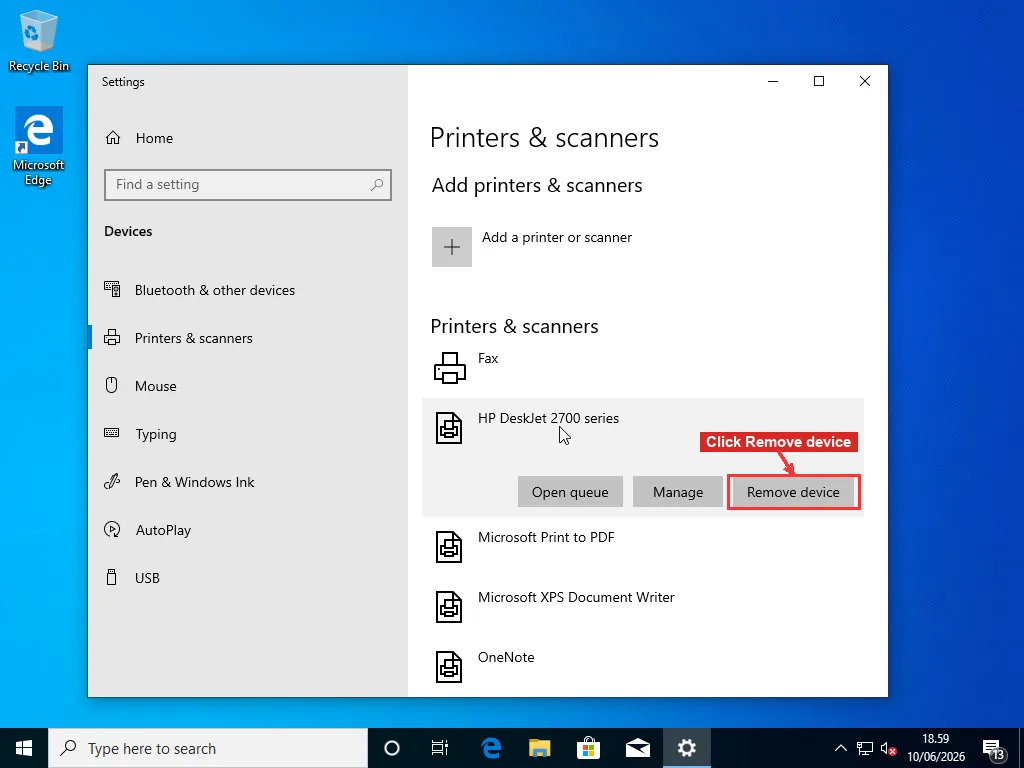
Stop here, though, and you’ve signed up for the monthly-ritual version of this fix.
Purge the driver package
Press Windows key + R, type:
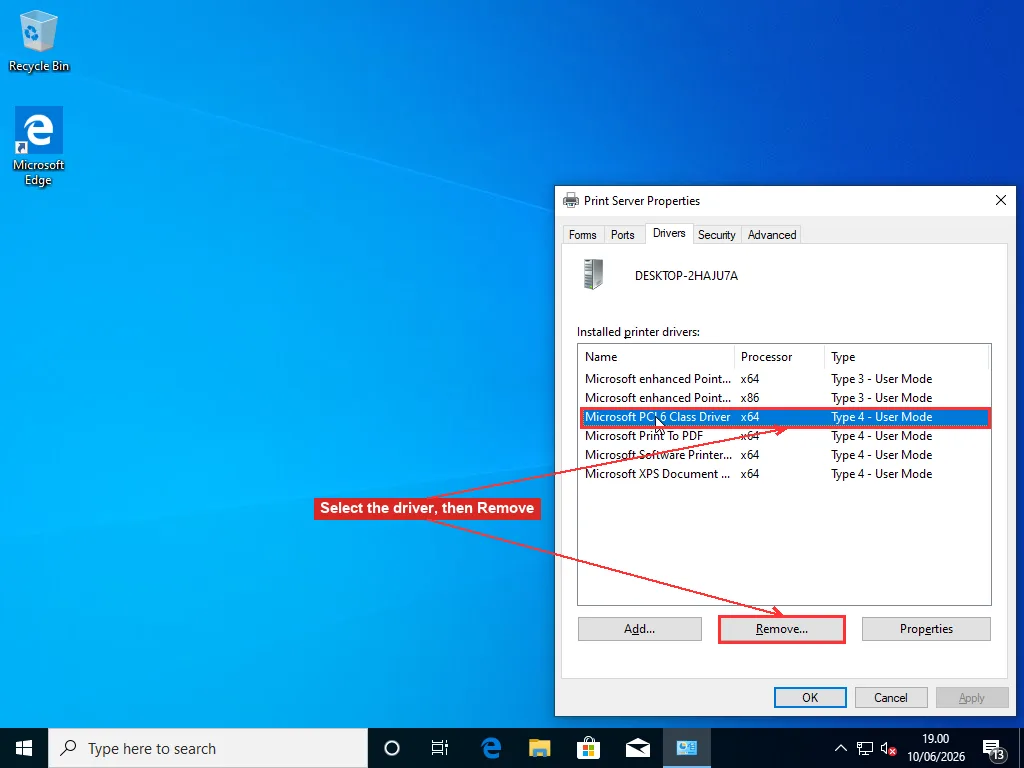
printui /s /t2and press Enter. Up comes Print Server Properties, already on its Drivers tab. Most people never see this window. It’s where every printer driver on the machine lives, including ones for printers you got rid of years ago.
Finding the right entry takes a second look, because the list shows internal driver names rather than what’s printed on the printer’s case. A DeskJet 2755e, to pick one, hides under “HP DeskJet 2700 series” since a single driver covers that whole family. Go by the series name. Two near-identical entries? The Processor column should say x64 on anything current, and when in doubt I remove both, since the reinstall brings back whichever one the printer really needs.
Select the driver for your problem printer and click Remove. When the dialog asks, choose “Remove driver and driver package,” not just the driver. The package means the installation files themselves, and any corruption living in them sails straight through an ordinary reinstall.
If Windows refuses with a “driver is in use” error, the spooler still has a handle on it. Open Command Prompt as administrator and run:
net stop spooler
net start spooler
then try the removal again. Stubborn cases sometimes need the spooler stopped, the queue folder at C:\Windows\System32\spool\PRINTERS emptied, and the spooler started again before the driver lets go. Tedious? Sure, but a printer that half-works is worse. If it still refuses, do the removal from Safe Mode, where the spooler isn’t holding onto anything.
While you’re in that Drivers tab, take the extra minute to clear out packages for any printer you no longer own. Old driver packages are dead weight at best and a source of conflicts at worst — a ghost package left behind by a printer you got rid of is a classic reason the Print Spooler keeps stopping on a machine with nothing even plugged in.
Restart the PC
A real restart, not sign-out, not sleep. The driver store sorts out its registrations during shutdown and startup, and skipping this is the most common reason an otherwise clean reinstall still picks up stale leftovers.
Reinstall, choosing your driver source on purpose
Plug the printer back in (or make sure it’s on the network), go back to Printers and scanners, and click Add device. Give Windows a few seconds and it will spot the printer, then quietly install whatever driver it thinks fits.
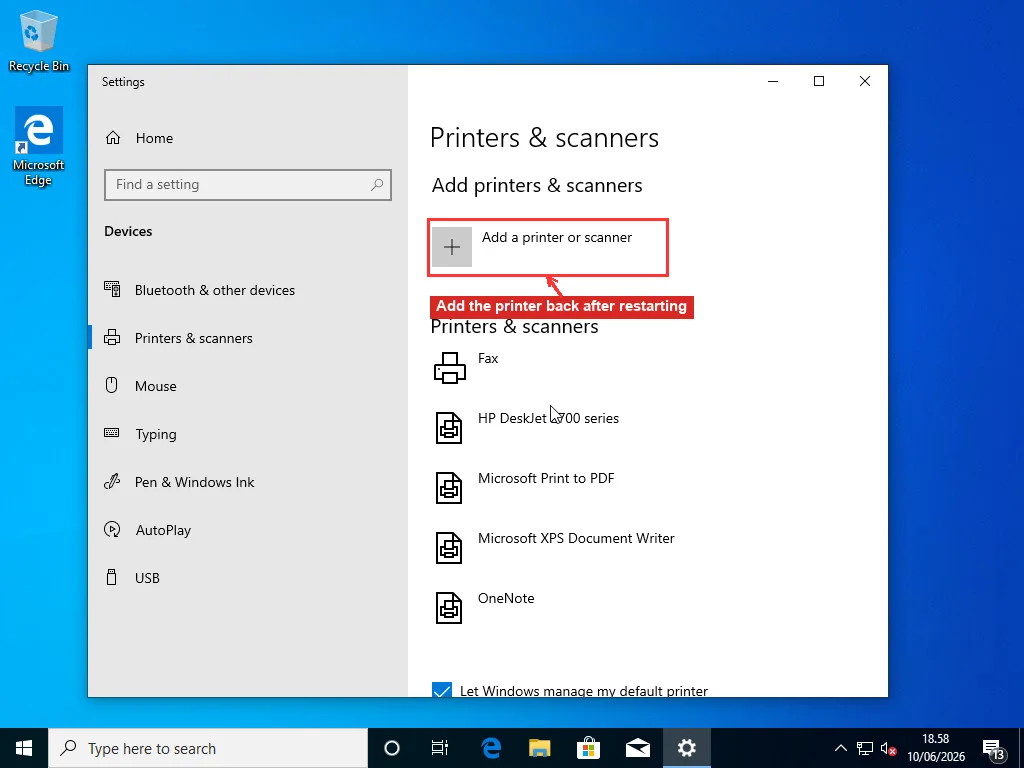
Network printers that refuse to show up in that list can almost always be added by address instead. Wait for the search to give up, click “Add manually” (the option is worded “The printer that I want isn’t listed” on some builds), and pick the choice to add a printer using an IP address. The printer’s address is on its own control panel under network settings, or printed on the configuration page most models can spit out by holding the info button. Manual-by-IP also sidesteps the discovery problems that plague printers sitting on a different WiFi band than the PC.
Pay attention to what it installs. If the printer shows up working and the driver name in its properties says something from the manufacturer, you’re done. A name like Microsoft IPP Class Driver means you got the generic: prints will come out, but duplex menus, ink level readouts, and the odd older printer can all misbehave under it.
For anything older than five years or so, I grab the manufacturer’s full driver from their support site first, install it, and only then re-add the printer, letting their installer do the detecting. That order matters: with the proper driver already registered, plug-and-play grabs it instead of groping around for a generic fallback.
A vendor app sitting on the machine doesn’t mean the driver side is handled, either. HP Smart, for instance, is a management app; on many models it pulls a driver in behind the scenes, but on others you still need the separate “full feature” download from the support site for everything to work. When a vendor app installed cleanly yet the error persists, the missing piece is almost always the real driver for the exact model number.
What If the Error Started After a Windows Update?
An update can wreck printing from two directions. Either it swaps your driver for a newer one your hardware disagrees with, or it rebuilds the print stack underneath a driver that was barely hanging on to begin with.
The quickest experiment is rolling the driver back. Right-click the Start button, open Device Manager, and expand Print queues. Right-click your printer, choose Properties, then the Driver tab. If Roll Back Driver is clickable, use it, then print a test page. Greyed out means there’s no previous version stored, so roll-back isn’t an option on that machine. And if that test page prints fine while your documents keep coming out empty, the driver is off the hook — see why a printer keeps printing blank pages for where to look next.
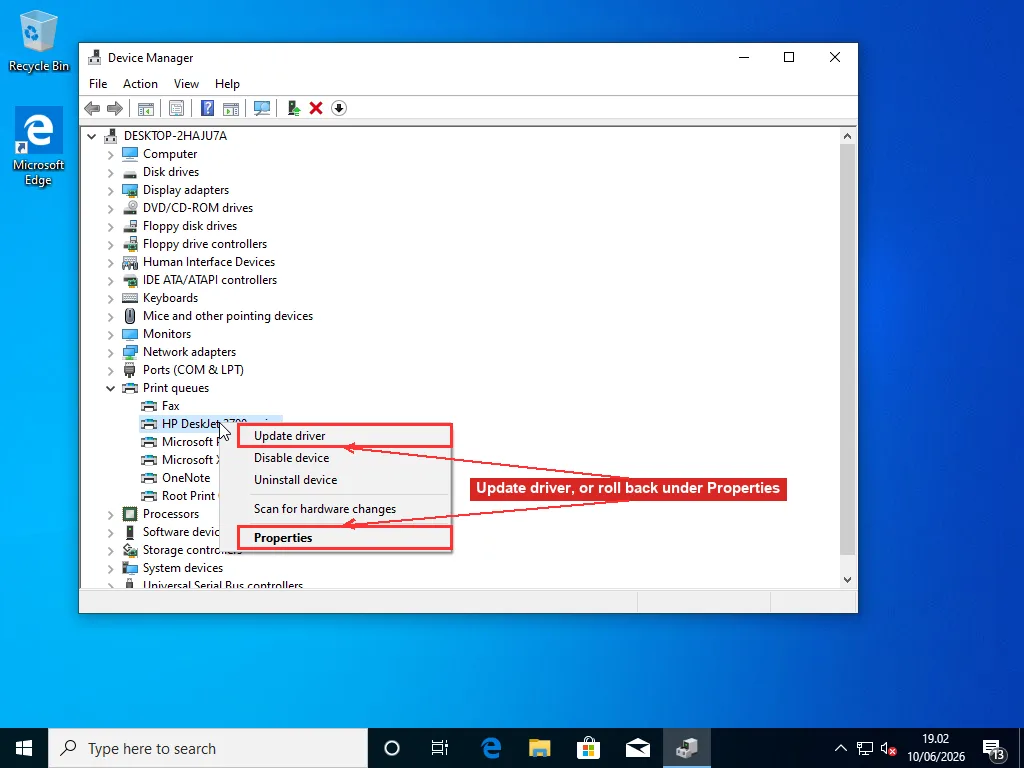
Before blaming Windows, let the same Driver tab testify. Look at the provider name sitting next to the driver date. Microsoft as provider, dated the same week as the update? Then yes, your manufacturer driver got swapped for a generic one, and reinstalling the manufacturer package puts things right. But if the provider still reads HP or Canon or whoever, with an old date attached, the update never touched the driver, and what you’re really looking at is the corruption case from earlier. Our driver update guide goes deeper on reading Device Manager’s driver details.
When roll-back isn’t available, reinstalling the manufacturer’s driver over the top is the next thing to try; downloading the current package for your model and running it often reverses an unwanted swap to a generic driver. Failing that, you can live on the generic driver for a while. If the manufacturer hasn’t released a compatible update yet, removing the device and letting Windows install its built-in driver keeps you printing, minus the extras, until a proper fix ships.
Uninstalling the Windows update itself is the move of last resort. It works, but the update reinstalls eventually, and you’re deferring the problem rather than fixing it. If an update is stuck or misbehaving more broadly, that’s a separate repair job.
Why Do Brand-New Printers Throw This Error?
The ground shifted under printer setup recently, and a lot of the advice floating around predates the change.
Microsoft is phasing out third-party printer drivers entirely. The published end-of-servicing plan has Windows Update refusing new legacy-style (V3 and V4) printer drivers since January 2026, and the dates sound comfortably distant until you notice the next one: starting July 2026, when a manufacturer driver and Windows’ own built-in IPP class driver both exist for a printer, Windows picks its own. Routine servicing of third-party drivers stops entirely in mid-2027. Whether that counts as progress or planned obsolescence depends on how old the printer on your desk is. For repair techs it has mostly meant more calls.
What replaces the old driver world is standards-based printing. Modern printers are expected to speak IPP, the protocol behind Mopria certification, and that ecosystem is no longer niche: the program crossed 10,000 certified printer and scanner models in April 2026, with over 120 million certified devices in use.
For a printer made in the last several years, none of this hurts. Windows talks to it directly and nobody misses the 600 MB driver suite.
The trouble lands on older printers. A model from the early 2010s doesn’t speak IPP properly, so the built-in driver can’t drive it, and the manufacturer driver that could is getting harder for Windows to fetch automatically. Result: you plug a perfectly functional old printer into a new PC and get “driver is unavailable” out of the box.
The timing explains why this error is suddenly everywhere. Windows 10 support ended in October 2025, and the stampede that followed pushed Windows 11 from about half of Windows PCs to nearly three quarters by February 2026, according to Statcounter’s tracking data. Which means millions of aging printers met brand-new Windows installs in the space of a single winter, and plenty of those meetings went badly.
Stuck in that boat with an older printer? Hunt down the last driver the manufacturer ever published for the model, even one labeled for Windows 10 or 8. Old installers like that run fine on Windows 11 far more often than not. Skip the generic detection tools, go to the model-specific download page, run that installer first, and add the device afterward, so the real driver is already sitting there when Windows looks.
When the support page lists nothing for your model at all, that’s the manufacturer’s quiet way of saying the printer is abandoned. The built-in driver might still manage basic prints over USB. If it can’t, no amount of reinstalling will conjure up support that no longer exists, and it’s worth weighing repair effort against replacement honestly.
The Boring Checks, in Case It Was Never the Driver
Occasionally the dramatic-sounding error has a boring cause:
- Power-cycle the printer and reboot the PC. Ten seconds unplugged at the wall, not sleep mode.
- Wired printer? Swap the USB cable or try another port. Flaky cables produce driver errors that look exactly like software problems.
- The built-in printer troubleshooter moved into the Get Help app on current Windows 11 (search “printer” there); older builds keep it under troubleshooter settings. It only occasionally fixes this, but trying costs nothing.
- services.msc from the Run box, find Print Spooler, restart it. And a spooler that keeps dying on its own isn’t a driver problem at all; that one has its own family of causes.
If those came up empty and the full removal procedure above didn’t hold, you’re past the point where generic advice helps. Repeat failures after a truly clean reinstall usually mean corruption deeper in the driver store or in the spooler’s own files. A pass of sfc /scannow is worth one shot at that point, since it can repair damaged print-stack system files. Chasing that down means Event Viewer logs, permissions on the spool directories, sometimes rebuilding the print stack piece by piece, and a lot of trial and error that’s miserable to do over a search engine. At RebootDoctor we end up in exactly those weeds on printer calls more often than I’d like, and having someone who’s seen the failure pattern before look at the machine beats another two hours of forum threads.
Frequently Asked Questions
Why does my printer say the driver is unavailable?
Windows shows 'driver is unavailable' under a printer's name when it can't load the driver package bound to that print queue — the driver is corrupted, incompatible with the current Windows build, or was never installed properly. The three common triggers are a Windows update that swapped or broke the driver, a new PC where the right driver never got installed, and driver file corruption that builds up over time. The fix that works most often is removing both the printer and its driver package, restarting, and reinstalling from the manufacturer's download.
How do I completely remove a printer driver in Windows?
Removing the printer in Settings only deletes the print queue — the driver files stay on disk. To remove them too, press Windows key + R, type printui /s /t2, and press Enter. That opens Print Server Properties on the Drivers tab, which lists every printer driver on the machine. Select the driver and click Remove, then choose 'Remove driver and driver package' in the dialog. If Windows says the driver is in use, restart the Print Spooler service from an admin Command Prompt with net stop spooler followed by net start spooler, then try again.
Will updating Windows fix the driver unavailable error?
Sometimes, but it cuts both ways. If the error appeared out of nowhere, a pending Windows update can ship a fixed driver, so it's worth checking. But if the error started right after an update, the update is more likely the cause than the cure — open Device Manager, expand Print queues, right-click the printer, choose Properties, and check the Driver tab. If the provider says Microsoft with a date matching the update, your manufacturer driver got replaced by a generic one, and reinstalling the manufacturer package fixes it faster than waiting for another update.
Why won't my old printer work with Windows 11?
Microsoft is phasing out third-party printer drivers in favor of its built-in IPP class driver, which expects the printer to support modern standards-based printing (the same technology behind Mopria certification). Printers from roughly the early 2010s and before often don't speak IPP properly, so the built-in driver can't run them, and Windows no longer fetches the old manufacturer driver automatically. The workaround is to download the last driver the manufacturer published for your model — even one labeled for Windows 10 or 8 usually installs fine — run that installer first, and then add the printer.