Network Adapter Missing in Windows 11? Here's the Real Fix
Short answer: Open Device Manager (devmgmt.msc) and check Network adapters first to confirm it's actually missing, not just disabled. Then match your situation: right after a Windows update, try Action > Scan for hardware changes; if it's silently hidden, use View > Show hidden devices and pnputil /remove-device to clear the stale entry; if it's never shown up at all, install the motherboard's chipset driver before the network driver — reversing that order is the most common reason reinstalling the driver doesn't help.
Open Device Manager (devmgmt.msc) and check Network adapters first. If the category is empty or gone, don’t start clicking through every fix you can find online. Match your situation below instead, because a network adapter that vanished right after an update needs a different first move than one that’s been gone since you unboxed the machine.
First, Confirm What You’re Actually Looking At
Expand Network adapters in Device Manager. A down-arrow icon on the listing means disabled, not missing — right-click it and choose Enable device. An empty category, or none at all, is what the rest of this covers.
Press Win+R, type ncpa.cpl, and check Network Connections too. If there’s no adapter icon there either, not even a disconnected-looking one, Windows genuinely can’t see the hardware. The taskbar’s globe-with-a-red-X icon isn’t reliable on its own; it fires for a present-but-unconnected adapter just as often as a missing one.
Right After a Windows Update
A Windows 11 update packaged as KB5044284 is one well-known example: it left enough people with dead adapters and broken DHCP that support forums were full of it within a week. Cumulative updates sometimes swap a manufacturer’s driver for a generic one, and that swap doesn’t always finish cleanly on every machine.
Action menu, then Scan for hardware changes, is the first thing to try. It brings the adapter straight back on a lot of machines, since the hardware itself never left; Windows just stopped listing it partway through the update.
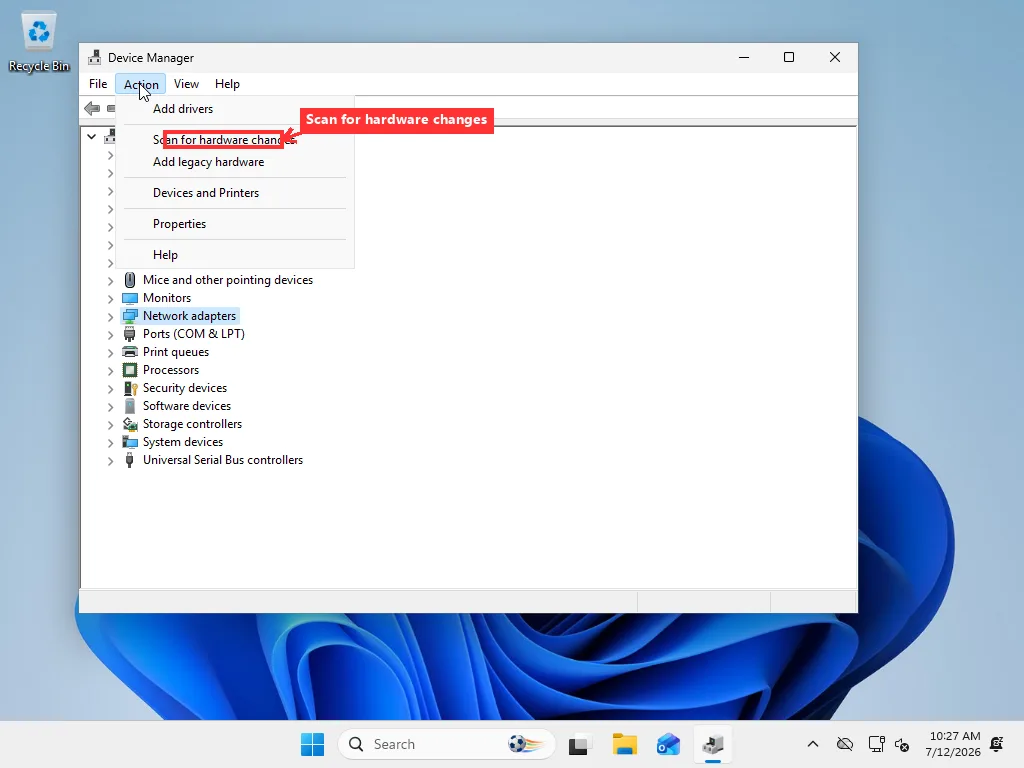
If it does come back but the connection feels off afterward, check the driver: right-click the adapter, Properties, Driver tab. If the manufacturer’s name got replaced with plain “Microsoft,” or the driver is dated well before the PC existed, that’s the update’s generic fallback talking. Roll Back Driver sits on that same tab, though it only works if Windows kept the old one — greyed out means go get the current driver from the manufacturer instead.
Rescanning does nothing and the adapter’s still gone? Stop rescanning and treat it as a ghost device. An update that killed the listing and a stuck ghost entry look the same from this point on. And if the adapter itself comes back fine but Wi-Fi or Ethernet still won’t behave, that’s a separate problem from here on — the Wi-Fi troubleshooting steps and the Ethernet-specific walkthrough pick up exactly where this leaves off.
After a Crash, a Forced Restart, or a Power Outage
Same missing-adapter symptom, different setup: everything was fine, then the machine crashed, lost power, or got forced to restart, and Device Manager came back without it.
Nothing about the driver or hardware actually changed here, so a rescan (Action menu, Scan for hardware changes) fixes a good share of these on the spot; Windows just has to re-walk the bus. An abrupt power loss or a forced restart can interrupt Windows partway through writing a device’s state, which is a plausible enough reason this trigger keeps its own dedicated support threads instead of getting folded into the update case above. Give the rescan one try and maybe a second; past that it’s not going to self-resolve, and the next section is the actual fix.
Hidden as a Ghost Device, Not Actually Gone
Windows quietly files away devices that were installed once and aren’t currently detected — unplugged, knocked out by a bad driver load, or dropped by one of the triggers above — as “non-present,” and stops showing them by default. Nothing about it is broken. It’s just filed, not deleted.
View menu, Show hidden devices, brings them back into view, greyed out. That setting doesn’t stick, either: close Device Manager and reopen it later and you’ll need to flip it on again, which is normal and not a sign the ghost came back. Microsoft’s own notes on viewing hidden devices cover the same non-present-device behavior in more technical detail, if you want the full picture. It isn’t unique to network hardware, either — a USB device Windows won’t recognize leaves the exact same kind of ghost entry behind.
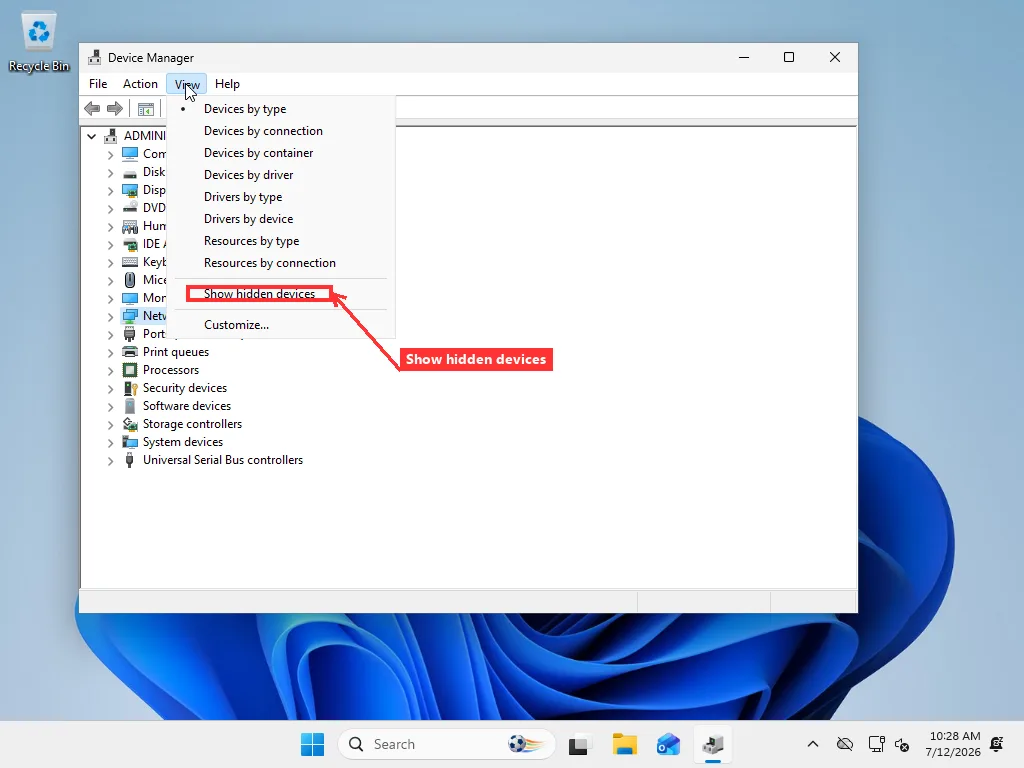
Right-clicking a greyed-out entry and choosing Uninstall device clears plenty of them. It won’t always be there to click, though: a fair number of ghost entries only offer Properties on right-click, with Uninstall disabled because something else still treats the device as active.
pnputil gets past that without installing anything extra. Open an elevated Command Prompt (Start, type cmd, right-click, Run as administrator) and run:
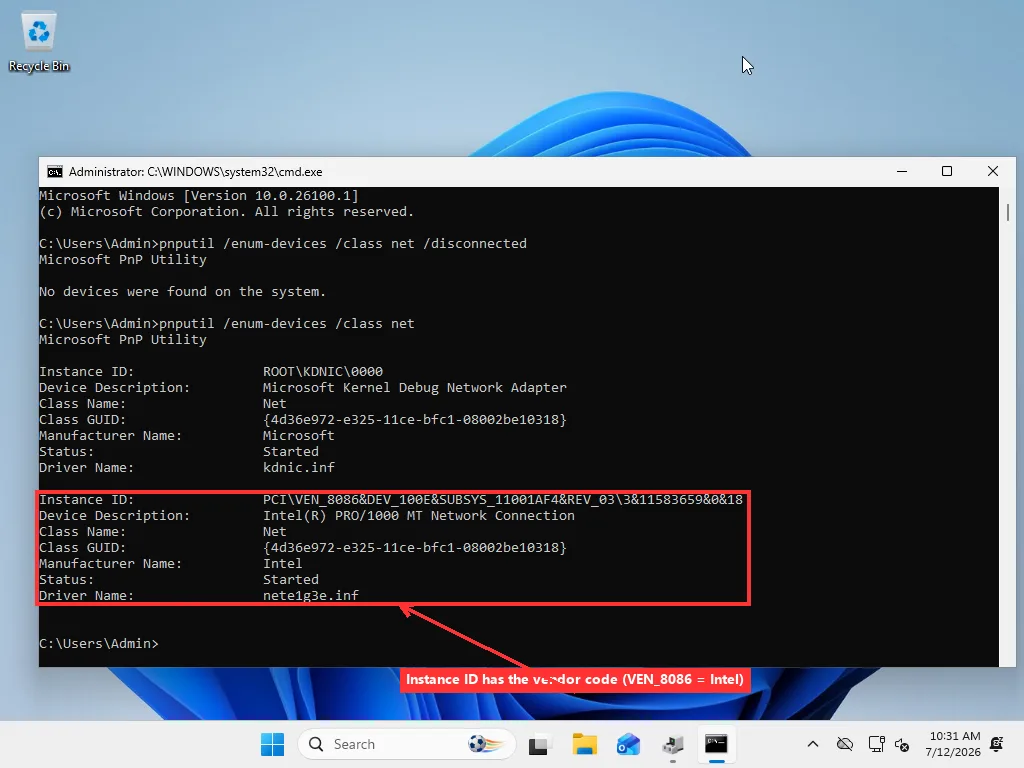
pnputil /enum-devices /class net /disconnectedEvery network-class device Windows still remembers but doesn’t currently see comes back in that list, each with an Instance ID along the lines of PCI\VEN_10EC&DEV_8168&SUBSYS_...\4&1a2b3c4d&0&0018. Grab the ID for the one you’re clearing and run:
pnputil /remove-device "<Instance ID>"with the ID quoted exactly as it printed. That clears the stale entry directly, including the cases where the GUI’s Uninstall button wouldn’t cooperate. It needs Windows 10 version 2004 or newer, which every supported Windows 11 build already is — the full flag list is in Microsoft’s pnputil command reference if you want to see what else it can do. After it’s gone, Scan for hardware changes once more from the Action menu — real, present hardware gets re-added clean, without the old registration muddying things up.
Nothing here touches your actual network hardware. It clears a leftover record so Windows can properly see the device that’s still physically there.
Two more things worth knowing about that list. If the /disconnected command comes back completely empty, there’s no ghost entry sitting around, and the problem is somewhere else. Back up to the Windows Update or crash sections above, or move on to whether the adapter ever showed up at all. And if you’re trying to figure out exactly which piece of hardware a ghost entry belongs to, the Instance ID tells you: the letters right after VEN_ are a vendor code, so VEN_10EC is Realtek and VEN_8086 is Intel, and DEV_ is that vendor’s model number for the specific chip. That beats digging through a laptop’s spec sheet trying to work out who actually made the network hardware inside it.
No Adapter Since Day One
Fresh install, or a machine where the network adapter has never once shown up — not even as a ghost. The question isn’t what happened to it anymore; it’s whether Windows has ever known this hardware exists.
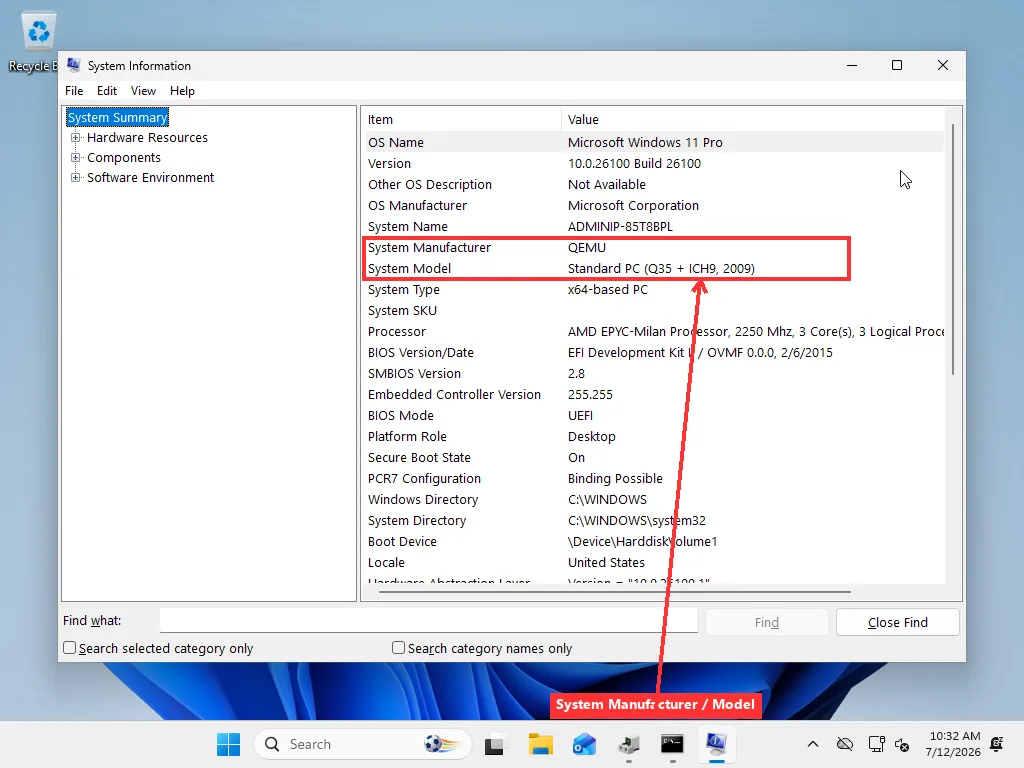
msinfo32 (Win+R to open it) gives you System Manufacturer and System Model, which is what you actually need before searching a support site for a driver — better than guessing at a package that might not match your exact hardware revision.
Desktop boards sometimes have Onboard LAN switched off in BIOS/UEFI, which happens more than you’d think on machines with both a discrete network card and onboard networking, where a previous BIOS reset flipped the built-in one off along the way. If you haven’t been in yours before, getting into BIOS/UEFI covers the keys and menus for most machines. Laptops rarely have anything comparable for their Wi-Fi hardware, so if a laptop has never shown an adapter, it’s almost always a driver issue rather than a firmware toggle. Skip the BIOS hunting and go straight to the next section.
Wrong Driver, Not Missing Driver
On plenty of laptops and mid-range boards, the network adapter’s driver won’t work right until the motherboard’s chipset driver is installed first — a separate thing from the adapter’s own driver package. The chipset driver sets up the bus everything else enumerates through, and skipping it leaves some hardware, networking included on certain designs, failing to register no matter how many times the network driver gets reinstalled.
Look in Device Manager under Other devices for the tell: an unnamed PCI Simple Communications Controller, or a plain PCI Device with a warning icon, usually points at a missing chipset or Intel Management Engine Interface driver. That’s not the network adapter itself, but it’s often the reason the rest of the board never got set up properly, and no amount of reinstalling the network driver fixes a broken bus underneath it.
Chipset driver first, from the motherboard or laptop manufacturer’s page, reboot, then the actual network driver. Get that order backwards and the network driver install completes without an error, but the adapter never appears — which is exactly the “reinstalled it three times, still nothing” report that shows up so often in support threads.
Manufacturers organize their download pages differently, so finding the right one isn’t always obvious. Intel-based systems usually list it as “Chipset Device Software” or “Intel Chipset INF Utility”; AMD systems call it the “AMD Chipset Driver”; laptop makers often bury it under a “Drivers” tab filtered by component category rather than a plain product name, so filter by “Chipset” specifically rather than searching for “network” if the adapter itself still won’t appear afterward. The general mechanics of getting a driver installed cleanly, chipset or otherwise, are covered in our driver update guide if any of this is unfamiliar territory.
Stuck With No Internet to Get the Driver
The standard advice is “download the driver,” which doesn’t help much when the missing adapter is the only reason you’re offline in the first place. It’s a real enough catch that a Microsoft support thread on this exact problem has piled up somewhere around 140 replies, most of them from people stuck at precisely this step.
A phone gets you out of it fastest: plug it into the PC over USB and turn on USB tethering (or a personal hotspot), and most phones register as a temporary wired connection, enough to reach a manufacturer’s download page. Barring that, download the full driver package (not the small setup-only installer — look for “Full Package” or “DCH driver” on the page) on any other computer, put it on a USB drive, and run it from the affected PC. Windows Update’s own optional-updates list (Settings, Windows Update, Advanced options) occasionally has the right driver too, worth a look if you get even a short window online.
Grab the chipset driver in the same trip if the previous section’s warning sign showed up — saves doing this twice.
A cheap USB Wi-Fi adapter sidesteps the whole mess in the meantime. Most work with Windows’s own built-in drivers, no download needed, and while it won’t fix whatever’s actually wrong with the built-in adapter, it gets you back online while you sort that out properly.
What’s Left After All That
Windows 11 makes up most desktop installs worldwide at this point, a good chunk of that shift coming from the wave of upgrades after Windows 10’s support ended, plenty of hardware meeting Windows 11’s driver stack for the very first time, which is exactly the kind of mismatch that produces a vanished adapter.
A rescan, a cleared ghost entry, or getting the chipset driver in before the network driver settles the large majority of these. When none of it does, you’re usually looking at actual hardware failure: a dead onboard chip, or on a laptop, a Mini PCIe or M.2 Wi-Fi card that’s worked itself loose inside the case after being dropped or having its bottom panel off for a RAM or SSD swap.
Reseating that card is a five-minute job for anyone comfortable opening a laptop, and it’s worth trying before writing off the hardware entirely. Past that, telling a genuinely dead chip apart from “one more driver setting nobody’s found yet” is where a second set of eyes on the actual machine tends to save the most time, since it’s the difference between an afternoon of more guessing and someone who’s traced this exact failure before pointing straight at it.
Frequently Asked Questions
Why does my network adapter disappear after every restart?
This almost always means Windows is losing track of the device's registration rather than the hardware failing repeatedly. A forced restart or power interruption can cut Windows off mid-way through writing the device's state, so on the next boot it doesn't recognize the adapter as already installed and drops it from the list instead of just re-detecting it. Try Action > Scan for hardware changes in Device Manager first — it resolves this on a lot of machines because the hardware itself never actually went anywhere. If that doesn't bring it back within a try or two, it's very likely sitting as a hidden "ghost" device rather than genuinely gone, and clearing that stale entry with pnputil (covered above) is the actual fix rather than rescanning again.
Is a missing network adapter a hardware or software problem?
Software, in the large majority of cases. A driver that Windows Update swapped for a generic one, a stale ghost-device registration, or a chipset driver that never got installed before the network driver are all software-side causes, and they account for most reports of a vanished adapter. Genuine hardware failure — a dead onboard network chip, or a Mini PCIe/M.2 Wi-Fi card that's worked loose inside a laptop — is real but less common, and it's usually the last thing to rule out after Device Manager rescans, ghost-device cleanup, and driver order all fail to bring the adapter back.
Can I use a USB Wi-Fi adapter as a temporary fix?
Yes, and it's a genuinely useful stopgap rather than a workaround to be embarrassed about. Most USB Wi-Fi adapters work with drivers already built into Windows, so plugging one in gets you back online immediately with no download needed, while you take your time diagnosing and fixing whatever's actually wrong with the built-in adapter. It doesn't fix the underlying cause, but it does solve the immediate problem of being offline, which also matters if the built-in adapter's failure is what's keeping you from downloading a driver in the first place.
Does resetting Windows fix a missing network adapter?
Sometimes, but it's a blunt instrument for what's usually a narrower problem. A full reset can clear out a corrupted driver or a stuck ghost-device registration simply by reinstalling Windows and its default drivers, but so can the much faster, much less disruptive steps covered above — a hardware rescan, clearing the ghost entry with pnputil, or installing the chipset driver before the network driver. Reset for this specific issue only really makes sense as a last resort after those targeted fixes have all failed, since it also wipes installed programs and settings that has nothing to do with the network adapter.