Fix Antimalware Service Executable High CPU Usage
Short answer: Antimalware Service Executable (MsMpEng.exe) is Windows Defender's real-time protection, and at idle it should use 1–5% CPU. Sustained high usage almost always means a scan is stuck, a second antivirus is conflicting with it, or Defender is re-scanning one huge, constantly-changing folder. Cap the scan with Set-MpPreference -ScanAvgCPULoadFactor, move the scheduled scan to idle time, and exclude noisy sync or build folders — don't disable Defender.
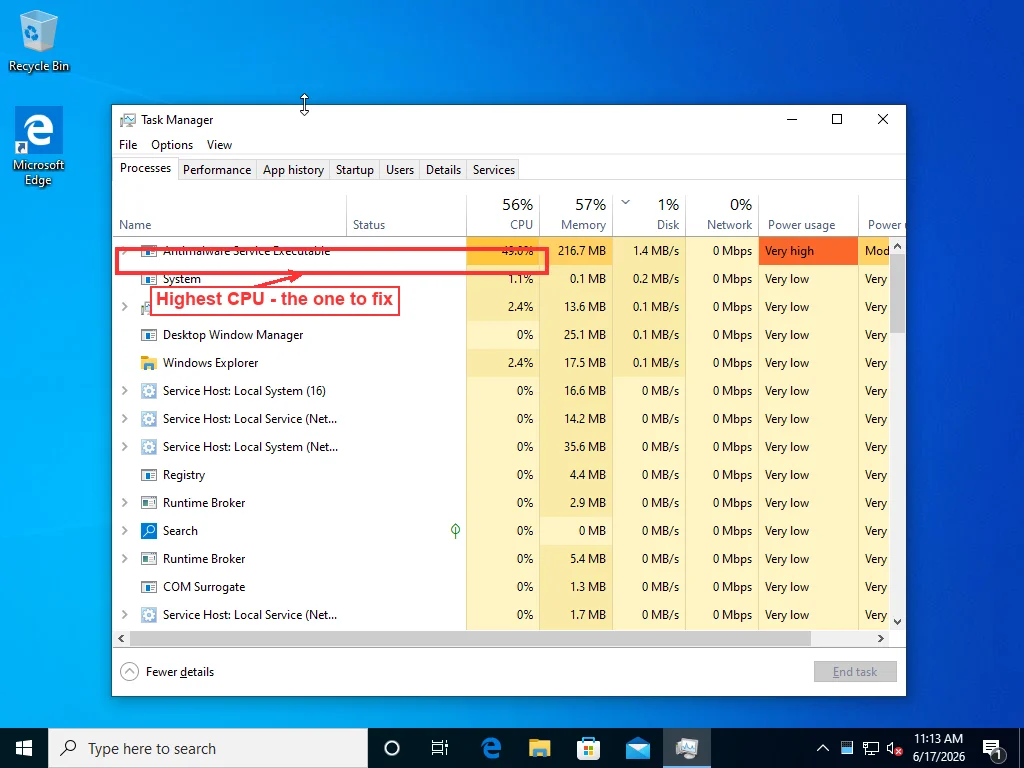
Antimalware Service Executable is Windows Defender’s real-time protection process, MsMpEng.exe. At idle it should sit around 1 to 5 percent. When it climbs and stays there, it’s almost always one of three things: a scan that got stuck, Defender fighting with a second antivirus, or it’s grinding through one enormous folder over and over. Work through them in that order.
The reason I say “in that order” is that people jump straight to the nuclear option — turning real-time protection off — and that’s both the worst fix and rarely the actual problem. A scan is supposed to be temporary. If MsMpEng spikes to 40 percent for ten minutes during a scheduled scan and then drops, nothing is wrong. What you’re hunting is the version that won’t come back down.
Is this actually a problem?
Check the clock before you change anything. Did you just install updates? Is it the time your scheduled scan runs? Then a burst of CPU is the process doing its job, and it’ll pass. AV-Comparatives runs a performance test every year, and Defender’s real-time protection barely moves the needle on everyday stuff — copying files, opening apps, browsing. The protection isn’t what makes a healthy machine feel slow. So the version you care about is narrow: pinned at 50 percent while you’re just reading email, or still grinding fifteen minutes after a scan should have wrapped up. That one’s real.
One detail that trips people up: the number you see is shared. On a quad-core laptop, MsMpEng showing 25 percent total can mean it’s saturating one core completely while the others idle. Sort Task Manager by the CPU column and watch it for a minute with the update speed set to Low, so a one-second blip doesn’t send you chasing the wrong thing.
Find what it’s choking on
Before you start changing settings, find out what Defender is actually working on, because the fix depends on the answer.
Open Windows Security, go to Virus & threat protection, and look at Protection history. What you want is a scan that started and never reported finishing. The folder it’s stuck on lives deeper, in Event Viewer: Applications and Services Logs, then Microsoft, Windows, Windows Defender, Operational. Scroll the last few hours. A scan-started event with no scan-completed to match it is your answer.
Most of the time the culprit is one giant directory full of files that change constantly. A Downloads folder with half-finished torrents. A folder of virtual machine disk images. A Steam library. A developer’s node_modules tree with a hundred thousand tiny files. Defender re-scans those every time something inside them changes, and if something is changing them constantly, it never stops.
There’s a second pattern worth knowing. If the high usage shows up at the same time every day rather than continuously, it isn’t stuck at all — it’s the scheduled scan landing while you’re using the machine. That one has a completely different fix from a scan that’s genuinely jammed.
Fix it by the actual cause
I’ll go through these in the order I reach for them, which isn’t the order most guides use because most guides lead with the dangerous one.
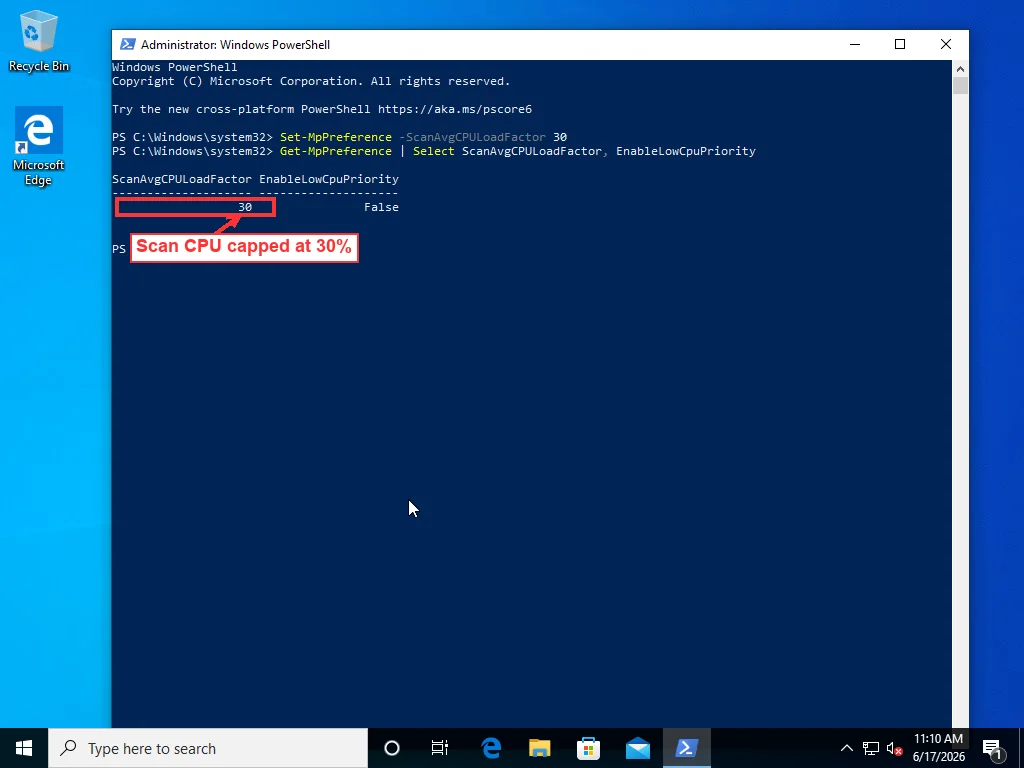
Cap how much CPU a scan is allowed to take. This is the setting almost nobody mentions and it’s the cleanest fix when scans are the problem. Open PowerShell as administrator and run Set-MpPreference -ScanAvgCPULoadFactor 30. That tells Defender to hold its scans to an average of 30 percent CPU instead of the default 50 — the value accepts anything from 5 to 100, per Microsoft’s own documentation. While you’re there, Set-MpPreference -EnableLowCpuPriority $true pushes scheduled scans to low priority so they yield to whatever you’re doing. Run Get-MpPreference | Select ScanAvgCPULoadFactor, EnableLowCpuPriority afterward to confirm it took. This doesn’t weaken protection at all; it just stops scans from eating the machine.
Move the scheduled scan to a time nobody’s using the computer. If your high CPU is the daily-at-the-same-time variety, this is the one. Open Task Scheduler, expand Task Scheduler Library, Microsoft, Windows, Windows Defender, and open Windows Defender Scheduled Scan. On the Conditions tab you can tell it to start only when the computer is idle, and on Triggers you can move it to the middle of the night. The default schedule has a habit of firing the moment your machine wakes up, which is exactly when you want to use it.
Exclude the folders that get rewritten constantly — not Defender itself. Cloud sync folders are the worst offenders here, because OneDrive, Google Drive, and Dropbox are downloading and rewriting files all day, and every write triggers a re-scan. In Windows Security, Virus & threat protection, Manage settings, Exclusions, add the specific sync folder or build-output directory that’s causing churn. Be precise about this. Excluding your whole C drive defeats the point of having Defender, and excluding MsMpEng.exe from itself — which several guides suggest — does nothing useful, because the exclusion list is for what gets scanned, not for the scanner.
Make sure you’re not running two antivirus engines. Two real-time scanners end up scanning each other, in a loop, and the whole machine pays for it. Happens more than you’d think. The reason is that old antivirus software almost never uninstalls cleanly — Norton, McAfee, Avast, they all leave pieces behind that keep loading at boot. Removing them through Add/Remove Programs isn’t enough. Each vendor has its own dedicated removal tool; grab that one, run it, reboot.
There’s a version of the loop Defender creates on its own. It scans its own quarantine and cache. It scans the Downloads folder — the same folder it keeps dropping new definition updates into. Round and round, and from the outside it looks like a runaway process. Clearing out a bloated Downloads folder can make the problem vanish without touching a single setting.
When it’s the memory, not the CPU
A lot of people land here because MsMpEng is eating RAM rather than CPU, and the two have different thresholds for “normal.” A couple hundred megabytes is fine — that’s the engine and its loaded definitions sitting in memory so it can check files quickly. It’s only worth a second look when it balloons into the gigabytes and stays there.
High memory almost always means Defender is reading something large and holding it while it works. Hit a folder of multi-gigabyte archives or VM disk images and it pulls chunks of them into RAM; the number tracks the size of whatever it’s chewing on. So the fix is the same as for CPU — the exclusions stop it from loading those files over and over. Idle-time scheduling helps as well. The memory drops the second the scan finishes.
What I wouldn’t do is chase a memory number that isn’t actually hurting anything. If MsMpEng is using a gigabyte during a scan and your machine has 16 and feels fine, leave it — that’s the process using available memory because it’s there, which is what memory is for. The case that matters is RAM that climbs and never releases even when nothing is scanning, on a machine that’s now swapping and stuttering. That’s a different diagnostic, and it’s rarely Defender’s fault on its own.
Why “just turn off Defender” isn’t the answer
Disabling real-time protection will absolutely make the number drop. It also leaves the machine with nothing watching it, and on current Windows it’ll switch itself back on after a reboot anyway unless you go further than you should. The right shape of the fix is throttle the scan, reschedule it, and exclude the noisy folders — you keep the protection and lose the slowdown. If you genuinely need it off for a specific task, there’s a correct order of operations involving Tamper Protection rather than just toggling the switch.
If MsMpEng is still pinned after all of that, with no scan running and no second antivirus installed, treat it as a symptom rather than the disease. A process wearing Defender’s name but living in a temp folder instead of System32 is malware in disguise, and the real one being stuck this hard can point to corrupted definitions or a disk that’s failing underneath it. Past the settings above, you’re into Event Viewer logs and process-level tracing — the kind of work that takes a couple of hours to comb through by hand, and where having someone check it remotely usually settles it faster than another afternoon of trial and error.
Frequently Asked Questions
Is it normal for Antimalware Service Executable to use this much CPU?
At idle, MsMpEng.exe should sit at 1–5% CPU. A short burst during a scheduled scan or right after an update is normal and passes on its own. What isn't normal is sustained high usage during light tasks, or a scan that's still running fifteen minutes after it should have finished. Independent testing from AV-Comparatives shows Defender's real-time protection barely affects everyday tasks, so a healthy machine shouldn't feel slow because of it — sustained high CPU means something is stuck, not that the process is working hard.
Can I safely disable Antimalware Service Executable permanently?
You can turn off real-time protection, but it's the wrong fix and it leaves your PC unprotected. On current Windows, Tamper Protection also turns it back on after a reboot unless you disable that first, which you shouldn't do casually. The safe approach is to throttle the scan's CPU with Set-MpPreference -ScanAvgCPULoadFactor, reschedule scans for idle time, and exclude the folders that trigger constant re-scanning. That keeps the protection and removes the slowdown.
Why is Antimalware Service Executable using so much memory (RAM)?
A couple hundred megabytes is normal — that's the engine and its definitions loaded so it can check files quickly. It only matters when it climbs into the gigabytes and stays there, which usually means Defender is scanning something large (multi-gigabyte archives, VM disk images) and holding it in memory. The same folder exclusions that fix high CPU fix this, because they stop Defender from repeatedly loading those huge files. Memory that never releases even with no scan running is a separate issue and rarely Defender's fault.
Why is it using high CPU when I'm not running a scan?
Real-time protection scans every file as it's accessed, so a folder that changes constantly — a cloud sync folder, a build-output directory, an active Downloads folder — keeps it working even with no manual scan. A scheduled scan firing while you use the PC looks the same. Check Protection history in Windows Security, and the Windows Defender Operational log in Event Viewer, to see what it's actually scanning.
Does adding it to the exclusion list fix the high CPU?
Adding MsMpEng.exe to its own exclusion list does nothing — the exclusion list controls what gets scanned, not the scanner itself. What works is excluding the specific data folders that get rewritten constantly (cloud sync folders, build outputs, large game libraries), so Defender stops re-scanning them on every change. Be precise: excluding your whole drive would defeat the point of having Defender at all.