Clean Boot Windows 11: How to Do It and Find the Culprit
Short answer: To clean boot Windows 11, open msconfig, go to Services, tick Hide all Microsoft services, click Disable all and Apply. Then open Task Manager's Startup apps page and disable every enabled app, and restart. If the problem disappears, re-enable services in halves to find the culprit. To undo, choose Normal startup in msconfig, which restores the services, then re-enable your startup apps in Task Manager by hand.
A clean boot in Windows 11 takes three moves: switch off every non-Microsoft service in System Configuration (msconfig), disable your startup apps in Task Manager, and restart. Windows then loads with only its own services, which answers one question fast: is something you installed causing the problem, or is it Windows itself?
Answer that before you reinstall drivers, reset the PC, or start uninstalling programs at random. If a crash, freeze, or failed update disappears in a clean boot, a third-party service or startup app is almost always behind it, and the rest of this guide shows how to find which one.
Before you start
You need an administrator account; msconfig won’t save changes otherwise. The steps and screenshots below are from Windows 11 24H2, which is what most people now run: Statcounter put Windows 11 on 71.44% of Windows desktops in September 2026. On Windows 10 the msconfig part is identical, and the Task Manager tab is simply called Startup.
Some things will go quiet until you undo the clean boot. Third-party antivirus, graphics card control panels from NVIDIA or AMD, touchpad gesture utilities, audio enhancement apps, VPN clients, and sync tools like Dropbox all run as services or startup apps. Microsoft Defender keeps running because it’s a Microsoft service. Nothing gets uninstalled, and every change here can be reversed.
Clean boot vs Safe Mode: which one should you use?
Use a clean boot when Windows starts fine but something goes wrong while you use it; use Safe Mode when Windows won’t load at all. Safe Mode starts Windows with a minimal set of drivers and files. A clean boot keeps your normal drivers and every Microsoft service and strips out only the third-party layer, so the PC behaves almost exactly as it does day to day.
| Clean boot | Safe Mode | |
|---|---|---|
| What still loads | All Microsoft services and your normal drivers | A minimal set of Windows drivers and files |
| What’s switched off | Third-party services and startup apps | Almost everything else, including your graphics driver |
| Internet | Works, unless your connection depends on a third-party VPN or network app | Off, unless you pick Safe Mode with Networking |
| Best for | Crashes, freezes, failed updates or installs during normal use | A PC that won’t reach the desktop |
| How you get back | Normal startup in msconfig, then re-enable startup apps by hand | Restart (unless you forced it with msconfig’s Safe boot box) |
Step 1: Turn off non-Microsoft services
Press Windows + R, type msconfig, and press Enter. The System Configuration window opens on the General tab.
Go to the Services tab. Before you click anything else, tick Hide all Microsoft services at the bottom left. The list shrinks to services that came with your other software. On a Windows 11 24H2 test machine with only Chrome and Firefox installed, that left five: three Google Updater entries, the Google Chrome Elevation Service, and the Mozilla Maintenance Service. A PC with a printer suite, a game launcher, and an antivirus will show far more.
Now click Disable all, then Apply.
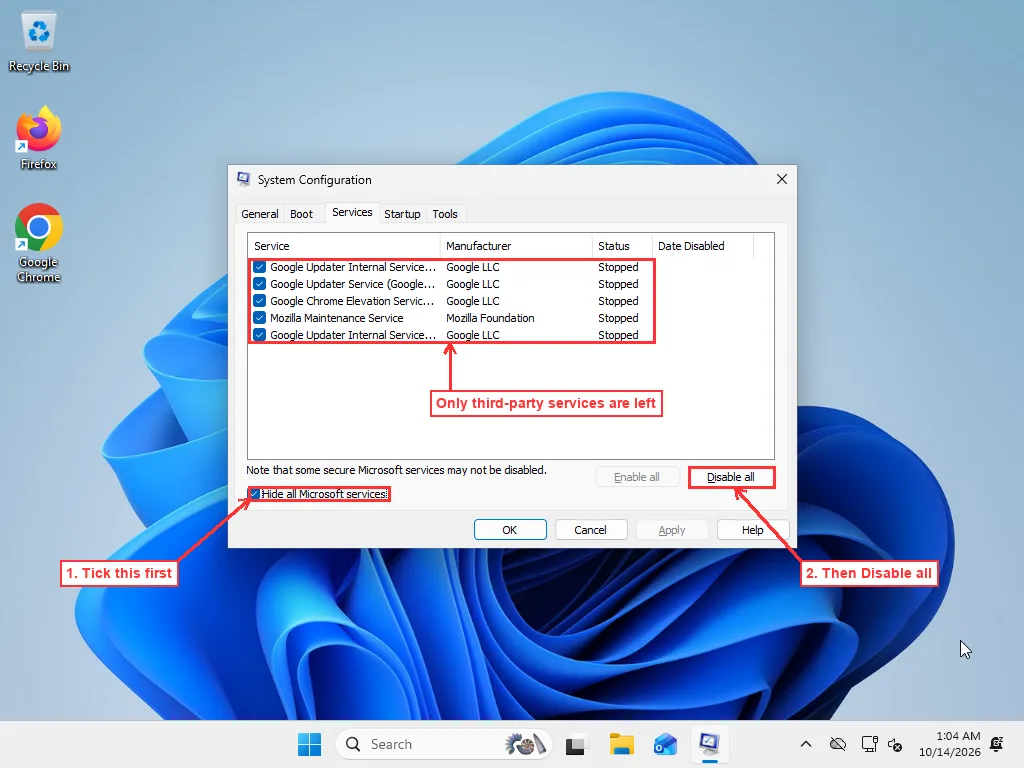
The order matters. Click Disable all with the Microsoft services still showing and you switch off Windows’ own services too, and the next boot can come up with basic features missing. If that has already happened, the fix is in the troubleshooting notes near the end.
After Apply, the Date Disabled column fills in with today’s date for every service you turned off. That column is your record of what to switch back on later, so there’s no need to copy the list by hand.
Leave the window open.
Step 2: Disable startup apps
Startup apps live in Task Manager, not msconfig, so they need their own pass. Click the Startup tab in System Configuration, then Open Task Manager. Pressing Ctrl + Shift + Esc and picking Startup apps from the left-hand menu gets you to the same page.
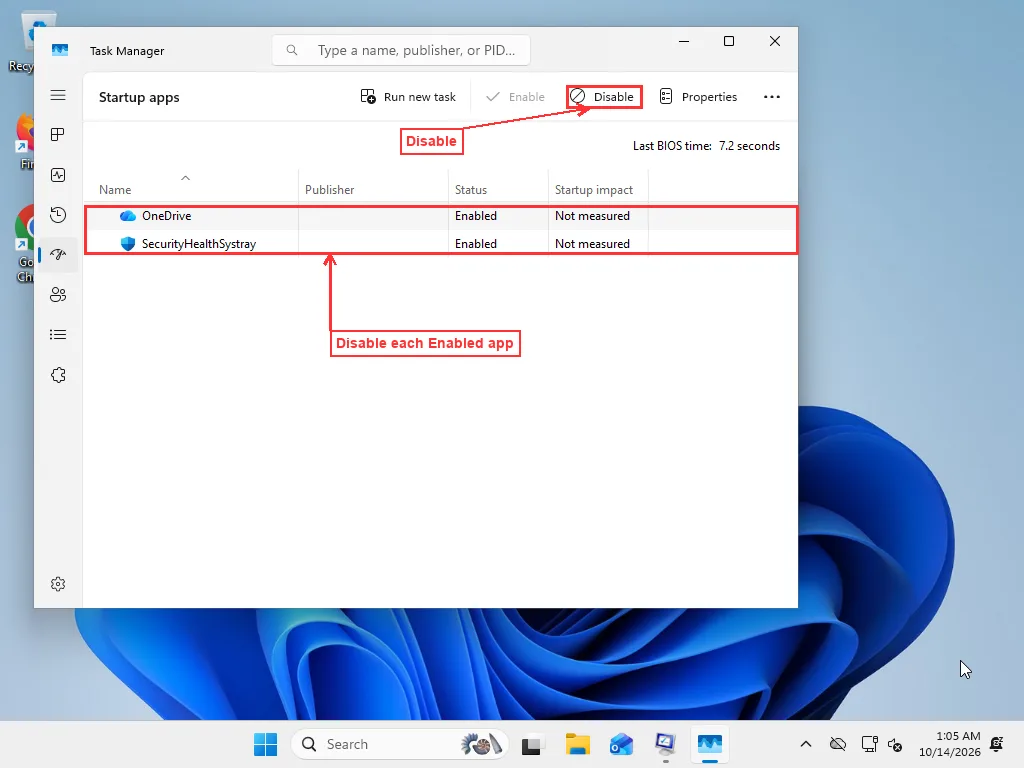
Select each app whose Status says Enabled and click Disable. Unlike the Services tab, Task Manager keeps no record of what you switched off, so write the names down or take a photo of the screen. Even a brand-new install has a couple here; the test machine had OneDrive and SecurityHealthSystray, the Windows Security tray icon.
Don’t read too much into the Startup impact column. Microsoft rates an app High when it uses more than one second of CPU time or more than 3 MB of disk activity during startup, so the rating tells you what slows boot down, not what crashes the machine. On a freshly set up PC it may just say Not measured. A small helper rated Low can still be the one causing trouble.
Settings > Apps > Startup shows the same list with on/off switches, if you’d rather work there.
Step 3: Restart and test
Close Task Manager, go back to System Configuration, and click OK. Windows offers Restart or Exit without restart. Choose Restart.
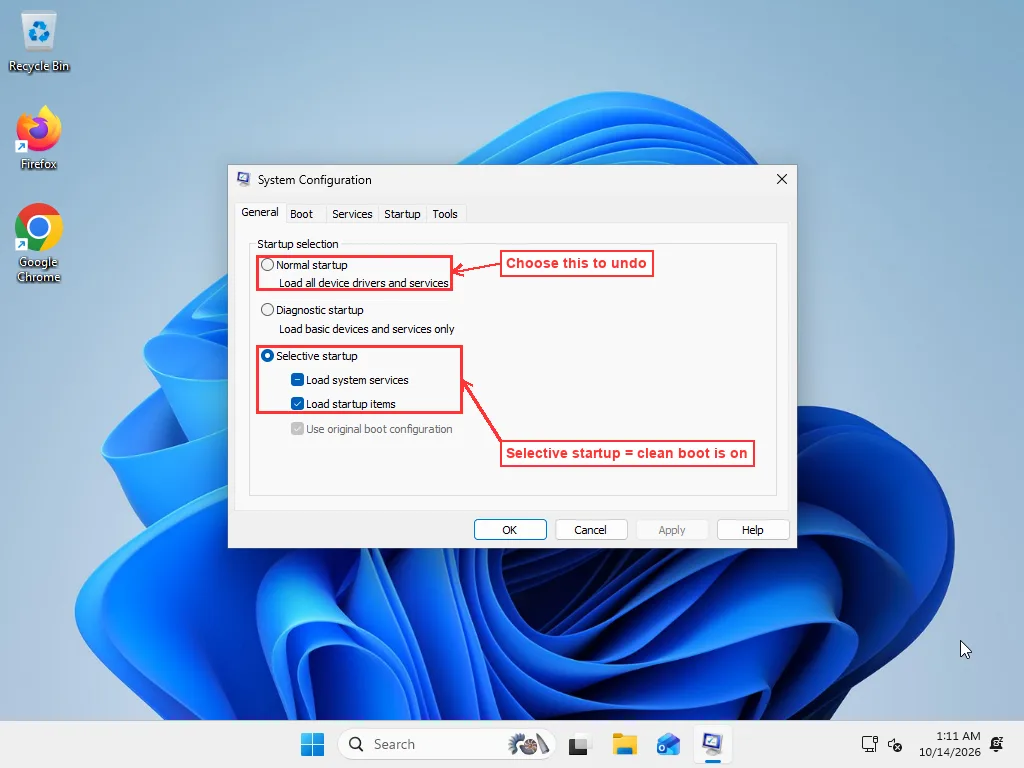
The first sign it worked shows up in the notification area: the OneDrive cloud and the Windows Security shield are gone. Open msconfig again and the General tab now reads Selective startup, with Load system services showing a filled square instead of a tick, which is msconfig’s way of saying some services are off.
Now do whatever used to trigger the problem. Open the program that crashed, run the update that failed, leave the PC idle as long as it usually takes to freeze. A problem that normally appears once a day needs a full day in clean boot before the result means anything.
Reading the result
The problem is gone
Then one of the services or startup apps you disabled is the cause. Microsoft’s own clean boot instructions say to bring them back in halves until the problem returns. It works well, though it’s rarely explained in plain terms.
Start with services, since they’re more often the culprit:
- In msconfig’s Services tab, tick Hide all Microsoft services again.
- Tick the top half of the list, click OK, and restart.
- If the problem comes back, the cause is in that half. Untick half of it again and repeat.
- If it stays away, the cause is in the other half. Tick the next half and repeat.
Each round halves the suspects, so twenty services take about five restarts to narrow down to one, and forty take about six, against twenty or forty restarts doing them one at a time.
If every service is back on and the problem still hasn’t returned, work through your startup apps the same way in Task Manager.
Found it? Update that program, reinstall it, or remove it through Settings > Apps. Search the name of anything you don’t recognise before removing it, because some of these services belong to your hardware: a touchpad helper or audio service may need an update rather than an uninstall.
The problem is still there
Then third-party software is very unlikely to be the cause, and one restart has ruled out a large share of the possibilities. Undo the clean boot (next section) and look at Windows and the hardware instead:
- Run SFC and DISM to repair damaged system files.
- Update or roll back drivers, especially graphics, storage, and network drivers. Drivers stay loaded in a clean boot, so a bad one slips straight past this test.
- If the PC freezes or restarts without warning, check temperatures and memory; our guide to random freezes covers the order to test them in.
Does Normal startup undo a clean boot?
Only half of it. Normal startup brings back the services, but not the startup apps, so undoing a clean boot takes two steps.
- Open msconfig, choose Normal startup on the General tab, and click Apply. Tested on Windows 11 24H2, it ticked every service that msconfig had disabled and cleared the Date Disabled column, so the services side is handled for you.
- Open Task Manager’s Startup apps page and enable the apps on your list. Normal startup doesn’t touch these: on the test PC, OneDrive and SecurityHealthSystray were still Disabled after switching back, with Startup impact now showing None.
Then restart.
Leave the Enable all button alone. It switches on every service in the list, including any that were disabled before you started, whether by you or by a program’s own settings. Normal startup puts back only what msconfig itself turned off.
Troubleshooting notes
If installing or removing software in a clean boot throws “The Windows Installer service could not be accessed,” the usual reason is that Load system services got cleared on the General tab. Microsoft’s fix is to open Computer Management, go to Services and Applications > Services, right-click Windows Installer, and choose Start. Switching back to Normal startup also clears it.
msconfig showing Selective startup forever just means at least one service or startup item is still off. That’s harmless if you disabled something on purpose.
Clicked Disable all without hiding Microsoft services first? If Windows still reaches the desktop, open msconfig, choose Normal startup, click OK, and restart. If it doesn’t, make the same change from Safe Mode.
Startup still slow even in a clean boot points away from third-party apps altogether, toward the drive and firmware causes covered in our Windows 11 slow startup guide.
When the half-split doesn’t settle it
Some problems don’t cooperate. They show up twice a week, or only when two programs run at once, or they vanish in a clean boot and never come back in any combination you test. At that point the useful evidence sits in Event Viewer’s application and system logs and in crash dump files, matched against driver versions and timestamps, and reading those well takes time and practice.
Frequently Asked Questions
Is a clean boot the same as Safe Mode?
No. Safe Mode starts Windows with a minimal set of drivers and files, which is useful when Windows won't load normally. A clean boot keeps your normal drivers and every Microsoft service running and only turns off third-party services and startup apps, so it's the better test for problems that happen during everyday use.
Will a clean boot delete my files or programs?
No. It only stops third-party services and startup apps from loading. Your files and installed programs stay exactly where they are, and everything can be switched back on from msconfig and Task Manager.
Does choosing Normal startup undo everything?
Not quite. Normal startup in msconfig turns back on the services that msconfig disabled, but startup apps you disabled in Task Manager stay disabled. Re-enable those yourself on the Startup apps page.
Why does msconfig keep showing Selective startup?
Because at least one service or startup item is still turned off. If you disabled something deliberately and don't need it, this is harmless. Choose Normal startup if you want every service msconfig disabled to come back.
Can I use a clean boot to install a Windows update that keeps failing?
Yes. Third-party antivirus and system utilities sometimes block updates, so installing in a clean boot is a common way to get a stuck update through. Undo the clean boot once the update is done.