Why Is My Computer So Slow All of a Sudden?
Short answer: Open Task Manager with Ctrl+Shift+Esc and sort by the Disk column. A sudden slowdown is usually disk-related — either a background indexer hammering I/O after a Windows update (temporary, resolves on its own) or a storage drive with failing SMART values (permanent, requires replacement). If Disk looks normal, check CPU clock speed on the Performance tab for thermal throttling, and run CrystalDiskInfo to read drive health data.
Ctrl+Shift+Esc. Sort by the Disk column. Not CPU — Disk. That column tells you more about sudden slowdowns than anything else in Task Manager, and almost nobody looks at it first.
Unfamiliar process eating 70%+ CPU? That’s probably malware — our virus checking guide covers it. But most of the time CPU looks fine and the problem is somewhere in the Disk column or deeper in the hardware.
Likely malware
Fake process name (svch0st.exe)
Cryptominer eating cycles
→ Run a malware scan
Background indexing
SearchIndexer after an update
SysMain preloading RAM
→ Leave it overnight
Dig deeper
SMART data (failing drive)
CPU clock (thermal throttle)
Recent update / bad driver
→ Check hardware
Disk at 100%
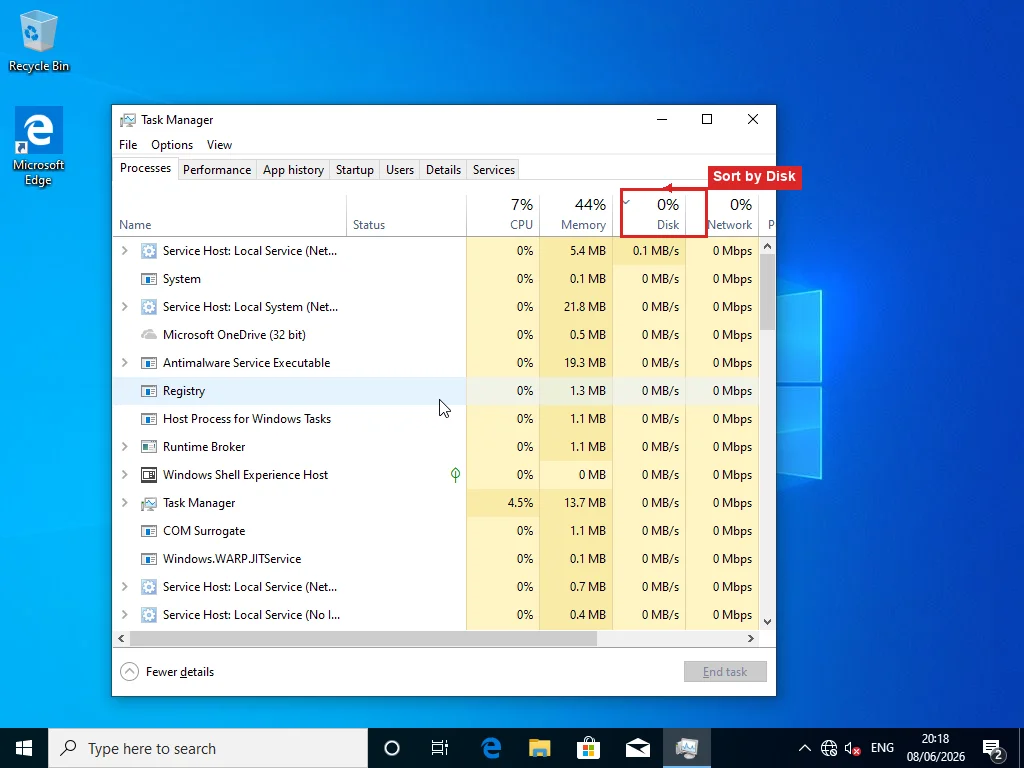
SearchIndexer.exe sitting at the top of the Disk column after a Windows update. That’s usually what this is. Windows Search rebuilds its entire index after feature updates — massive sequential reads and writes across every file on the drive. On a mechanical hard drive that’s enough to pin the disk at 100% for hours. SysMain (Microsoft renamed it from Superfetch, which was a better name honestly) runs at the same time, preloading apps into memory, making it worse.
Leave the machine running overnight and it goes away. People love to suggest disabling Windows Search entirely and yeah, that stops the spike, but then you can’t search anything from the Start menu or File Explorer ever again. And the indexer just restarts after the next update. Bad tradeoff.
Now — if the disk stays at 100% for days, that’s not the indexer anymore. Our 100% disk usage guide gets into the specific services and registry keys for that.
Check the Drive First
This should really be the first thing anyone checks, but it never is. Everyone jumps to software cleanup, browser extensions, malware scans — and if the drive is failing, none of that matters at all. You just wasted two hours.
Windows doesn’t warn you about drive degradation. At all. The drive firmware handles failed-sector retries internally — a sector that used to read in microseconds now takes hundreds of retries, each one adding milliseconds, and Windows just sits there waiting. Task Manager shows 40% disk usage and you think that’s fine, but the drive is maxed out. That 40% is all it can do. The reason the slowdown feels “sudden” is it’s actually been building for weeks or months; you only notice once enough sectors go bad that opening a Word document takes 30 seconds instead of 2.
Get CrystalDiskInfo. Free, takes 30 seconds to install, reads SMART diagnostics from the drive firmware.
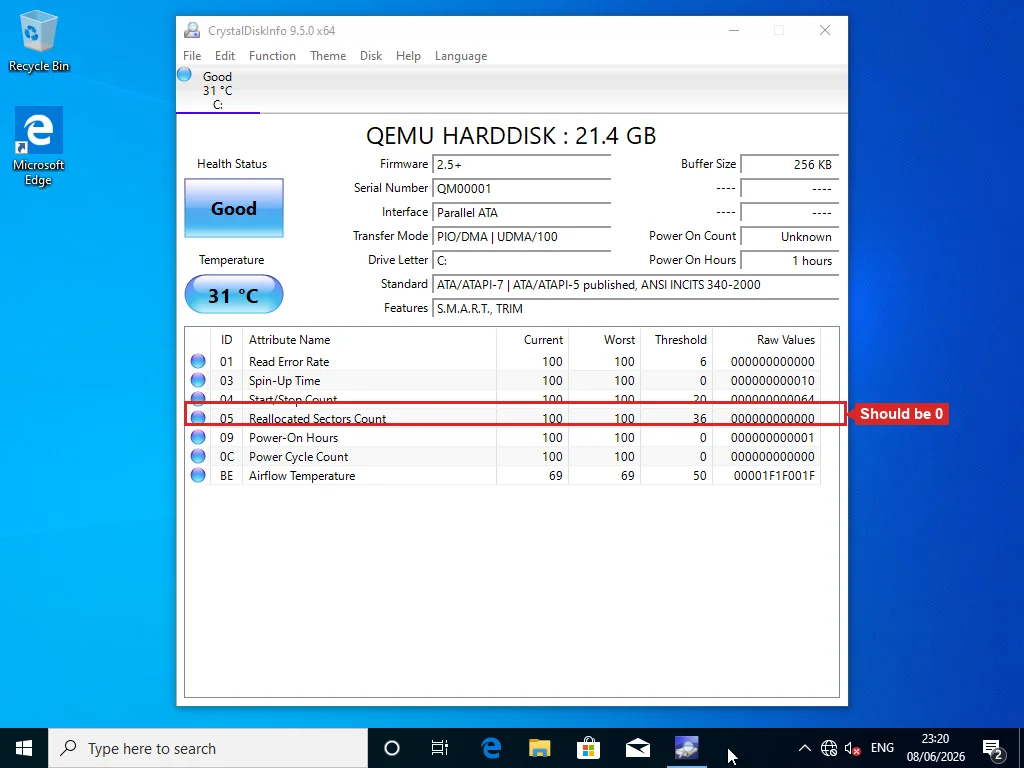
Hard drives: look at Reallocated Sector Count. Zero is good. Anything else means the drive is already relocating data around bad spots. Over 500 — stop whatever you’re doing and back up right now. Not tonight, not this weekend. Right now. Backblaze tracked about 344,000 hard drives in its data centers in 2025 and saw a 1.36% annualized failure rate under near-ideal conditions — server racks, climate control, no vibration. A four-year-old laptop drive that rides around in a backpack and sits on couch cushions blocking the vents? Those odds look a lot worse.
SSDs: different failure mode entirely. They don’t get bad sectors the same way — they wear out their flash cells. As an SSD nears end-of-life, the controller goes into aggressive garbage collection that absolutely tanks performance. Five-year-old Samsung 850 EVOs are hitting this wall right now in 2026 — they were wildly popular drives and they’re all reaching the same age at the same time. Check Percentage Used in CrystalDiskInfo. Past 90%, expect problems.
Yellow “Caution” or red “Bad” in CrystalDiskInfo = stop troubleshooting software. The drive is dying. Our drive health guide breaks down each SMART attribute if you want to understand the numbers, and the clone guide covers migrating everything to a new SSD without reinstalling Windows. A 256GB SSD is $30-40 and makes even a five-year-old machine feel fast again — it’s probably the single best upgrade you can do for the money.
Updates Breaking Things
Settings → Windows Update → Update history. Check the install dates. Match them against when the slowdown started. Takes 30 seconds.
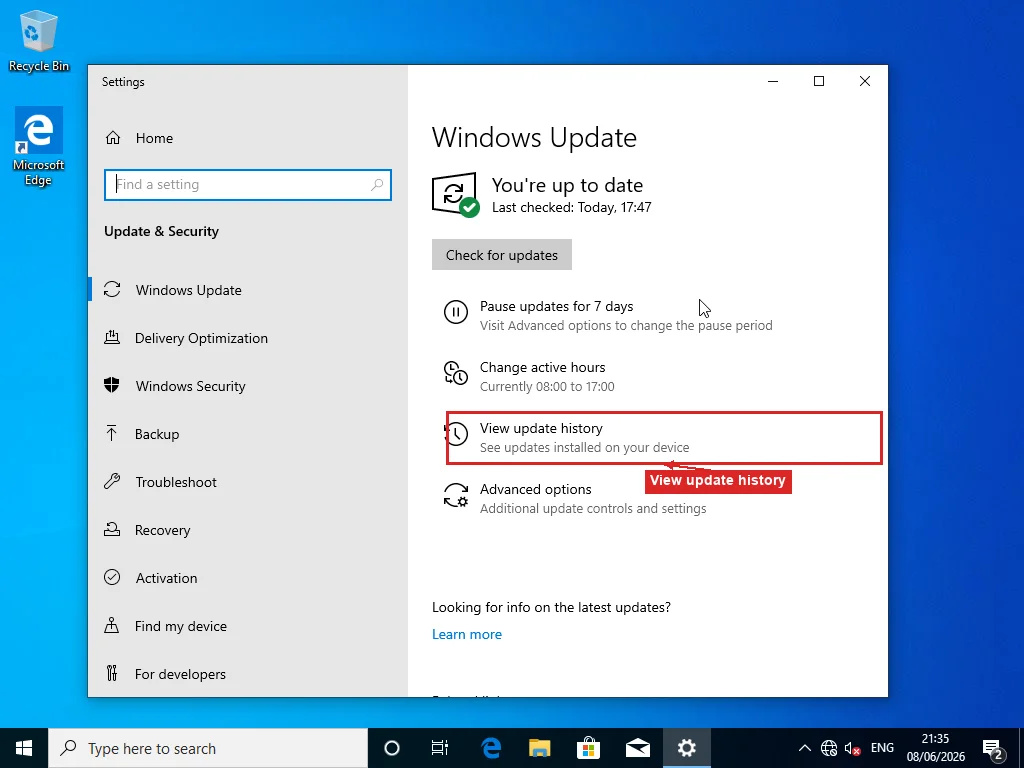
Quality updates — the KB-numbered ones — occasionally ship broken drivers. GPU drivers from Nvidia and AMD update on their own schedule, separate from Windows Update, and a bad GPU driver is especially nasty because Windows renders the entire desktop through the GPU. Everything stutters. Not just games — dragging windows, scrolling, the Start menu, all of it.
GPU driver rollback: Device Manager → Display adapters → right-click → Properties → Driver → Roll Back Driver. Bad Windows update: Update history → Uninstall updates → remove the suspect KB → restart → pause updates for a week.
Heat
Mostly laptops. The giveaway: works fine for 15-20 minutes, then slows down, then recovers after sitting idle for a while. Worse in summer, worse on blankets and pillows.
CPUs throttle themselves when they overheat — a 4.5GHz chip drops to 800MHz at 100°C and Windows never tells you. Task Manager → Performance tab shows current clock speed right there next to the base speed. That’s your diagnostic.
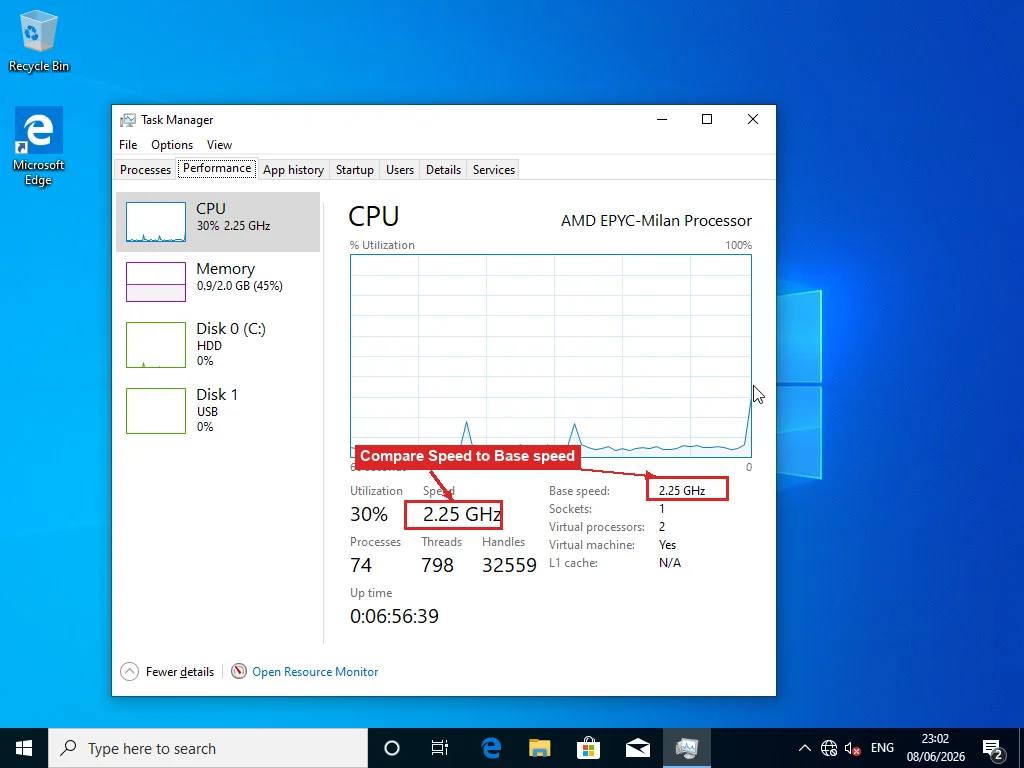
A 3.5GHz chip running at 700MHz with hot air coming out the side is thermal throttling, full stop.
Blow compressed air into the vents. That fixes it most of the time. Older laptops — four, five years — might need thermal paste replaced, which is a $5 tube of paste and 45 minutes of careful disassembly. Not hard, but you need to be comfortable with tiny screws and ribbon cables.
Everything Else
At this point you’ve covered the common causes. Disk usage, drive health, updates, heat. Most of the time the answer is in one of those four.
Malware is still on the table. Most infections show up as high CPU, but cryptominers deliberately stay low to avoid detection, and ransomware encrypting files in the background just makes the machine feel vaguely slow. The numbers are ugly — Kaspersky’s 2024 bulletin counted 467,000 new malicious files per day, 93% targeting Windows. Run a full scan with Malwarebytes or Windows Defender. Takes 20 minutes and rules it out.
Bad RAM causes the weirdest symptoms — slowdowns that come and go, crashes in different apps every time, freezes that don’t correlate with anything. Windows Memory Diagnostic runs at boot and tests each stick.
sfc /scannow from an admin Command Prompt checks for corrupted system files. Power outage last week? Yanked the power cord? This is worth running.
And then there’s just age. 8GB of RAM was comfortable in 2021. Chrome with 20 tabs eats 4-5GB by itself now, and once you’re past 85% memory usage Windows swaps constantly and everything crawls. That’s not a problem you troubleshoot — that’s a machine that needs more RAM or fewer tabs.
Past all of that, you’re into Event Viewer territory — sorting through hundreds of warning and error entries looking for patterns, checking for flaky USB device drivers polling in the background, third-party antivirus services fighting with Windows Defender, corrupted user profiles making Explorer drag. The kind of stuff that takes a while to find but is almost always the answer when everything else checks out.
Frequently Asked Questions
Why did my computer suddenly get so slow overnight?
The most common overnight cause is a Windows update that installed while you slept. After a feature update, Windows Search rebuilds its entire index and SysMain reloads apps into memory, which hammers the disk for hours — open Task Manager and if the Disk column is at 100% with SearchIndexer.exe at the top, leave the machine on and it usually clears by the next day. If the disk looks normal but the machine is still crawling, check drive health with CrystalDiskInfo — a storage drive can start failing without any obvious errors in Windows.
How do I tell if it's a virus or a failing hard drive?
The symptoms overlap — freezing, slow loads, unresponsive apps — but the diagnostic path is different. A virus or malware process typically shows up in Task Manager as high CPU usage, sometimes under a name that mimics a system process (like svch0st.exe with a zero instead of an O). A failing drive shows nothing unusual in Task Manager but reports degraded SMART values in CrystalDiskInfo, particularly a rising Reallocated Sector Count on HDDs. Running a full scan with Windows Defender or Malwarebytes takes 20 minutes and rules out malware definitively.
Why is my computer slow even though Task Manager shows nothing using resources?
When CPU, disk, and memory all look normal but the machine still crawls, the cause is usually hardware-level or a system-level fault, not a runaway program. Check three things: drive health with CrystalDiskInfo (a failing drive throttles its own I/O even at low reported usage), CPU clock speed on the Performance tab (thermal throttling silently drops a 3.5GHz chip to 0.8GHz when it overheats), and corrupted system files with sfc /scannow from an admin Command Prompt. Bad RAM also causes slowdowns that don't show up as high usage — run Windows Memory Diagnostic to test.
Can a Windows update make my computer slow?
Yes, in two ways. Right after an update, background indexing and app preloading hammer the disk for several hours, which is temporary and resolves on its own. But a bad quality update can also ship a broken driver that causes persistent stuttering. Go to Settings, Windows Update, Update history, Uninstall updates, find the one that matches the date the slowness started, remove it, and pause updates for a week. GPU drivers from Nvidia or AMD auto-update separately and can cause the same problem — roll back in Device Manager under Display adapters if the timing matches.
When should I stop troubleshooting and replace the drive?
When CrystalDiskInfo shows a yellow Caution or red Bad status, stop troubleshooting software — the hardware is failing and no amount of cleanup will fix it. Back up immediately. On a hard drive, a Reallocated Sector Count over 500 means the drive is actively relocating data around damaged areas. On SSDs, check Percentage Used or Wear Leveling Count — past 90%, performance degrades steeply. Cloning to a new SSD is usually a $30-40 part and an afternoon of work.