Fix SYSTEM_THREAD_EXCEPTION_NOT_HANDLED Windows 10/11
Short answer: Read the line under the blue screen's sad face. 'What failed:' names a .sys file, and that filename is the driver that crashed — nvlddmkm.sys is NVIDIA graphics, atikmdag.sys is AMD, the Netwtw files are Intel Wi-Fi. If Windows still reaches the desktop, roll that driver back in Device Manager (Roll Back Driver, on the Driver tab). If it won't boot, get into Safe Mode without signing in — hold Shift and click Restart, or interrupt the boot three times until Automatic Repair opens — and remove the driver there. When no driver is named at all, run DISM then SFC in an elevated Command Prompt.
Read the small print before you reboot. Under the frowning face, past the SYSTEM_THREAD_EXCEPTION_NOT_HANDLED line, Windows usually prints one more: “What failed: nvlddmkm.sys” or some other filename ending in .sys. That filename is the entire diagnosis. It names the driver that threw an exception nobody caught, and almost everything below is just acting on whichever name you saw. If the machine restarts before you can read it, or loops straight back to the blue screen, skip down to the Safe Mode section and come back.
Read the Filename First
The stop code by itself only tells you the category: a kernel-mode driver crashed. The filename tells you the suspect. When Microsoft broke down the crash reports it received through April 2004, 70% traced back to third-party device drivers, and this bug check skews harder toward drivers than most.
When the screen flashes past and reboots on its own, turn off auto-restart so the next crash holds still: press Win+R, run sysdm.cpl, Advanced tab, Startup and Recovery Settings, and untick “Automatically restart.” Now the blue screen waits for you. No driver named at all — a blank “What failed” or no second line — changes the plan, and that case has its own section near the end.
Here’s what the common names point to:
- nvlddmkm.sys — NVIDIA’s display driver, and the name most people land on. That fits NVIDIA holding about three-quarters of the GPUs in the Steam Hardware Survey through 2026.
- atikmdag.sys or atikmpag.sys — AMD/ATI graphics.
- dxgmms2.sys or dxgkrnl.sys — the DirectX graphics layer. These are Windows’ own files, but the exception almost always traces back to the GPU driver underneath them, so treat it as a graphics problem.
- Netwtw04.sys, Netwtw06.sys, Netwtw10.sys — Intel Wi-Fi.
- iaStorA.sys or iaStorAC.sys — Intel’s storage (Rapid Storage) driver.
- Ntfs.sys — the odd one out. This points at the filesystem and the drive under it rather than a vendor driver, and it leans toward the hardware end. If that’s your name, run the drive checks the way you would for a kernel data inpage error rather than chasing a driver update.
Anything unfamiliar, paste the exact filename plus the word “driver” into a search — most .sys names are unique enough to identify the device in one result. Graphics, network, and storage cover the overwhelming majority either way.
If Windows Still Boots
Plenty of people get this crash intermittently — fine for an hour, then a flash and a reboot — and reach the desktop in between. That’s the easy version, because you can work normally.
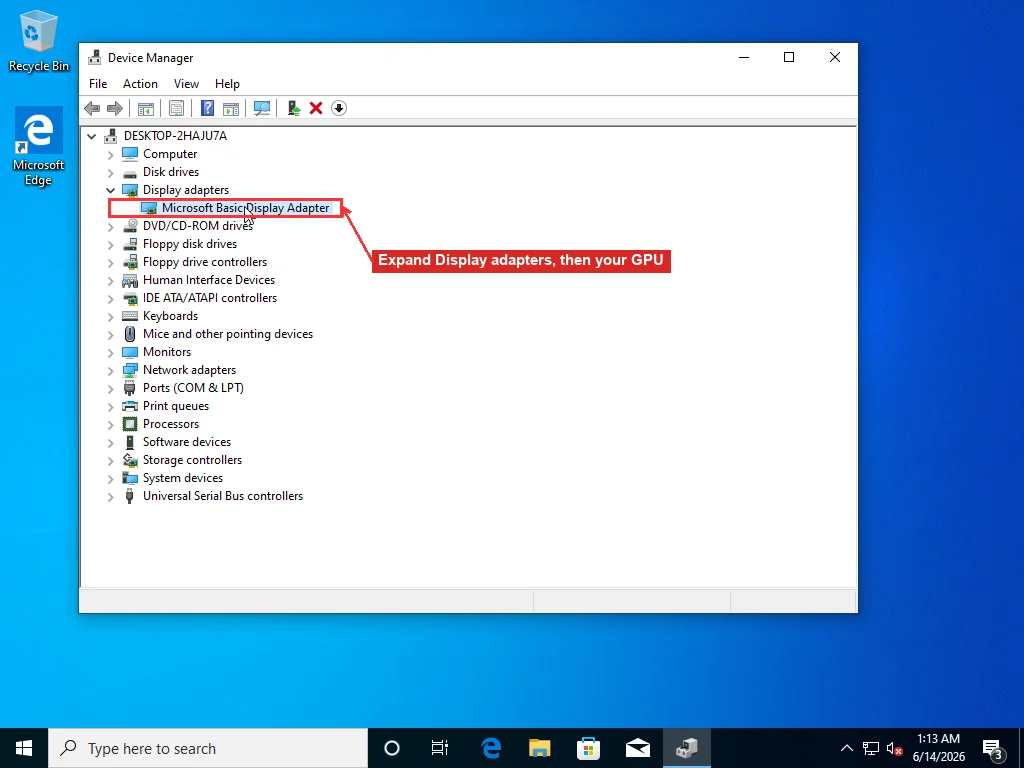
What you do first hinges on timing: did the crashes start right after something changed? A graphics driver update, a Windows Update that quietly swapped a driver overnight, a new piece of hardware. If so, the new driver is the prime suspect, and you want to go backward, not forward. Open Device Manager (right-click Start, Device Manager), expand the category the filename pointed at — Display adapters for nvlddmkm or atikmdag, Network adapters for Netwtw — right-click the device, Properties, Driver tab. Roll Back Driver reinstalls the version you had before the trouble.
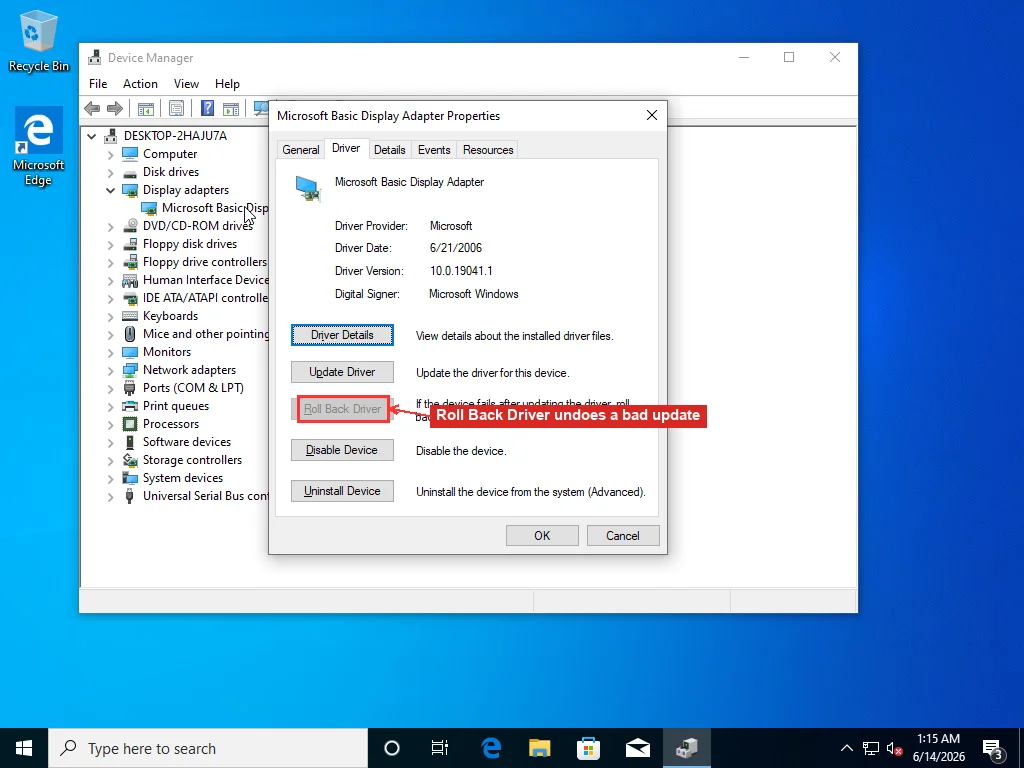
If Roll Back is greyed out, Windows didn’t keep the old package and you can’t step back this way. Then it’s a clean reinstall instead: uninstall the device with “Delete the driver software for this device” ticked, reboot, and let Windows put a basic driver back, or better, install the current version straight from the vendor — NVIDIA, AMD, or Intel — rather than letting Windows Update hand you a generic one. The driver update guide covers doing that cleanly, including pulling the old graphics package out completely first, which matters more for GPUs than anything else.
Windows Update can quietly undo this for you, which catches people out: it often pushes the same broken driver straight back at the next scan, and you’re crashing again within a day. If the crashes started from a Windows Update driver, the roll-back only holds if you stop it being reinstalled — Microsoft’s “Show or hide updates” troubleshooter hides that specific driver update so it stops coming back.
Not sure when the crashes actually began? Reliability Monitor draws it on a timeline. Search “reliability” from Start, open View reliability history, and the red X marks line up against whatever installed the same day — a driver, an update, an app. It’s a faster read than Event Viewer for the single question of “what changed right before this started.”
A graphics filename that only crashes under load — a game, a video export, multiple monitors waking up — is worth a second look as a display driver timeout rather than a pure 0x7E, since the two overlap and the fixes differ at the edges.
When It Won’t Boot: Getting Into Safe Mode
“Boot into Safe Mode and update the driver” is fine advice until you realize you can’t open Settings on a machine that blue-screens before the sign-in screen. The hard part isn’t Safe Mode itself, it’s reaching it.
How you get there depends on how far the machine still boots:
- You can reach the desktop, even briefly. Settings, then System, then Recovery on Windows 11 (it’s Update & Security, then Recovery on Windows 10), and click Restart now under Advanced startup.
- You reach the lock screen but can’t get past it. Hold Shift and click Restart on the power button in the bottom corner. Same destination, no sign-in needed.
- It never gets that far. Let it try to boot and cut the power with the button the moment you see the spinner. Do that two or three times and Windows gives up on a clean boot and opens Automatic Repair on its own — from there, Advanced options.
All three land in the same blue recovery menu. Walk it through Troubleshoot, Advanced options, Startup Settings, Restart, and when the numbered list appears press 4 for Safe Mode or 5 for Safe Mode with Networking if you’ll need to download a driver. The full Safe Mode walkthrough has the same path with each screen pictured if you get lost in the menus.
Once you’re in — everything’s low-res and ugly, that’s correct — do the Device Manager roll-back or uninstall from the section above. Safe Mode loads only generic drivers, so the crashing one stays out of the way while you pull it.
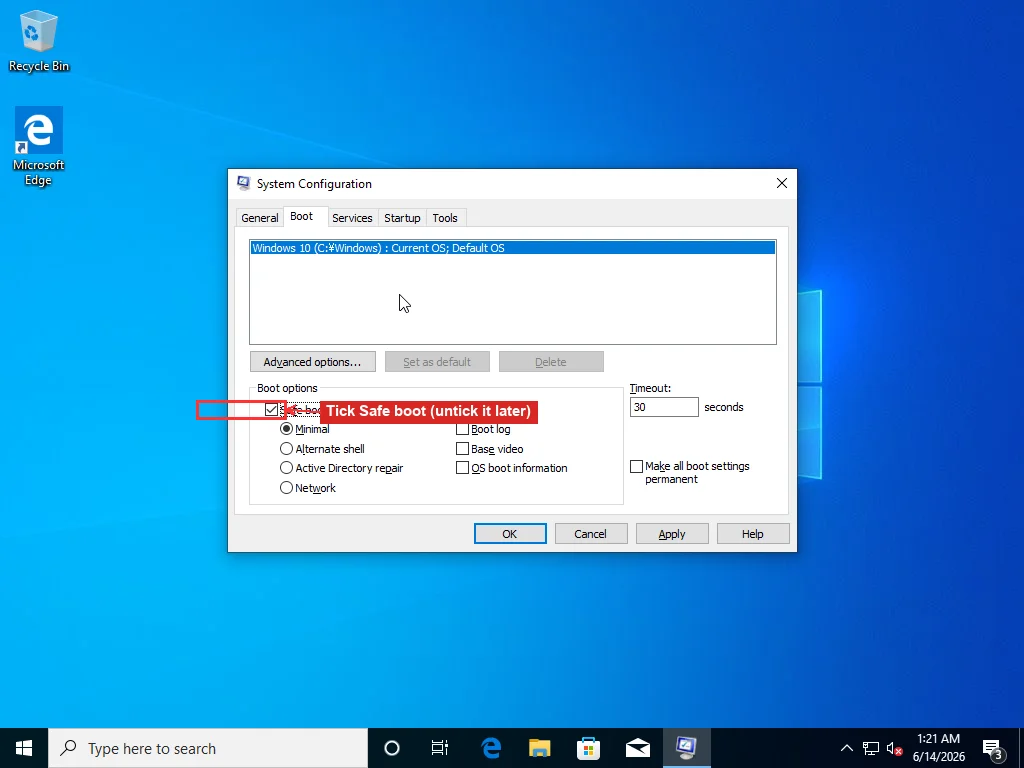
If you’d rather force Safe Mode from inside a working Windows so the next restart goes there, run msconfig, Boot tab, tick Safe boot, leave it on Minimal, and reboot. Just remember to come back and untick it afterward, or you’ll be stuck booting to Safe Mode forever — a genuinely common follow-up call.
The Emergency Rename
Sometimes one driver file is so clearly the whole problem that the fastest path to a booting machine is to take that file out of the picture by hand. This is a blunt instrument, so the caveat comes first: only do it for a clearly named third-party driver — a graphics or peripheral .sys — and never for core Windows files like Ntfs.sys.
From the recovery menu, choose Command Prompt instead of Startup Settings. The Windows drive often isn’t C: in here, so check first; bcdedit | find "osdevice" shows the right letter. Then go to its drivers folder and rename the offender:
cd /d C:\Windows\System32\drivers
ren nvlddmkm.sys nvlddmkm.old
Reboot. With its file renamed, the bad driver can’t load, Windows falls back to a basic built-in display driver, and the machine boots — ugly, low resolution, but stable enough to then install a proper driver the normal way. It’s a stopgap to get you to a desktop, not the fix itself.
When Nothing’s Named, or It Keeps Coming Back
A blank “What failed” line, or a 0x7E that keeps returning after you’ve handled the named driver, moves the suspicion to the system files those drivers lean on. Corrupt system files throw the same exception a bad driver does.
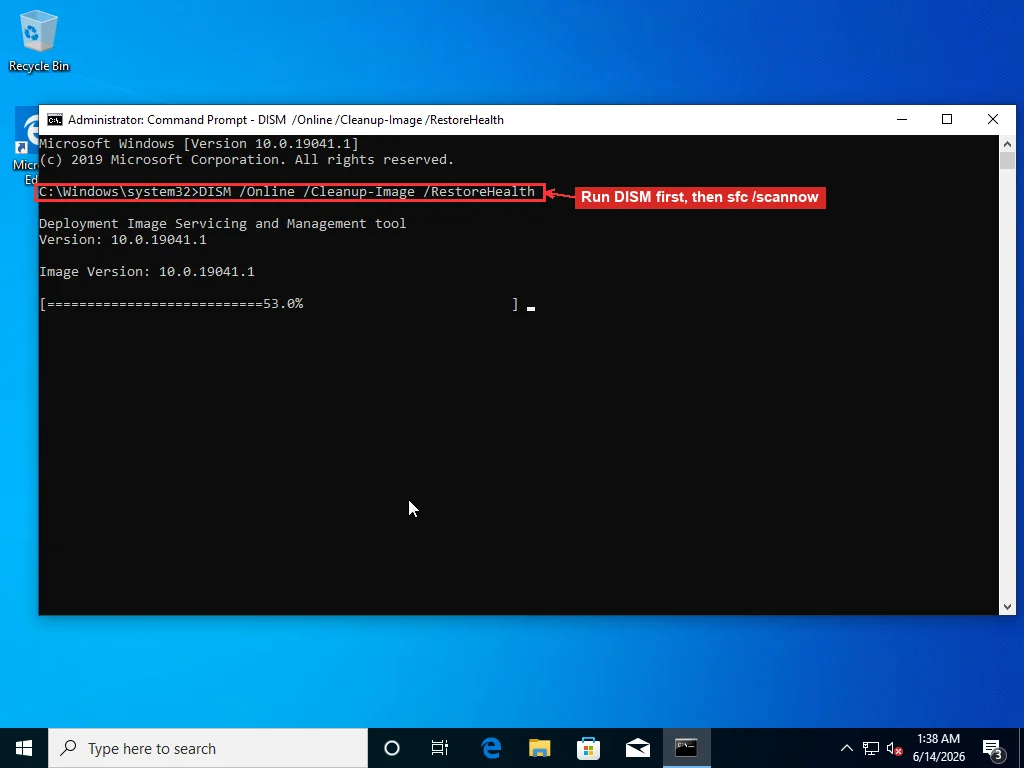
Open an elevated Command Prompt (Start, type cmd, right-click, Run as administrator) and run these in order, DISM before SFC because SFC repairs against the component store that DISM repairs first:
DISM /Online /Cleanup-Image /RestoreHealth

sfc /scannow
DISM pulls clean copies of damaged system files from Windows Update; it can sit looking stuck at 20% for ten or fifteen minutes, which is normal — let it finish before you start SFC, which has nothing clean to copy from until DISM is done.
The other place the answer hides is Event Viewer, which logs more than the blue screen had room to show. Open it, expand Windows Logs, click System, and look at the red Error entries stamped around the time of the crash; a BugCheck entry records the stop code, and the error just before it often names the device or service that fell over. That before-the-crash line is frequently more specific than the filename on the screen.
Memory is worth ruling out too, though it’s the minority cause here — this isn’t a page fault in nonpaged area, where RAM sits much higher on the list. Windows’ own Memory Diagnostic (mdsched.exe) runs two quick passes and misses intermittent faults; MemTest86 from a USB stick, left running several passes overnight, is the test that actually finds the flaky stick. And if all this started right after a BIOS update or an XMP/overclock tweak, load BIOS defaults — that’s setup defaults, separate from flashing a new BIOS version, and it undoes a memory-timing change that drivers can’t cope with.
Both Windows versions stay in play here for a plain reason: Windows 10 still runs on roughly one desktop in four worldwide, so “just upgrade” helps nobody mid-crash, and the Device Manager and Command Prompt steps are identical on both anyway.
Past the named driver, a roll-back, clean system files, and a clean memory test, a 0x7E that still fires is telling you the faulting module isn’t the obvious one. Windows wrote a small dump to C:\Windows\Minidump at the moment it crashed, and that file, read in WinDbg, names the exact module that triggered the exception instead of leaving you to narrow it down by hand. Reading those dumps yourself is slow, fiddly work; our BSOD service pulls the minidump and points straight at the module, usually inside half an hour because the dump rarely lies. Microsoft’s own bug check 0x7E reference and its blue screen troubleshooter cover the same ground from the other direction if you want to keep digging yourself.
Frequently Asked Questions
What does SYSTEM_THREAD_EXCEPTION_NOT_HANDLED mean?
It means a kernel-mode driver hit an error — an exception — that Windows couldn't handle, so it stopped to protect itself. The stop code's value is 0x0000007E. Most of the time one specific driver is to blame, and the blue screen usually prints its filename on a 'What failed' line: nvlddmkm.sys for NVIDIA graphics, atikmdag.sys for AMD, the Netwtw files for Intel Wi-Fi. That filename tells you which driver to roll back, update, or remove.
What is the 'What failed' file on the blue screen?
It's the driver module that threw the exception, and it's the single most useful thing on the screen. nvlddmkm.sys is NVIDIA's display driver, atikmdag.sys or atikmpag.sys is AMD, dxgmms2.sys and dxgkrnl.sys are the DirectX graphics layer (still a GPU lead), Netwtw04/06/10.sys is Intel Wi-Fi, and iaStorA.sys is Intel storage. If it's Ntfs.sys, that points at the drive and filesystem rather than a vendor driver. Any unfamiliar name, search the exact filename plus the word driver to identify the device.
How do I fix SYSTEM_THREAD_EXCEPTION_NOT_HANDLED if my PC won't boot?
Get into Safe Mode without signing in. Hold Shift and click Restart on the lock-screen power menu, or interrupt the boot three times — power off at the spinner — until Windows opens Automatic Repair on its own. From the recovery menu go to Troubleshoot, Advanced options, Startup Settings, Restart, then press 4 for Safe Mode. Once in, open Device Manager and roll back or uninstall the driver named on the blue screen. Safe Mode loads only generic drivers, so the crashing one is out of the way while you remove it.
Should I update or roll back the driver?
Roll back if the crashes started right after a driver update or a Windows Update that swapped a driver — the new version is usually the cause, and Device Manager's Roll Back Driver button reverts it. Update from the manufacturer's site instead if your driver is old and nothing changed recently. After a roll back, hide the update with Microsoft's 'Show or hide updates' troubleshooter so Windows Update doesn't push the broken driver straight back at the next scan.
Is SYSTEM_THREAD_EXCEPTION_NOT_HANDLED a hardware problem?
Usually not. It's a driver or system-file problem far more often than failing hardware — when Microsoft broke down the crash reports it received through April 2004, 70% traced back to third-party device drivers. Bad RAM can trigger it, but that's the minority here, so test with MemTest86 only after you've handled the named driver and run DISM and SFC. The exception is a filename like Ntfs.sys, which points at the drive and filesystem instead of a driver.