Windows 11 24H2 Not Installing? Fix
Short answer: Check Update History first for the error code. 0x80070070 = insufficient disk space (need 30GB+ free). 0x80070002 = corrupted download cache (reset SoftwareDistribution). 0x800f0922 = VPN interference or small System Reserved partition. 0x80004005 = driver conflict — check Intel SST, Phison SSD firmware, and Realtek audio drivers. If no code matches, Event Viewer's WindowsUpdateClient Operational log shows the exact component that blocked installation.
If 24H2 downloads, starts installing, hits a percentage, then rolls back or errors out — the fix depends on which error code you’re getting. Open Settings > Windows Update > Update History, find the failed 24H2 entry, and copy that error code. Running DISM when you’re just low on disk space wastes half an hour for nothing. Different codes need completely different fixes. (For general Windows Update hangs unrelated to 24H2 specifically, see our Windows Update stuck guide.)
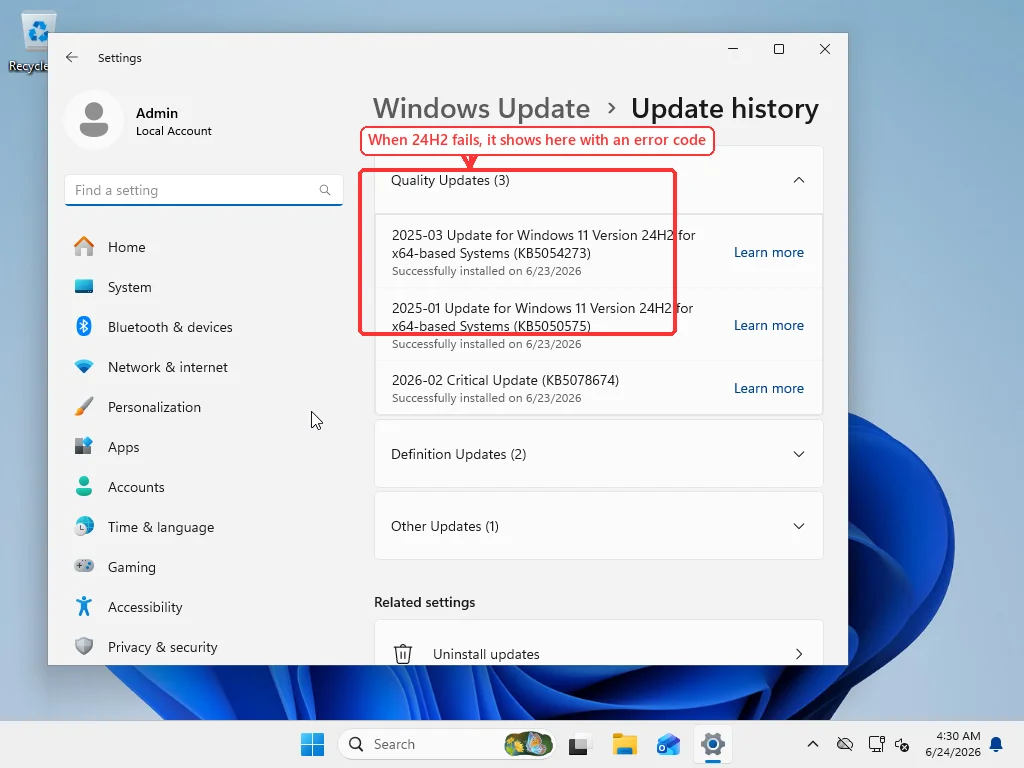
The 24H2 rollout has been rough. Microsoft’s own telemetry triggered safeguard holds on dozens of hardware configurations, and the update’s handling of NVMe drivers and audio DSP stacks caused problems that generic Windows Update troubleshooting doesn’t address. If your error code is one of the specific ones below, there’s a targeted fix. If it’s not, skip to the Event Viewer section at the end — the generic “run DISM and SFC” advice is already covered there.
0x80070070
Windows doesn’t have enough room.
A feature update like 24H2 does more than most people realize. It downloads 3-4GB of compressed data. Then it unpacks that into a working copy of Windows in C:$WINDOWS.~BT. Then it migrates your settings, apps, and user profiles into the new install. The staging alone eats 20-25GB. As the process nears completion, both the unpacked working copy and the rollback backup sit on C: simultaneously. If the drive fills up at that moment, the installer doesn’t pause or warn — it just rolls back and logs 0x80070070.
Microsoft’s documentation says 20GB minimum, but you want at least 30GB free on C: in practice.
Check actual free space at Settings > System > Storage. Ignore the “Cleanup recommendations” number — it sometimes shows an 8.63GB entry under Windows Update Cleanup that doesn’t correspond to real files. This is a known 24H2 reporting bug: Disk Cleanup claims 8.63GB of cleanable update files that aren’t on the disk. Look at the real used/free numbers at the top of the Storage page instead.
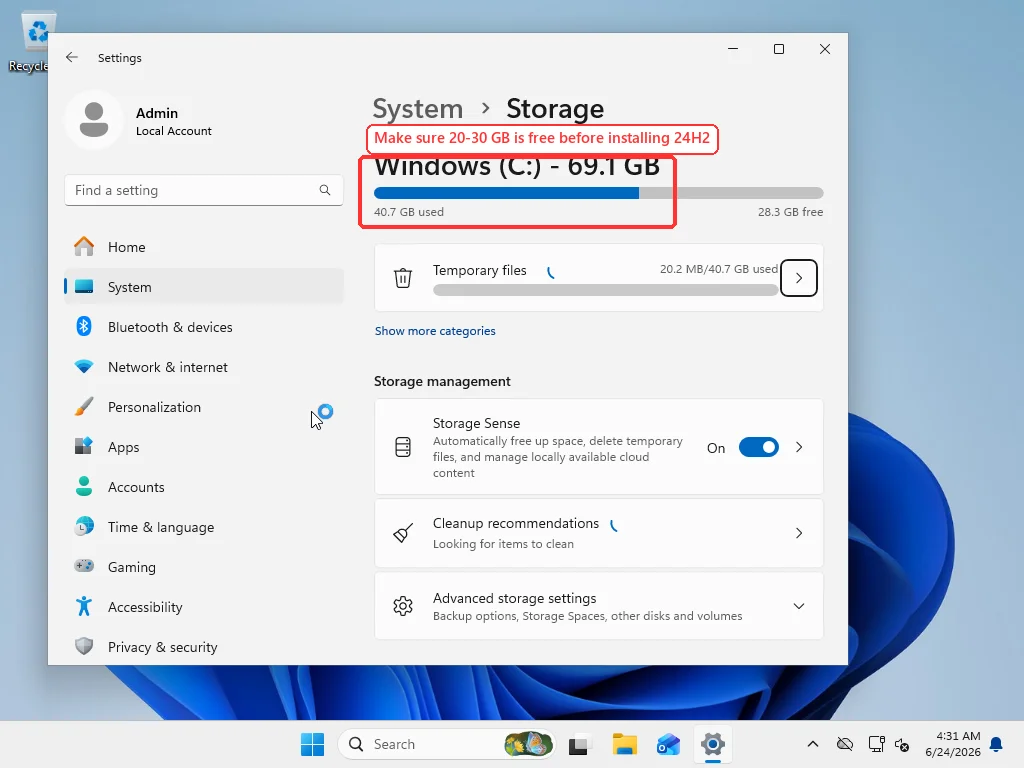
For clearing space: Disk Cleanup as administrator. Check Windows Update Cleanup, Delivery Optimization Files, and Temporary files. These three usually free 10-15GB on a system that hasn’t been cleaned in a while.
If that’s still not enough — WinSxS component store cleanup (DISM /Online /Cleanup-Image /StartComponentCleanup), previous Windows installations, large apps, personal files to an external drive. (More aggressive cleanup methods are covered in our free up disk space guide.) Get to 30GB+ free, then try 24H2 again from Windows Update. Don’t bother switching to the ISO method for this error — it also stages on C: and will fail the same way.
0x80070002
Corrupted download cache. The update downloaded partially, the connection dropped, or a previous failed attempt left broken files that the new attempt reuses.
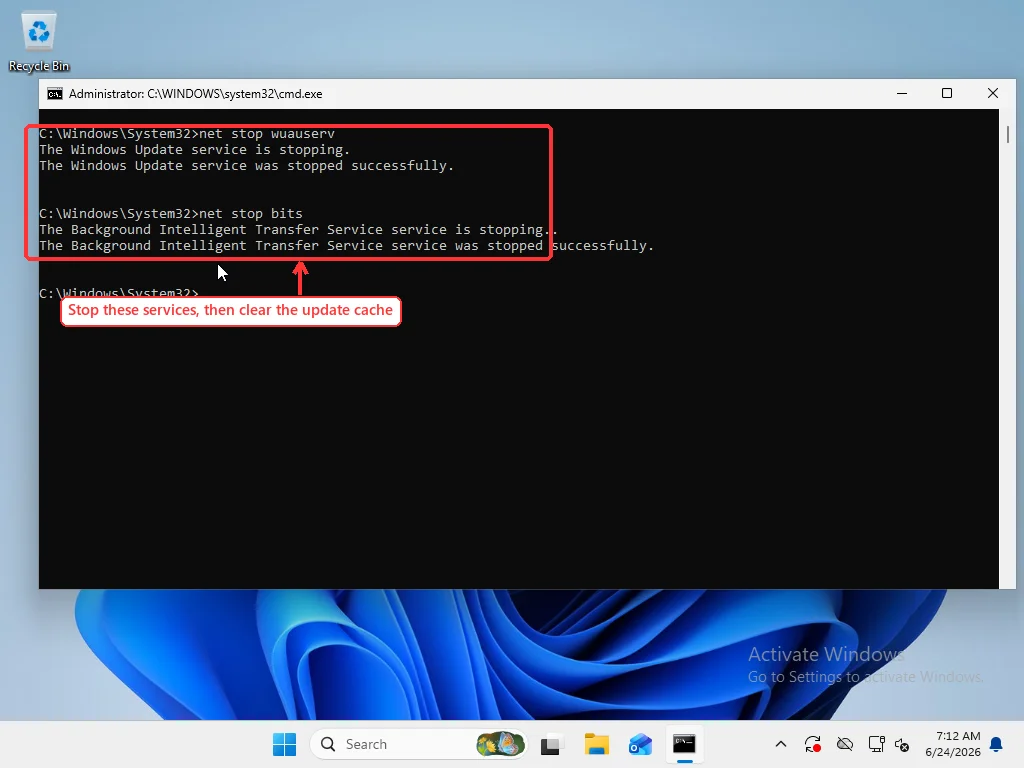
Command Prompt as Administrator:
net stop wuauserv
net stop cryptSvc
net stop bits
net stop msiserver
ren C:\Windows\SoftwareDistribution SoftwareDistribution.old
ren C:\Windows\System32\catroot2 Catroot2.old
net start wuauserv
net start cryptSvc
net start bits
net start msiserver
Renaming, not deleting. The service creates fresh folders on restart and re-downloads cleanly. If something goes sideways — rare, but rename them back. Restart after the reset, then check for updates. First download takes longer than usual since it pulls the full 24H2 package fresh.
When the cache reset alone doesn’t fix 0x80070002, the component store itself is usually corrupted deeper than the download cache. Run:
DISM /Online /Cleanup-Image /RestoreHealthDISM pulls clean copies of every Windows component from Microsoft’s update servers and replaces any corrupted ones in C:\Windows\WinSxS. This is the component store — the master copy of every system file that Windows uses to build the OS you actually run. When the component store has corruption, sfc /scannow can’t reliably repair anything because it uses the store as its source of known-good files. DISM fixes the source; SFC fixes the files built from it.
DISM needs internet. On a well-maintained system it takes 5-10 minutes. On an install that hasn’t seen maintenance in years, it can run 30+ minutes, and the progress bar hangs in the 60% range for a long stretch. It hasn’t frozen — it’s working through a component with lots of dependencies.
After DISM, run sfc /scannow. Order matters. DISM fixes the component store. SFC then uses the healthy store to verify and replace system files. Reverse the order and you risk SFC replacing corrupted files with other corrupted files from a broken store.
0x800f0922
This error code has three completely unrelated causes.
First: System Reserved partition too small. Older PCs upgraded from Windows 10 sometimes have a 50-100MB reserved partition because the original Windows 10 installer created it that way. 24H2 wants 300MB+ for its boot files — the new boot manager and recovery environment are larger than in previous releases. Check via Disk Management (right-click Start). If your System Reserved partition is under 200MB, this is the problem — and extending it means third-party partition tools with real risk of making the system unbootable. Most people who land here do a clean install of Windows 11.
Second and much more common: a VPN or proxy intercepting the connection to Microsoft’s update CDN endpoints. Windows Update doesn’t use a single download server — it pulls from a distributed CDN with endpoints that vary by region. Some VPNs route all traffic through a single exit node, which might be in a different region from your PC, and the CDN either throttles the connection or can’t establish a stable session. Disconnect the VPN entirely. Disable any proxy at Settings > Network & internet > Proxy. Try the update again. This alone clears a surprising number of 0x800f0922 cases.
Third: corrupted CBS manifest. This is what DISM /RestoreHealth fixes. If neither of the first two apply, run DISM then SFC as described in the section above.
0x80240069
This shows up on work machines where WSUS or SCCM manages updates. The configured update source doesn’t have 24H2 approved. On a home PC this shouldn’t appear — if it does, check Settings > Windows Update > Advanced options > Configured update policies. “Some settings are managed by your organization” on a personal machine means some software or policy edit changed the update source. Fix that first.
Drivers That Block 24H2
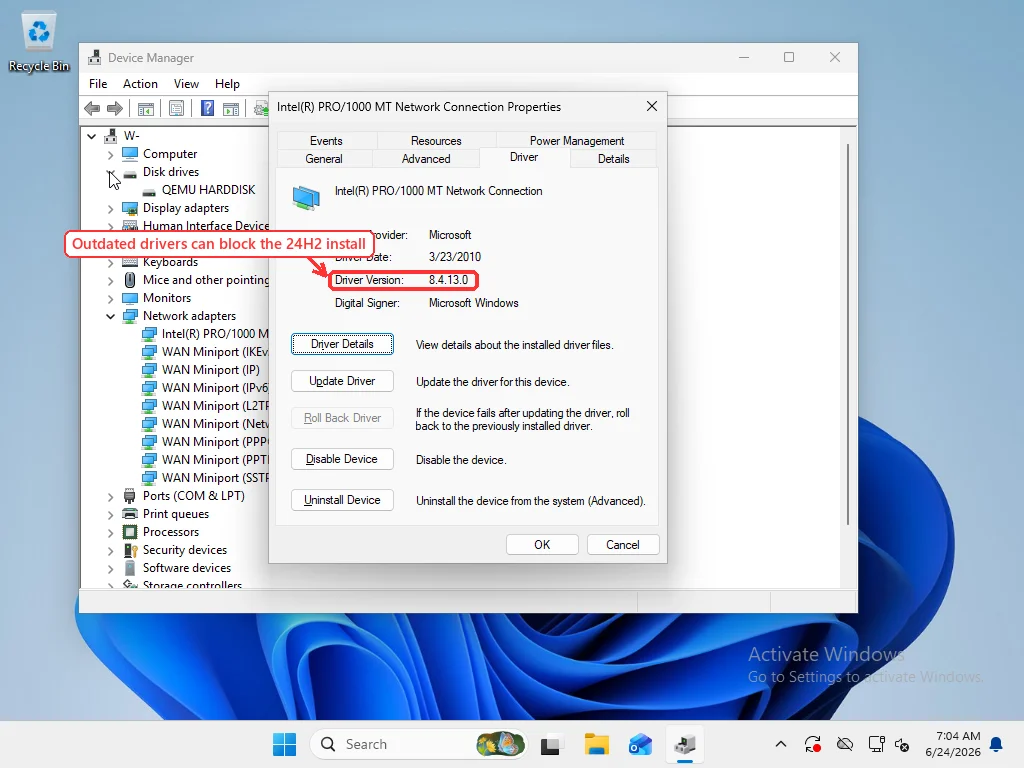
Error code 0x80004005, or Windows Update saying “This update is not yet ready for your device” — the block is probably a driver. Microsoft puts safeguard holds on hardware configs with documented 24H2 incompatibility, based on telemetry from real upgrade failures. Your machine matched.
Before diving into specific drivers: run the built-in Windows Update Troubleshooter once. Settings > System > Troubleshoot > Other troubleshooters > Windows Update > Run. It catches simple configuration problems — corrupt BITS jobs, misconfigured update policies, stuck service states — and sometimes clears a 0x80004005 without touching a driver. If it doesn’t help, the driver list below is the next stop.
Three drivers cause most of these blocks.
Intel Smart Sound Technology audio driver, specifically versions 10.29.0.5152 and 10.30.0.5152. Bug in the audio DSP interface triggers kernel crashes during 24H2’s driver migration. Mostly 11th Gen Intel Core laptops. Check yours: Device Manager > Sound, video and game controllers > Intel Smart Sound Technology > Driver tab. If it’s either of those versions, the fix is updating to 10.29.00.5714 or later — get it from your laptop OEM’s support page or Intel Driver & Support Assistant. Nothing else works. The old driver has to go.
Phison-based NVMe SSDs with outdated firmware. Drives using Phison E12, E16, or E21T controllers drop offline during the upgrade. Brands include Corsair Force MP600, Silicon Power US70, Kioxia Exceria Plus G4. The trigger: Microsoft changed NVMe Host Memory Buffer allocation in 24H2, and the new behavior stressed these controllers past what their old firmware could handle. Phison later found some drives shipped with pre-production firmware years ago — the bug was dormant until the Windows change exposed it. Update your SSD firmware with the manufacturer’s tool, then retry 24H2.
Realtek UAD audio on custom OEM stacks. Hard to pin to a version number — every OEM configures this differently. The symptom: 24H2 fails during “driver migration” with nothing more specific than 0x80004005. Fastest diagnostic: uninstall the Realtek audio device from Device Manager (check “Delete the driver software”), restart, and let Windows reinstall a generic driver. If 24H2 goes through after that, the OEM audio stack was the blocker.
Don’t Bypass Safeguard Holds
How to check if you actually have a safeguard hold: open Settings > Windows Update and look at the 24H2 entry. If it says “Coming soon: Windows 11, version 24H2” with a “Learn more” link instead of a Download button, Microsoft has placed a hold on your device. You can also check the known-issue list at aka.ms/WindowsReleaseHealth — Microsoft lists active safeguard holds by their hold ID, with the affected driver versions and the fix version to install.
One thing not to do: bypass safeguard holds with registry edits. There are guides out there — AllowUpgradesWithUnsupportedTPMOrCPU, delete this key, set that DWORD. (If you’re unsure whether your PC even meets Windows 11’s hardware requirements, check our TPM and compatibility guide first.) These holds exist because your exact configuration was observed crashing on 24H2 in Microsoft’s telemetry. Bypassing doesn’t fix the problem, it just suppresses the warning. The result is a boot loop, a black screen on startup, or a half-installed Windows that blue-screens every time it tries to finish the upgrade. If you bypass the hold and your system ends up unbootable, rolling back means booting from recovery media and manually uninstalling the update from WinRE — if the rollback data is even still intact.
Event Viewer When Nothing Above Worked
If none of the specific error codes match, and the cache reset plus DISM/SFC all came back clean, the Setup event logs are the next thing to look at.
Open Event Viewer. Navigate to:
Applications and Services Logs > Microsoft > Windows > WindowsUpdateClient > Operational
Event ID 20: installation failure. Event ID 31: completed but rolled back. Event ID 42: download failure before the install even started. Each event’s details pane shows the error code and the component or phase that failed.
If those logs don’t have enough detail, there’s one more level: C:\$WINDOWS.~BT\Sources\Panther\setupact.log and setuperr.log. These are the raw Setup logs from the installer itself. Ctrl+F for “Error” or “Failure” near the timestamp when the install failed. The format is dense — not designed for casual reading — but the error lines usually name the file or driver that caused the cascade.
This is where self-diagnosis reaches its limit. Setup logs run thousands of lines. The actual failure cause is often buried several dependency layers deep from the first “Error” line. Knowing which errors are fatal versus cosmetic, what a component failure implies about the driver stack above it — this takes familiarity with Windows internals that goes past what a troubleshooting guide can teach.
If you’ve been through all of this and still don’t have a clear fix, the fastest remaining option is having someone experienced with these logs find the blocker. RebootDoctor handles this kind of remote diagnostic work — the goal is to identify what’s blocking the update and either fix it or tell you whether a clean install is the better call.
Frequently Asked Questions
Why does Windows 11 24H2 keep failing to install?
The most common reasons are: not enough free disk space (need 30GB+ on C:), a corrupted Windows Update download cache, a VPN or proxy blocking Microsoft's update CDN, or a driver conflict triggering a safeguard hold. Check Settings > Windows Update > Update History for the specific error code — each code points to a different cause.
How do I fix error 0x80070070 when installing 24H2?
0x80070070 means Windows ran out of disk space during the install. Free up space until you have at least 30GB on C:. Run Disk Cleanup as administrator and check Windows Update Cleanup, Delivery Optimization Files, and Temporary files. If still short, run DISM /Online /Cleanup-Image /StartComponentCleanup from an admin Command Prompt to shrink the WinSxS component store.
What drivers block the Windows 11 24H2 update?
Three drivers cause most 24H2 blocks: Intel Smart Sound Technology (SST) versions 10.29.0.5152 and 10.30.0.5152 cause kernel crashes during driver migration. Phison-based NVMe SSDs with firmware older than mid-2023 can drop offline during the upgrade. Realtek UAD audio drivers on certain OEM configurations fail during the driver migration phase. Update or uninstall these before retrying 24H2.
Should I bypass the 24H2 safeguard hold to force the update?
No. Safeguard holds exist because Microsoft's telemetry shows your exact hardware and driver combination has a documented problem with 24H2. Bypassing the hold with a registry edit doesn't fix the underlying issue — it just suppresses the warning. The result is almost always a boot loop or a half-installed Windows that blue-screens on startup.
What do I do if none of the error code fixes work for 24H2?
Open Event Viewer and navigate to Applications and Services Logs > Microsoft > Windows > WindowsUpdateClient > Operational. Look for Event ID 20 (installation failure) or Event ID 31 (rollback) around the time your 24H2 attempt failed. The event details show the exact error code and component that blocked the install. If interpreting the logs is beyond what you want to take on, a remote diagnostic session can identify the blocker in one session.