Windows Hello Not Working on Windows 11: Match the Fix
Short answer: Match the exact error first. A greyed-out PIN usually means a Microsoft account or work/school restriction, not a broken PIN. A PIN that died right after a Windows 11 24H2 update is a known identity-validation regression, fixed by removing and recreating the PIN. Face or fingerprint issues are almost always a driver problem, not Hello itself.
Windows Hello not working on Windows 11 usually traces back to one of five distinct causes, and they don’t share a fix. Don’t start working through a fifteen-step list from top to bottom. Read what the screen is actually telling you first, because most of those steps address a symptom you don’t have.
Match your exact error to the cause first
If the PIN says “this option is currently unavailable,” or the Remove button next to it won’t click, the PIN itself is very likely fine. A Microsoft account passwordless setting or a work/school account restriction is getting in the way, and the fix lives in the sign-in options section below.
A different message, “Something went wrong. Try again later.”, when setting up or using the PIN, usually means the local Hello container is corrupted rather than misconfigured. That one skips straight to the reset section further down.
Then there’s the case where the PIN worked fine for months and then died the moment a Windows Update landed, especially right after the laptop woke from sleep. That’s a known 24H2 regression with a specific, documented cause, covered in its own section below; resist the urge to reset anything until you’ve read it.
Camera or fingerprint hardware that still works fine in other apps but that Hello suddenly can’t see points to a driver or service problem, not a Hello setting. And if no Windows Hello options show up in Settings at all, the TPM is worth checking before anything else, since that’s usually where the trail leads.
None of those quite match what you’re seeing? Work through the sections below in order; they’re arranged roughly from most common cause to least.
PIN sign-in is greyed out or missing
Open Settings, then Accounts, then Sign-in options. On Windows 11 24H2 this page lists Windows Hello Face, Windows Hello Fingerprint, Windows Hello PIN, Security key, and Password as separate entries, each with its own status line and a chevron to expand.
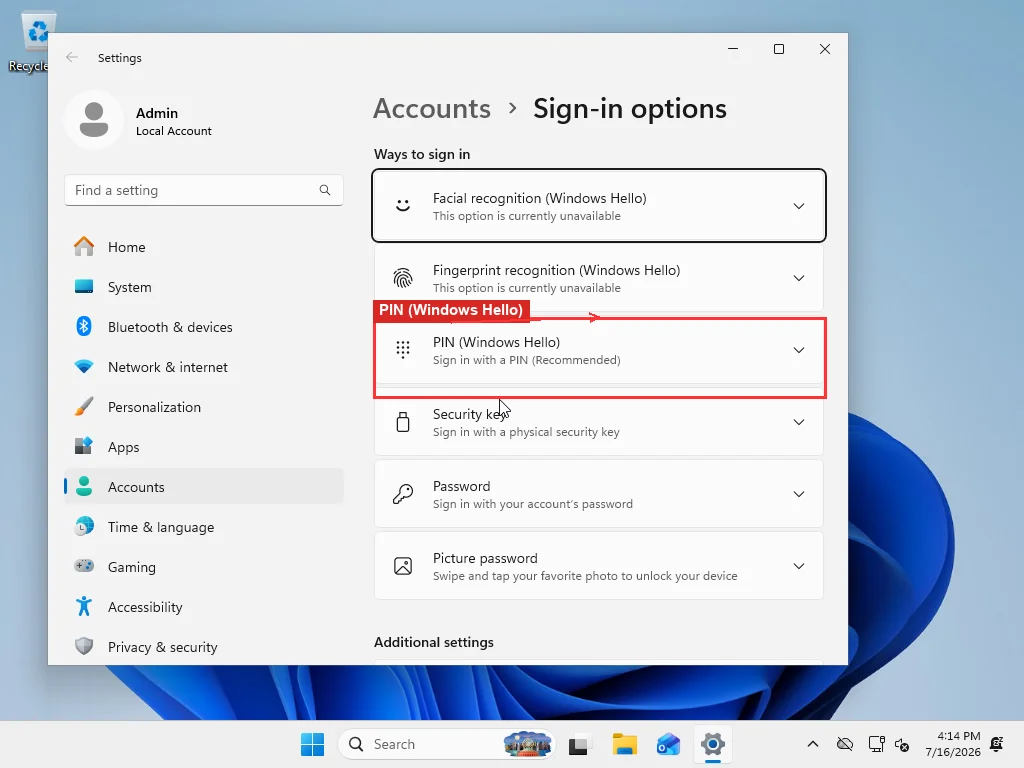
There are two separate, unrelated reasons the PIN’s Remove button shows up greyed out, and they need different fixes:
If you sign in with a personal Microsoft account, the cause is usually a setting called “Passwordless account,” managed at account.microsoft.com under Security > Advanced security options. When that’s turned on, Windows won’t let you fall back to a password (or remove your only sign-in method), so the Remove button locks. There’s also a related toggle inside Sign-in options itself, “For improved security, only allow Windows Hello sign-in for Microsoft accounts on this device,” that produces the same greyed-out symptom. Turn either one off, then sign out and back in — the button should be clickable again once that’s done.
If the PC is joined to a work or school account, the restriction usually comes from the organization’s policy, not from anything you configured. There’s genuinely nothing to fix locally in that case. The IT department has to lift the requirement on their end, and no amount of registry editing on your side changes it, which is worth knowing before an hour goes into chasing a setting that was never yours to control. Admins managing a fleet of these have their own reference for it: Windows Hello for Business error codes on Microsoft Learn covers the full taxonomy, well beyond what a home troubleshooting guide needs to repeat.
PIN suddenly broke after the 24H2 update
Most write-ups of this failure are pitched at IT admins managing Entra-joined fleets, full of terms a home user has never had a reason to learn. Strip that away and here’s what actually happens: Windows 11 24H2 tightened how Windows validates the cryptographic key behind your PIN against your account’s identity token, and that validation gets re-checked whenever the machine refreshes its sign-in state. That refresh happens after sleep, after a network change, sometimes after an update. If anything about how your account is recognized has drifted since the PIN was created, the check fails and the PIN stops working, usually throwing the specific error code 0xc000006d (“your PIN isn’t available, or something changed on your device”).
Windows 11 crossed 69.9% of worldwide desktop Windows share as of June 2026, according to Statcounter, and every one of those installs eventually lands on 24H2. A fix this specific is worth keeping in your back pocket rather than re-discovering from scratch each time it happens.
None of this means data loss, and it’s not a sign the PC is compromised. It’s a validation mismatch, plain and simple. Re-establishing the PIN fixes it; chasing the underlying token logic doesn’t, and that part is genuinely IT-admin territory involving Entra ID token refresh cycles that a home user has no reason to touch.
Sign in with your password if that option is still available; it’s the fastest way back in. If password sign-in was disabled by the same passwordless setting mentioned above, you’ll need to use a different sign-in method that still works (a second device with the Microsoft account, or a recovery flow through account.microsoft.com), then re-enable password sign-in before doing anything else. Once you’re in, go back to Sign-in options and remove, then recreate, the PIN. That regenerates the key with a fresh binding. The error doesn’t recur until the next update cycle exposes the same kind of mismatch, which is common enough after 24H2 builds that it’s worth knowing how to fix quickly rather than treating as a one-off mystery each time.
Face or fingerprint won’t recognize you
A camera or fingerprint reader that works fine in other apps but that Hello can’t see usually has nothing to do with lighting or a dirty sensor. Check the driver first. Lighting and camera cleanliness are already covered in detail on Microsoft’s troubleshooting page, and those tips rarely explain a reader that used to work and suddenly doesn’t.
Open Device Manager and look for a Biometric devices category. A missing category means Windows isn’t detecting the hardware at the driver level at all, which is a driver problem, not a Hello configuration one. When the category is there, expand it, right-click the listed device, and start with Update driver. Still no luck? Uninstall the driver outright and let Windows redetect it on the next restart.
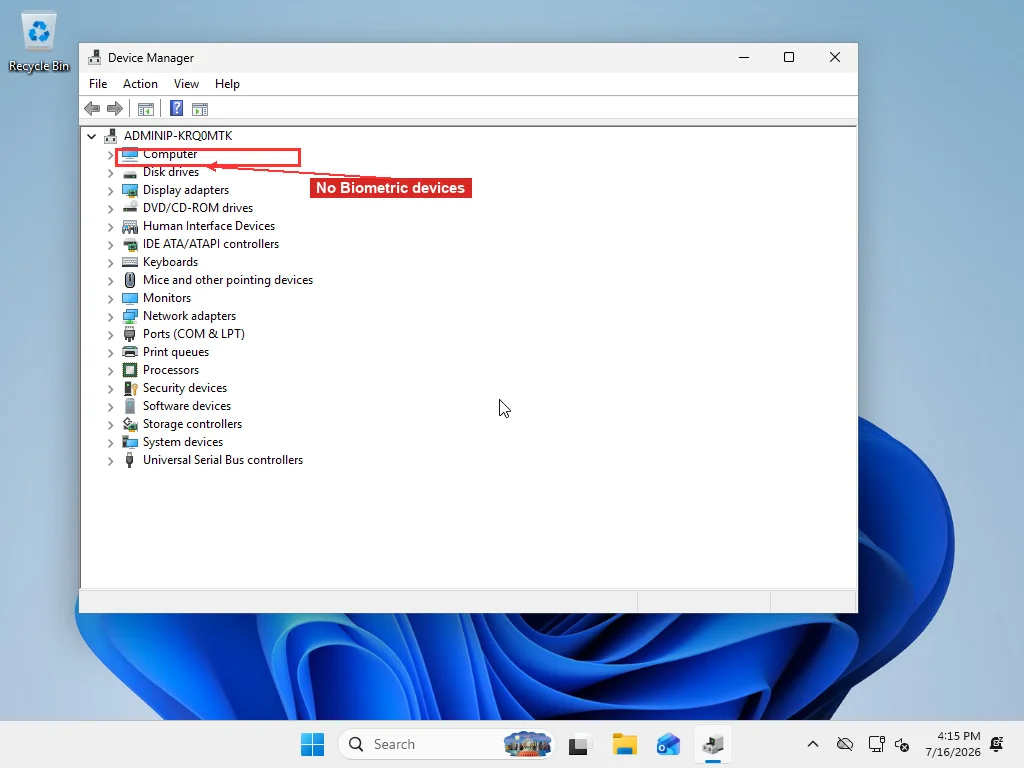
Before reinstalling anything, check the Power Management tab in the device’s Properties dialog. Laptops routinely power down the camera or fingerprint reader to save battery, and that setting lives there, not anywhere in the Hello settings. If “Allow the computer to turn off this device to save power” is checked, the reader can silently go to sleep and Hello reports it as unavailable even though nothing is actually broken.
Confirm the Windows Biometric Service is actually running
Every fingerprint and face-recognition capture goes through a background service, and if it’s stopped, no driver fix above will matter. Run services.msc, scroll to Windows Biometric Service, and check both its status and its startup type.
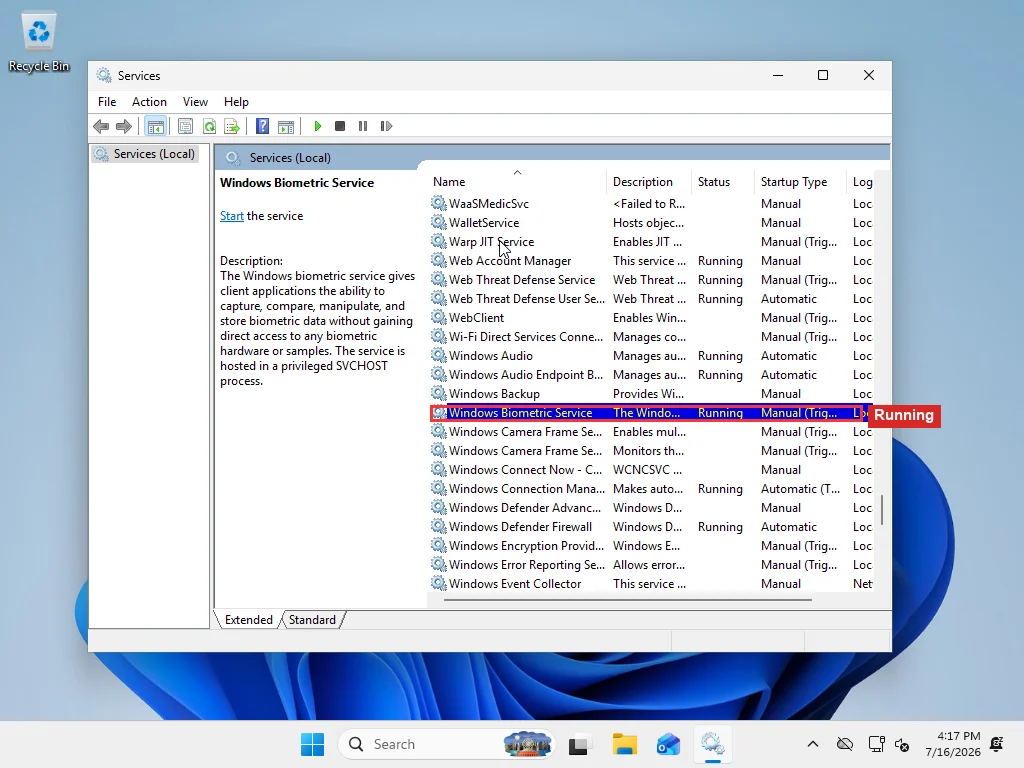
The default startup type is Manual, which is normal; it starts on demand when a Hello-aware app needs it. What’s not normal is Disabled. If it’s set to Disabled, change it to Manual, click Start, and try Hello again.
What TPM actually has to do with any of this
Windows Hello’s PIN and biometric data aren’t stored as a password-equivalent anywhere. They’re bound to a cryptographic container that lives in the TPM chip, and BitLocker on the same machine works the same way, which matters in a minute. Microsoft made TPM 2.0 a hard requirement for Windows 11 specifically because it’s the hardware root for both features; see the official TPM documentation for the full technical rationale.
Run tpm.msc before assuming the TPM is the problem. It shows manufacturer information and a plain status line, either “The TPM is ready for use,” or an error describing what’s wrong. If it reports no TPM found at all, check whether it’s simply disabled in BIOS/UEFI firmware before assuming a hardware fault. Plenty of TPM chips are present but switched off by default.
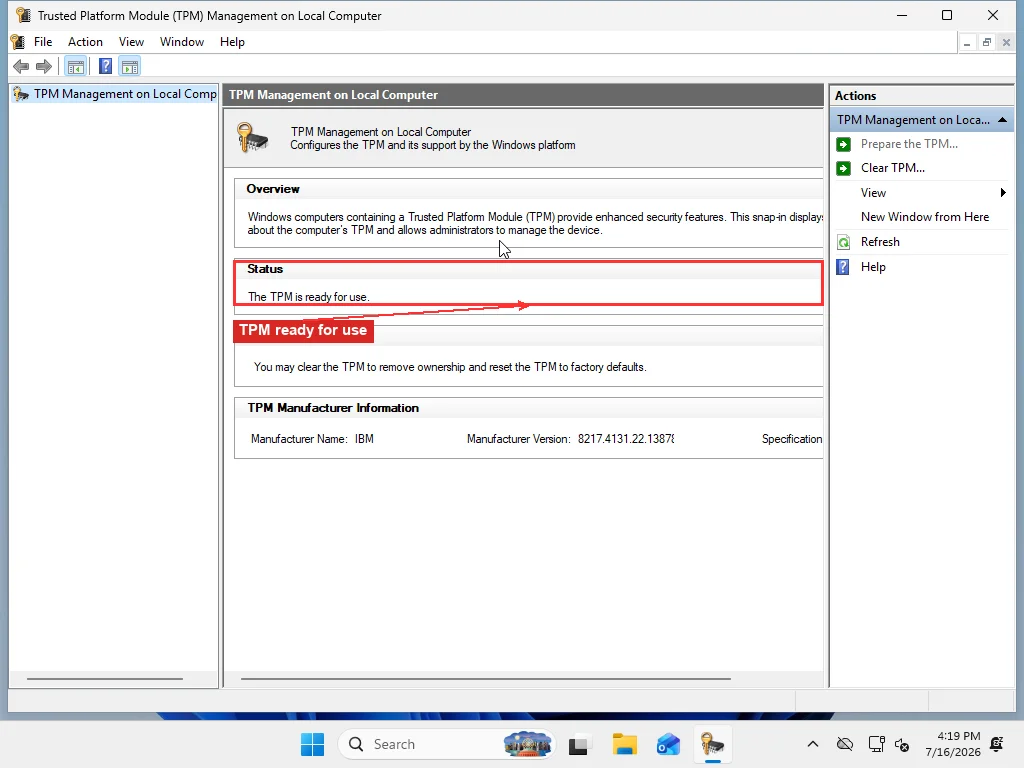
If it reports a problem, clearing the TPM through this same console can resolve it, but clearing it wipes every credential bound to it, and that includes BitLocker’s encryption key if the drive is encrypted. Confirm the BitLocker recovery key is saved somewhere outside the machine before clearing anything here; skip that check and a TPM reset can lock you out of your own files, not just your PIN.
Resetting Hello from scratch — and what it actually wipes
If a specific PIN or face profile is corrupted rather than the whole system, Windows keeps its Hello data in a folder most people never see: C:\Windows\ServiceProfiles\LocalService\AppData\Local\Microsoft\Ngc. Deleting its contents (you’ll need to take ownership first, since it’s normally locked to the system account) forces Windows to rebuild the container from nothing the next time you set up a sign-in method.
There’s a faster command-line equivalent that does roughly the same thing without the ownership dance:
certutil -deletehellocontainerRun it from an elevated Command Prompt, then sign out and back in. Either method, the folder or the command, removes PIN, face, and fingerprint enrollment together, not just the one that was broken. You’ll be re-registering all of them from Sign-in options afterward, so don’t reach for this as a first move; it’s the right call after the targeted fixes above haven’t worked, not before. If sign-in problems are showing up alongside other odd behavior (apps crashing, settings not saving), it’s worth running a system file scan first, since a Hello container living on a partially corrupted system image will keep breaking no matter how many times you reset it.
Group Policy fix doesn’t exist on Windows 11 Home
A lot of the advice floating around points to gpedit.msc and a policy called “Allow the use of biometrics” under Computer Configuration > Administrative Templates > Windows Components > Biometrics. That works, provided you’re running Windows 11 Pro, Enterprise, or Education. Local Group Policy Editor isn’t included on Windows 11 Home at all, so that instruction is a dead end for a large share of readers who never get told so.
The Home-edition equivalent is a direct registry edit. Open Registry Editor, navigate to HKEY_LOCAL_MACHINE\SOFTWARE\Policies\Microsoft\Biometrics, create it if it doesn’t exist, and add a DWORD value named Enabled set to 1. That’s the same setting the Group Policy option writes to under the hood, so the result is identical either way — you’re just choosing the interface based on which edition you’re on.
If none of this traces back to a policy or a broken container, and the trouble started around the time of some other change (a driver update, a new app, an interrupted update), a system restore to a point before that change is worth trying before anything more drastic. It won’t touch personal files, and it sidesteps having to diagnose exactly what shifted.
Past all of that, if TPM checks out, the service is running, drivers are current, and Hello still won’t cooperate, you’re likely looking at something lower-level: firmware, a corrupted system image, or a hardware fault in the reader itself. That’s the kind of diagnosis that’s faster with someone who can see the actual event logs than by working through another list of settings.
Frequently Asked Questions
Why does my PIN keep asking to be reset every time Windows updates?
That's almost always the same identity-validation check behind the Windows 11 24H2 PIN regression, not a fresh problem each time. Windows re-validates the cryptographic key behind your PIN against your account's identity token after sleep, network changes, and some updates, and if anything has drifted, the PIN throws error 0xc000006d. Remove and recreate the PIN once from Sign-in options and it tends to hold until the next update cycle exposes the same kind of mismatch again.
I tried deleting the Ngc folder myself and got "Access denied." Now what?
The Ngc folder (C:\Windows\ServiceProfiles\LocalService\AppData\Local\Microsoft\Ngc) belongs to the LocalService system account, not to you, even as an administrator. Right-click it, choose Properties, then Security, then Advanced, and change the owner to your account or the Administrators group before Windows lets you touch its contents. Skip that step and every deletion attempt fails the same way, including from PowerShell.
Can I use Windows Hello without a Microsoft account?
Yes. The PIN is tied to the device rather than the account type, so it works fine on a local account. Face and fingerprint sign-in also work on local accounts as long as the hardware and drivers are functioning correctly.
Does clearing TPM delete my files?
Not directly, but on a BitLocker-encrypted drive, clearing the TPM invalidates the key that unlocks the drive automatically at boot. Without a saved BitLocker recovery key, that effectively locks you out of your data even though the files themselves are untouched. Always confirm the recovery key is backed up somewhere outside the machine before clearing TPM.
Is Windows Hello required to use Windows 11?
No, a password-only sign-in still works fine on Windows 11. Windows Hello is optional, though Microsoft has been steadily pushing passwordless sign-in as the default across its consumer services. Nothing forces the switch away from a password on a personal PC.
Why did Windows Hello disappear from Settings entirely?
This usually means TPM isn't available or isn't enabled in firmware. Run tpm.msc first: if it reports no TPM found, the Windows Hello options stay hidden in Settings until that's resolved, since PIN and biometric data are bound to the TPM chip and can't be set up without it.
Will reinstalling the biometric driver remove my fingerprint enrollment?
No, uninstalling and letting Windows reinstall the driver doesn't touch your enrolled data — that's stored separately in the Hello container, not in the driver package.