Print Spooler Keeps Stopping? Fix It on Windows 10 and 11
Short answer: Open services.msc, right-click Print Spooler, Properties, Recovery tab, and set all three failures to "Restart the Service" so Windows revives it automatically. That's a bandage, not a cure: if it dies within seconds of every start, clear the corrupt job with net stop spooler, then del /Q /F /S "%systemroot%\System32\spool\PRINTERS\*.*", then net start spooler. If it still crashes, open Event Viewer, find Event ID 7034 in the System log and the faulting module in the Application log, then remove that driver package from Print Server Properties (printui /s /t2).
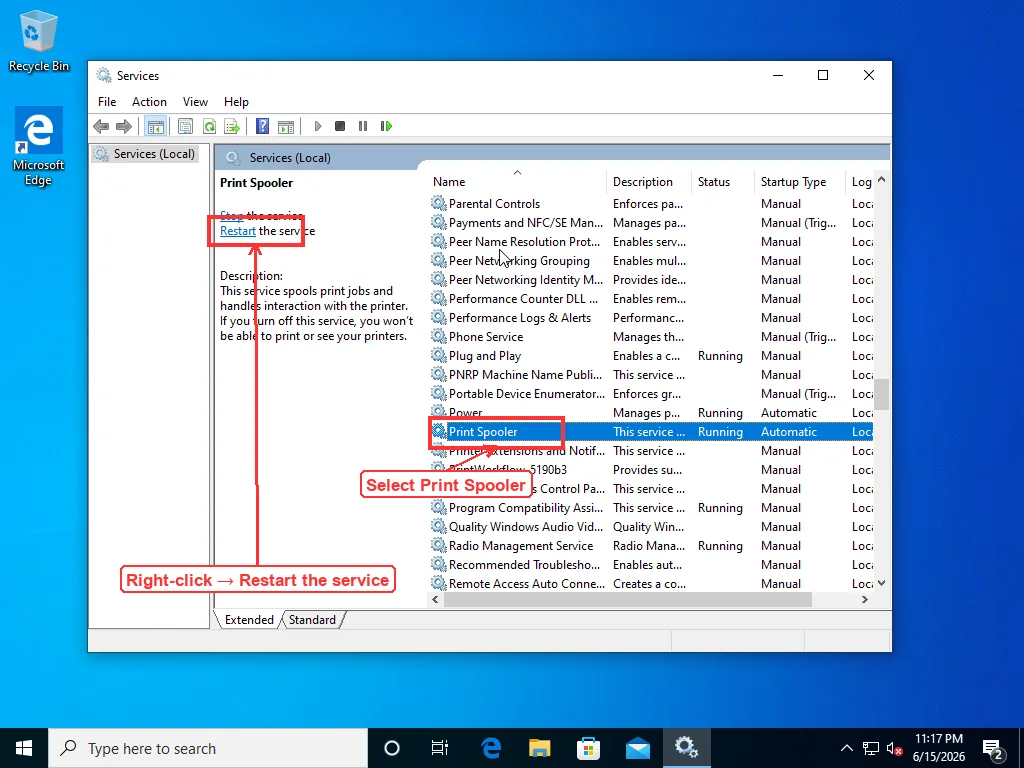
Open services.msc, right-click Print Spooler, hit Restart, and printing comes back — for a few minutes. Then it dies again. That loop is the whole problem when the print spooler keeps stopping: restarting it treats the symptom and ignores whatever is knocking it over. So the real job isn’t restarting the service one more time. It’s finding what kills it. The order below does that — buy yourself working printing first, then go after the cause.
Set It to Restart Itself First
Two settings let Windows restart the spooler on its own, so you’re not babysitting it by hand while you hunt down the cause.
Press Win+R, type services.msc, and find Print Spooler in the list. Right-click it, open Properties, and on the General tab make sure Startup type reads Automatic — not Manual, not Disabled. Manual is worth a second look, because a couple of the “printer fix” scripts floating around online flip the spooler to Manual as a step and never flip it back, leaving you with a service that won’t come up on its own after a reboot.
Then switch to the Recovery tab. Set First failure, Second failure, and Subsequent failures all to “Restart the Service,” and drop “Reset fail count after” to 1 day. Now when the spooler dies, Windows brings it back in seconds instead of leaving it dead until you notice it. None of this fixes the underlying fault — the service still crashes, you’ve just stopped having to babysit it — but it keeps printing alive while you work through the rest, so do it before anything else.
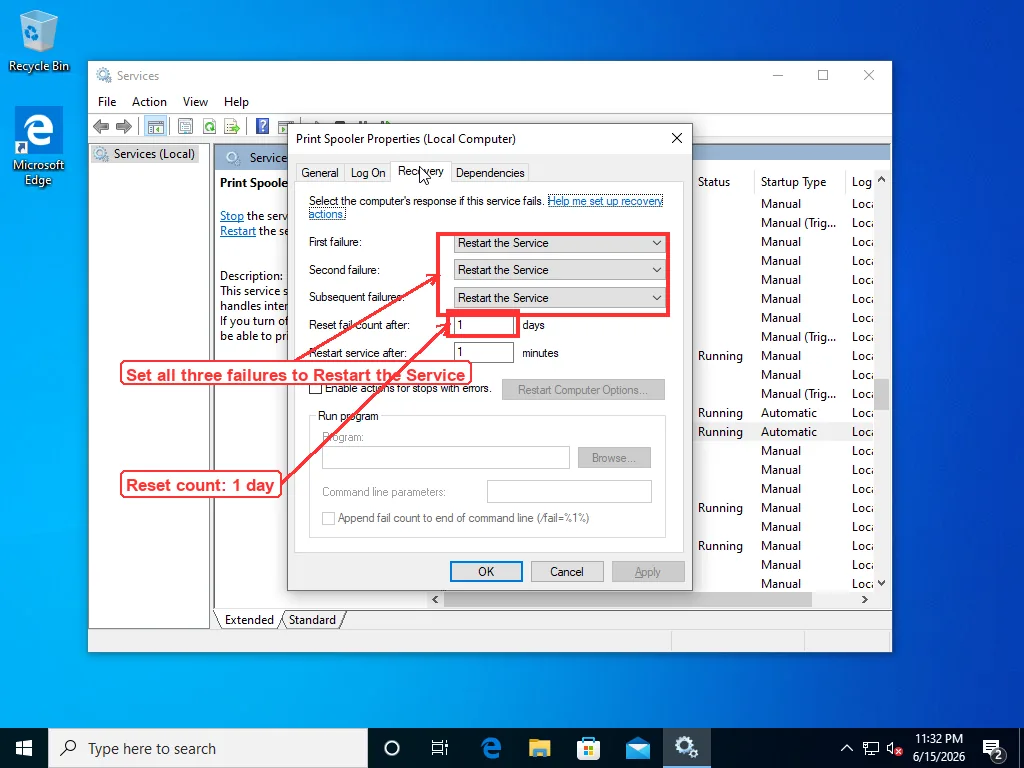
That’s a bandage, not a cure. The service is still crashing; the sections below are about why.
The Corrupt Job That Crashes It on Every Boot
One pattern catches almost everyone out: the spooler starts, runs for five or ten seconds, stops again. Restart it, same thing. It looks like the service itself is broken. Nearly always the service is fine, and a single bad print job is dragging it down the instant it loads.
Every document you send sits on disk as two files under C:\Windows\System32\spool\PRINTERS — an .SPL with the print data and an .SHD with the job’s settings. The spooler reads that folder the moment it starts. If one of those files is corrupt, the service chokes on it during load and terminates, every single time, which is exactly why a reboot never helps. The bad job is waiting on disk for the spooler to come back and trip over it again.
The fix is to clear that folder with the service stopped. Open an elevated Command Prompt — Start, type cmd, right-click, Run as administrator — and run these one at a time:
net stop spooler

del /Q /F /S "%systemroot%\System32\spool\PRINTERS\*.*"

net start spooler
Wait for “The Print Spooler service was stopped successfully” before the del line. Jump the gun and del throws “The process cannot access the file” because the service still has the folder locked. The /Q skips the prompts, /F forces read-only files, /S reaches subfolders. Then net start spooler brings it back with an empty queue. If the service now stays up, a corrupt job was your whole problem. This is the same purge that clears a print queue that’s jammed and won’t delete, looked at from the other side — there the queue is the complaint, here it’s the service dropping dead.
If the spooler dies again within a minute of starting, the trigger isn’t a job. It’s loaded driver code, and the next section finds out which.
Read the Event Log to Find What’s Actually Killing It
Most quick-fix lists skip this, which is a shame, because Windows records exactly what happened every time the spooler dies — the answer is sitting in a log, waiting to be read.
Open Event Viewer (Win+R, eventvwr.msc). On the left, expand Windows Logs and click System. Look for red Error entries from Service Control Manager — the one you’re after is Event ID 7034, “The Print Spooler service terminated unexpectedly.” If you set the restart action in the last step, the same crash shows up as Event ID 7031 instead, with identical wording plus a line saying it’s restarting the service; treat the two as the same signal. Every crash leaves one, timestamped, so you can match them against when printing died.
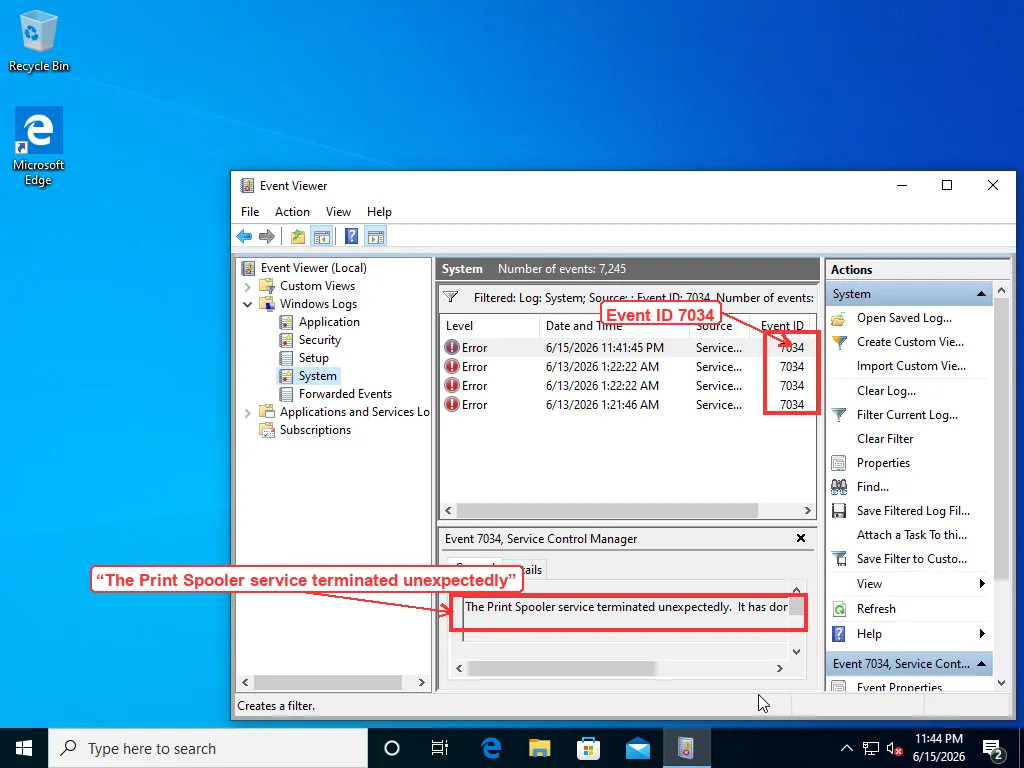
7034 confirms the spooler is genuinely crashing rather than being shut off by something. But it doesn’t name the culprit on its own. For that, look in a second place: under Windows Logs, click Application, and find the Application Error entry (Event ID 1000) stamped at the same second as the 7034. That entry lists the faulting module — the actual .dll that threw the exception. When it reads spoolsv.exe faulting in something like prndrvr.dll or a file with a printer manufacturer’s name in it, you’ve found your answer: a specific print driver is reaching into the spooler and crashing it.
There’s a printing-specific log too, switched off until you turn it on. Still in Event Viewer, expand Applications and Services Logs, then Microsoft, Windows, PrintService. The Operational log there is off by default — right-click it, choose Enable Log, then reproduce the crash (try printing, or just wait for the next stop) and refresh. It records driver loads and job failures in plain language, often naming the exact driver and document that set off the crash. Microsoft’s own print spooler service troubleshooting page points at these logs for the same reason: the crash signature is the shortcut past hours of trial and error.
Write down the module name the log gives you. That’s what you’re removing next.
Strip Out the Bad Driver Package
“Update the driver” is the advice everyone gives and it’s half right. A driver that’s actively crashing the spooler has to come out cleanly first — installing a new one on top of a broken package often just leaves the broken files in place, and the spooler keeps loading them. Print drivers earn this reputation; they’re some of the buggiest software ordinary people are made to live with, and a half-removed one is worse than no driver at all.
Windows hides the real driver list in Print Server Properties, not in the printer’s own settings. Fastest way in, same on Windows 10 and 11: Win+R, type printui /s /t2, Enter. That opens straight to the Drivers tab, where every driver package the machine has ever installed is listed — including the ghosts of printers you got rid of years ago, which are a classic cause of a spooler that crashes on a machine with no printer even plugged in.
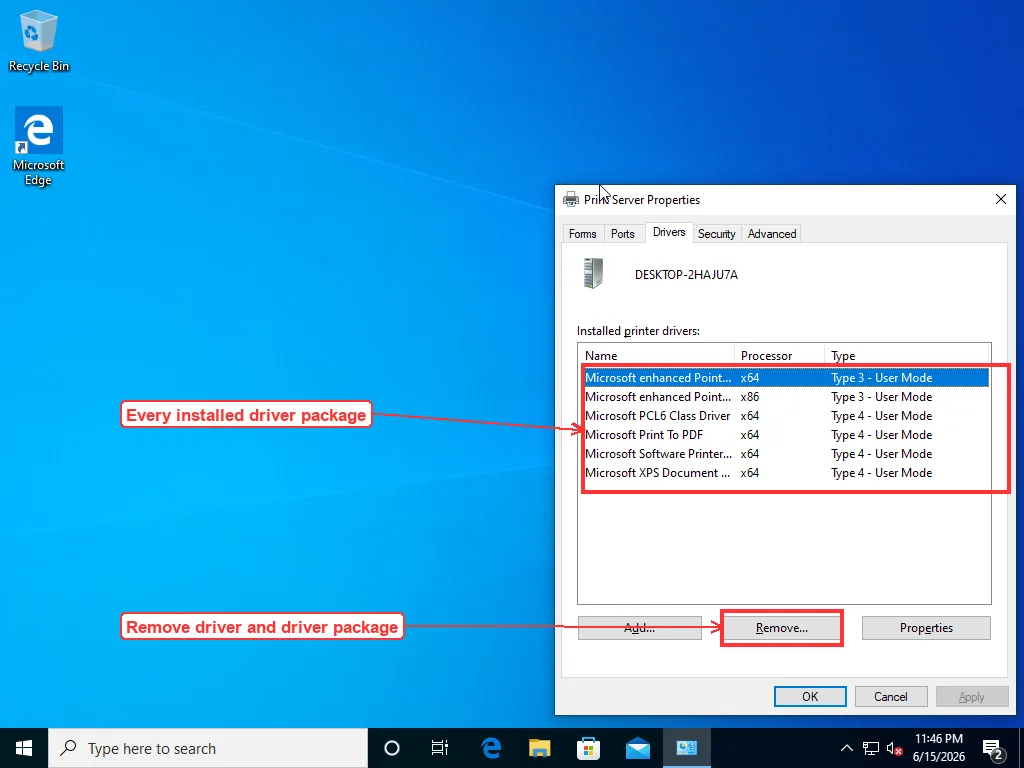
Stop the spooler first (back to services.msc, or net stop spooler) — driver packages won’t remove cleanly while it’s running. Then select the driver the Event log named, click Remove, and choose “Remove driver and driver package” rather than just the driver. Start the spooler again. If the crashes stop, that package was the patient. Reinstall the printer afterward with the current driver from the manufacturer’s website, not whatever generic one Windows Update offers — the driver update guide covers doing that without Windows handing you a substitute, and if Windows is flagging the printer as unavailable on top of everything, the driver-is-unavailable walkthrough clears the broken package more thoroughly than the Remove button does.
When It Won’t Start at All
Different failure, this one: the service doesn’t crash after running, it refuses to start, throwing an error the moment you hit Start. The spooler doesn’t run alone. Open its Properties again and click the Dependencies tab — Print Spooler depends on Remote Procedure Call (RPC). If RPC isn’t running, the spooler physically cannot start, and the error you get won’t mention printing at all. Confirm RPC (it shows as Remote Procedure Call (RPC) in the services list) is Running and set to Automatic before you blame anything printer-side.
Two more quieter causes. A machine carrying a dozen printer entries — every hotel and office printer it ever touched, plus redirected printers from old remote sessions — gives the spooler that much more to load at startup, and one bad entry in the pile can stop the whole service. Thin the list in Settings (Printers & scanners on Windows 11, Devices and Printers on Windows 10) down to the ones you actually use. And rarely, but it happens, malware goes after the spooler directly — the service was at the center of the PrintNightmare exploits a few years back. If the spooler started misbehaving alongside other symptoms, rule it out with the check-for-a-virus steps before you tear the print stack apart.
Still Dying After All That
Most spoolers that keep stopping give up by now — a corrupt job purged, or one bad driver package pulled, and the service stays up. Windows 10 still ran on roughly one desktop in four worldwide into early 2026 by Statcounter’s numbers, so these same classic windows are doing this same job on a lot of machines, and the fix lands the same on both.
The ones that don’t give up are a specific kind of stubborn. The Event log keeps naming a driver DLL you’ve already removed, because a second package quietly depends on it. Or the spooler is rock solid until anyone prints to one particular network printer, and then it dies — a crash buried in that printer’s driver that only fires on certain documents. Printing is a notorious source of help desk tickets, and the long tail of those tickets is exactly this kind of case: spooler crashes you corner by reading PrintService logs and pulling driver packages one at a time, an afternoon of slow process-of-elimination that isn’t dangerous, just tedious. It’s the sort of thing someone who’s already seen the same crash signature reads off the faulting module and shortcuts in a minute.
Frequently Asked Questions
Why does the Print Spooler service start and then stop again after a few seconds?
A corrupt print job is almost always the cause. The spooler reads C:\Windows\System32\spool\PRINTERS the moment it starts, and if one of the .SPL or .SHD files in there is damaged, the service chokes on it during load and terminates — every single time, which is why a reboot never helps. Stop the service, delete everything in that folder, and start it again: open an elevated Command Prompt and run net stop spooler, then del /Q /F /S "%systemroot%\System32\spool\PRINTERS\*.*", then net start spooler. If the service stays up afterward, the corrupt job was the whole problem.
What is Event ID 7034 for the Print Spooler?
Event ID 7034 in the Windows System log reads "The Print Spooler service terminated unexpectedly" and is written by Service Control Manager when the spooler crashes rather than being shut off deliberately. With a recovery restart action configured, the same crash logs as the closely related Event ID 7031 instead, with identical wording plus a note that the service is being restarted — treat them as the same signal. Either one confirms a crash but doesn't name the cause on its own. To find that, open the Application log and look for the Application Error entry (Event ID 1000) stamped at the same second — it lists the faulting module, the actual .dll that threw the exception. When that module is a printer driver file, you've found what's killing the spooler.
How do I remove a corrupt printer driver that crashes the spooler?
Use Print Server Properties, not the printer's own settings. Press Win+R, type printui /s /t2, and press Enter to open straight to the Drivers tab, which lists every driver package the machine has ever installed. Stop the Print Spooler first (driver packages won't remove cleanly while it's running), select the driver the Event log named, click Remove, and choose "Remove driver and driver package" rather than just the driver. Start the spooler again. If the crashes stop, reinstall the printer with the current driver from the manufacturer's website.
Why won't the Print Spooler service start at all?
When the spooler refuses to start and throws an error the instant you click Start, the cause is often a dependency rather than printing itself. Print Spooler depends on Remote Procedure Call (RPC); if RPC isn't running, the spooler physically cannot start, and the error won't mention printing at all. Open the spooler's Properties, click the Dependencies tab, then confirm Remote Procedure Call (RPC) is Running and set to Automatic in the services list before troubleshooting anything printer-side.
Does clearing the spool folder delete my saved documents?
No. The .SPL and .SHD files in C:\Windows\System32\spool\PRINTERS are temporary rendered copies created for the printer, not your originals. Your saved documents stay exactly where they are. The only thing you lose is the pending print queue — anything that hadn't finished printing has to be sent to the printer again from its application.