Print Jobs Stuck in Queue? Fix It on Windows 10 and 11
Short answer: Right-click the stuck job and choose Cancel. If it flips to 'Deleting...' and never clears, the Print Spooler service has hung: press Win+R, run services.msc, right-click Print Spooler and choose Restart. Jobs that come back after a restart live as files in C:\Windows\System32\spool\PRINTERS — stop the spooler, delete everything in that folder, then start the service again.
Start by right-clicking the stuck job and choosing Cancel. When the status just flips to “Deleting…” and sits like that for a few minutes, you can stop clicking — the Print Spooler service itself has hung, and none of the print jobs stuck in queue are going anywhere until the service gets kicked. So that’s the working order: cancel from the queue, kick the spooler, and for jobs that survive even that, delete their spool files directly (the last section below).
What the Status Column Tells You
On Windows 10, open Control Panel, go to Devices and Printers, right-click your printer and pick “See what’s printing.” On Windows 11 it’s Settings, then Bluetooth & devices, then Printers & scanners; click your printer and hit “Open print queue.” Statcounter still has Windows 10 on roughly one desktop in four, so the Control Panel route is alive and well.
(On Windows 10, while something is actively printing, double-clicking the little printer icon in the system tray drops you into this same window.)
The Status column in that window is the closest thing this problem has to a diagnosis, and almost nobody reads it before they start restarting things.
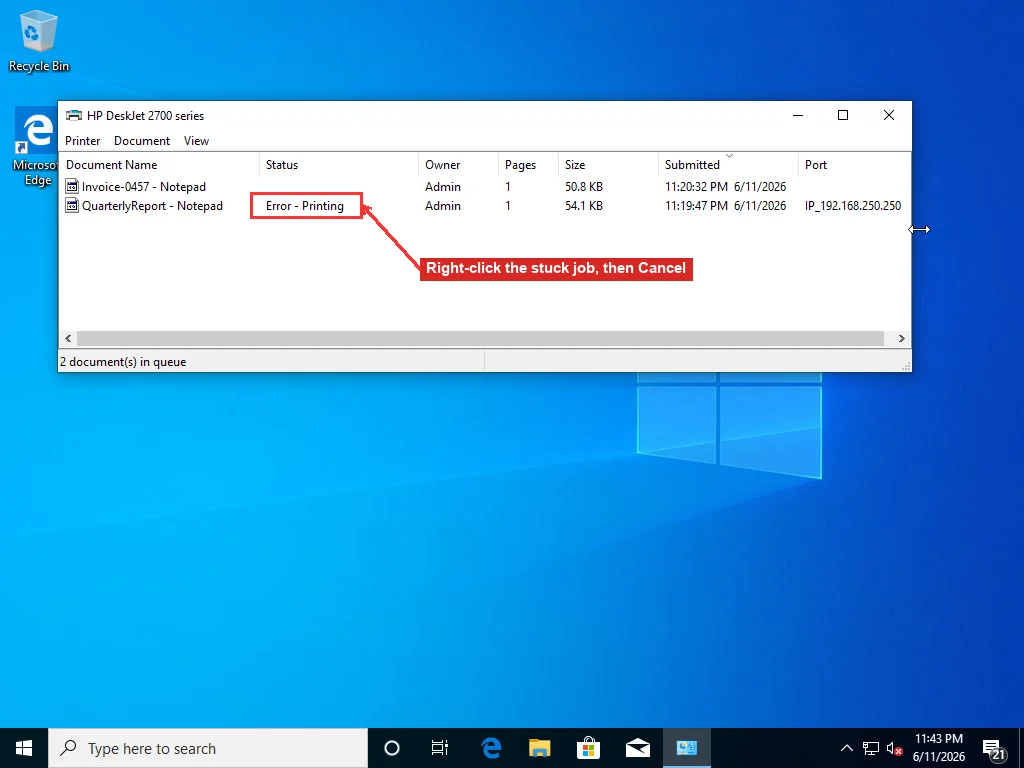
The queue empties from the top. Ten “waiting” documents usually means one broken job at the head, not ten problems. The oldest entry is the one to deal with; the classic queue window will sort by the Submitted column if you click that header.
“Error - Printing” means Windows tried to hand the job over and the printer didn’t take it. The queue isn’t broken; delivery is. Check the dumb stuff first: paper tray, ink warning lights, whether the printer went to sleep. If the printer has a status screen, whatever error it shows outranks anything Windows tells you. A wireless printer that worked yesterday and errors today has usually been handed a new IP address by the router overnight, and Windows keeps knocking on the old one.
The status that fools everyone is “Deleting…” that never finishes, because it looks like progress. It’s a corpse. You cancelled, Windows logged the request, and the component that was supposed to carry it out — the Print Spooler — is hung, so nobody’s home to do the deleting. Right-clicking harder won’t help.
A job stuck on “Sent to printer” is a different animal: the data already left Windows and landed in the printer’s own memory, where it choked. Power-cycle the printer, off at the wall for half a minute. The Windows side did its part. Big files are the usual repeat offender here. A 200-page report or a photo-heavy slide deck can simply be more than the printer’s memory will swallow, in which case send it over in smaller chunks.
If you came in through the classic window, also pull down the Printer menu in its top-left corner before closing it. A checkmark on “Pause Printing” or “Use Printer Offline” holds every job indefinitely while looking exactly like a stuck queue — clear it. An offline printer has its own family of causes, covered separately in the printer offline guide.
Restart the Print Spooler
There’s one Windows service behind every document you print. Your application hands the job to the spooler; the spooler writes it to disk, queues it, feeds it to the printer, and handles cancellations on top. Which is why a hung spooler freezes everything at once — new jobs stack up behind the stuck one while your Cancel clicks vanish into a void. The design predates most of the people using it, and it still fails the way it failed in the NT era.
Press Win+R, type services.msc, hit Enter. Scroll to Print Spooler, right-click, Restart. Identical on Windows 10 and 11 down to the pixel.
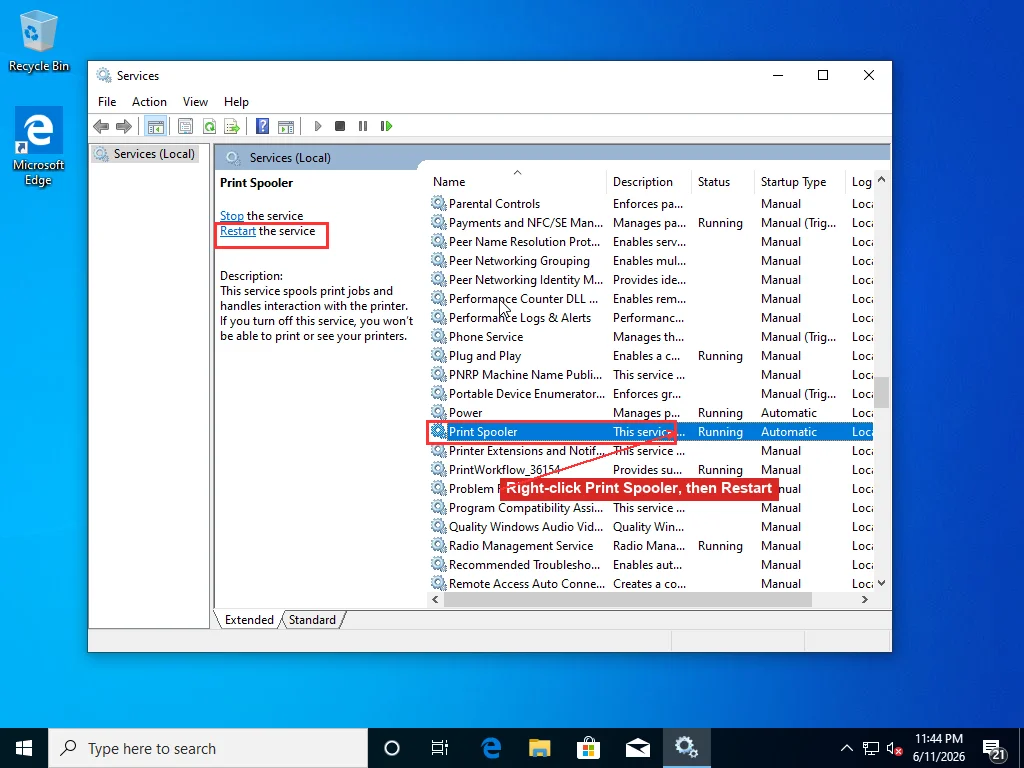
If the Status column in Services is blank, the spooler isn’t running at all, and the right-click menu offers Start instead — use that. A Restart that errors out or hangs at “Stopping…” isn’t worth fighting either, since a service that can’t stop cleanly is usually choking on the same corrupt files you’re about to delete in the next section anyway.
PowerShell’s Remove-PrintJob looks like the elegant answer here. It isn’t. The cmdlet routes its delete request through the same hung spooler the right-click menu talks to, so it fails in exactly the situation that sent you looking for it.
Give the restart ten seconds and reopen the print queue. Usually the half-deleted job is gone, and whatever legitimate documents sat trapped behind it start printing on their own. Microsoft’s troubleshooting page leads with much the same sequence, and many stuck queues end right here.
If the queue is empty now, that’s it. Go print something.
Purge the Spool Folder When Jobs Keep Coming Back
Rebooting feels like it should clear the queue. It doesn’t — and that’s deliberate.
Every queued document lives on disk as a pair of files under C:\Windows\System32\spool\PRINTERS — the .SPL holds the rendered print data, the .SHD holds the job’s settings. Good engineering, in fairness: a power cut mid-print shouldn’t eat your document. But durability cuts both ways once a job goes bad, because the spooler re-reads that folder on every startup and reloads whatever it finds there, corrupt jobs included. Until those two files are gone, the job is immortal.
You can’t delete them while the spooler is running either. The service holds the files locked, and Explorer refuses with a “file is open in another program” complaint. So: stop the service, delete the files, start the service. Three commands.
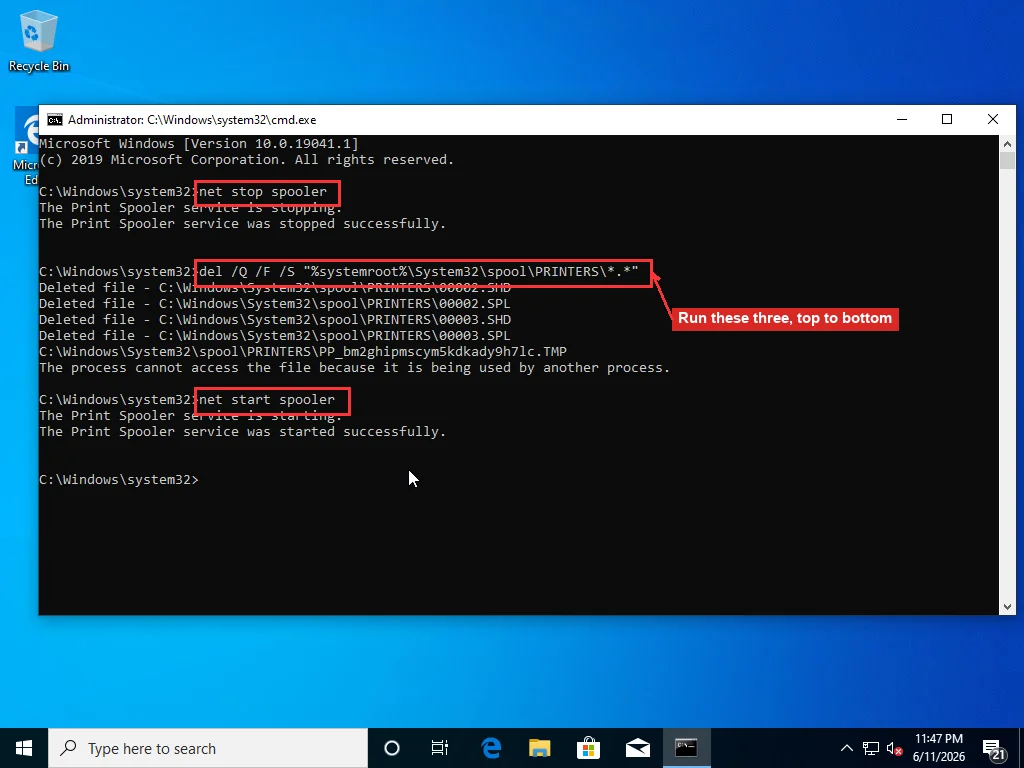
Open an elevated Command Prompt (click Start, type cmd, right-click Command Prompt, “Run as administrator”) and run these one at a time:
net stop spooler

del /Q /F /S "%systemroot%\System32\spool\PRINTERS\*.*"

net start spooler
Wait for “The Print Spooler service was stopped successfully” before running the del line. Jump ahead and del refuses everything with “The process cannot access the file,” because the spooler still has the folder locked. The switches: /Q skips the are-you-sure prompts, /F forces read-only files, /S reaches into subfolders. You’ll see a “Deleted file” line for each .SHD and .SPL pair as they go. A lone leftover .TMP file complaining it’s in use is harmless — that’s a print-processor scratch file, not a job. Then net start spooler brings the service back with an empty queue. And if del answers “File Not Found,” the folder was already clean, which means the phantom job you were seeing lived only in the spooler’s memory and the restart you just performed already cleared it.
One thing before you run it, though. This wipes every pending job on every printer attached to the machine, not just the broken one, and anything you still wanted printed has to be re-sent from the application. Your documents themselves are safe. Spool files are throwaway copies.
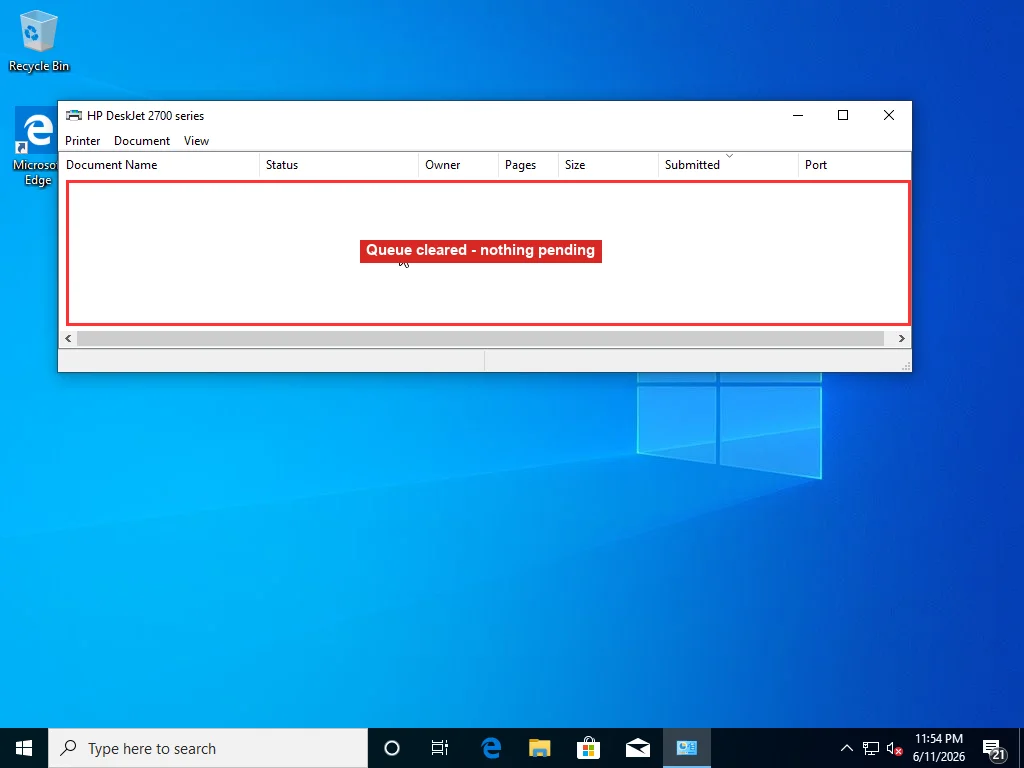
Reopen the print queue afterward; the list should be empty. Before re-sending the real work, print a test page: right-click the printer in Devices and Printers (or click it in Settings on Windows 11), open Printer properties, hit Print Test Page on the General tab. A clean test page means the plumbing is healthy — whatever jams after that is one document’s or one application’s fault. A test page that comes out blank, on the other hand, is a different problem entirely, and the printer printing blank pages guide tracks that one down. The test page also happens to list the driver name and version, worth keeping on hand if you end up going down the driver path below.
Prefer to stay out of Command Prompt? Stop Print Spooler in services.msc, open C:\Windows\System32\spool\PRINTERS in File Explorer, delete everything inside, start the service again. Identical result, more clicks. Some IT folks save the three commands as a .bat file and keep it on the desktop of any machine with a misbehaving printer. Handy. But if you’re reaching for that file more than once a month, the queue isn’t your real problem.
When the Queue Jams Again Next Week
One clogged queue is bad luck: a corrupt job, an oversized PDF, a hiccup during the driver handoff. Every few days is a pattern, and clearing the queue over and over just treats the fever. Printing is a notorious source of help desk tickets, and a queue that clogs again and again is a big part of why. Repeat jams have an upstream cause, and it’s almost always one of five things.
Start with the document itself. One particular file that wedges the queue every single time, while everything else prints fine, is a malformed file — usually a PDF with damaged embedded fonts or images. Adobe Reader has a workaround buried in the print dialog: click Advanced, tick “Print As Image,” and the page gets flattened to a bitmap before the driver ever sees the problem content. Office files that always jam can often be cured by re-saving the document under a new name, which rebuilds the corrupted element. Slower output, but it goes through.
Drivers are next, and they’re the most common culprit. I’d nominate printer drivers as the buggiest software ordinary people are forced to live with. A damaged or half-updated driver corrupts jobs during rendering, and corrupt jobs are precisely what wedges the spool. If Windows shows a “driver is unavailable” label anywhere near the printer, that settles it: the driver unavailable guide walks through purging the broken package before reinstalling. Even without that label, a driver more than a couple of years old is worth replacing with the current one from the manufacturer’s site. The driver update guide covers doing that without letting Windows Update hand you a generic substitute.
Flaky connections leave their own fingerprint. Transfers that drop midway leave partial jobs behind, and a queue full of “Error - Printing” entries from a wireless printer usually means its IP changed after a router reboot; that pattern points back at the printer offline fixes rather than anything queue-side. USB printers that randomly disconnect and reconnect leave the same debris. The USB device not recognized guide handles the controller and power-management side.
Windows updates have broken printing outright more than once. The 2021 PrintNightmare security fixes famously jammed network printing in offices for months. If the queue started misbehaving right after an update installed, check the update history dates (Settings, then Windows Update, then Update history) against when the trouble began; the stuck update guide explains how to view that history and roll back a specific patch.
And sometimes the spooler itself is the patient. A service that restarts cleanly but dies again within minutes usually has a specific driver DLL crashing it every time it touches one particular printer. Pinning down which one means reading Event Viewer’s PrintService logs, removing driver packages one at a time through Print Server Properties, occasionally registry cleanup. None of it is dangerous. All of it is slow, fiddly work, the kind where a remote technician who has seen the exact crash signature before saves you the afternoon of trial and error.
Paper isn’t fading away as fast as predicted, either. Quocirca’s Print 2025 research found 65% of IT decision makers expecting paper to remain important to their workplace. The queue you just cleared will be earning its keep for a while yet.
Frequently Asked Questions
Why does my print job say "Deleting" but never goes away?
The Cancel request was accepted, but the Print Spooler service — the component that actually performs the deletion — has hung, so nothing processes the request. Restart the spooler: press Win+R, type services.msc, find Print Spooler, right-click it and choose Restart. After about ten seconds the half-deleted job is usually gone. If it reappears, its spool files need to be deleted manually from C:\Windows\System32\spool\PRINTERS with the service stopped.
How do I force delete a print job that won't cancel?
Open an elevated Command Prompt and run three commands in order: net stop spooler, then del /Q /F /S "%systemroot%\System32\spool\PRINTERS\*.*", then net start spooler. This stops the service that holds the files locked, deletes every queued job's .SPL and .SHD files, and restarts printing with an empty queue. Be aware it clears all pending jobs on every printer attached to the machine, and anything unfinished has to be re-sent from its application.
Why do print jobs come back after I restart my computer?
Each queued job is stored on disk as a pair of files — an .SPL file with the print data and an .SHD file with the job settings — in C:\Windows\System32\spool\PRINTERS. The spooler re-reads that folder at every startup and reloads whatever it finds, corrupt jobs included. Rebooting never clears the queue, by design. Delete the files themselves with the spooler stopped and the job stops coming back.
Does clearing the print queue delete my document files?
No. Spool files are temporary rendered copies created for the printer; your original documents stay untouched wherever they are saved. The only thing you lose is the pending queue — anything that had not printed yet has to be sent to the printer again from its application.