Printer Printing Blank Pages? Find the Cause in One Test
Short answer: Print the printer's own self-test or configuration page from its buttons or menu, with no computer involved. If that page is blank too, the fault is in the printer: on an inkjet it's usually a clogged printhead or tape left on a new cartridge, on a laser it's usually a new toner cartridge with its sealing strip still in. If the self-test prints fine but pages sent from Windows come out blank, check the document and print settings, restart the Print Spooler, and reinstall the printer driver from the manufacturer.
Before you change anything, print the printer’s own self-test page, the status or configuration report it can print without a computer. If that page is blank too, the problem is inside the printer: ink, printhead, toner or drum. If it prints normally, the printer is fine and the blank pages are coming from Windows, the driver or a setting.
The self-test page
How you print it depends on the model:
- Printers with a screen: look for Reports, Information, Setup or Tools, then something like Printer Status Report, Configuration Page or Print Quality Report.
- Printers without a screen: usually a button held for a few seconds, often Resume, Cancel, Wi-Fi or Information, sometimes while switching the printer on.
The manual has the exact sequence, and searching for your model number plus “self test page” usually finds it in the manufacturer’s support pages.
This page is generated by the printer’s own firmware, so it doesn’t go through Windows or the driver. That’s what makes it useful. Read the result like this:
| Self-test page | Pages from Windows | Where the fault is |
|---|---|---|
| Blank or nearly blank | Blank | The printer: ink, printhead, toner or drum |
| Prints normally | Blank | Windows, the driver, the connection or a setting |
| Prints normally | Some pages blank, others fine | Usually the document itself |
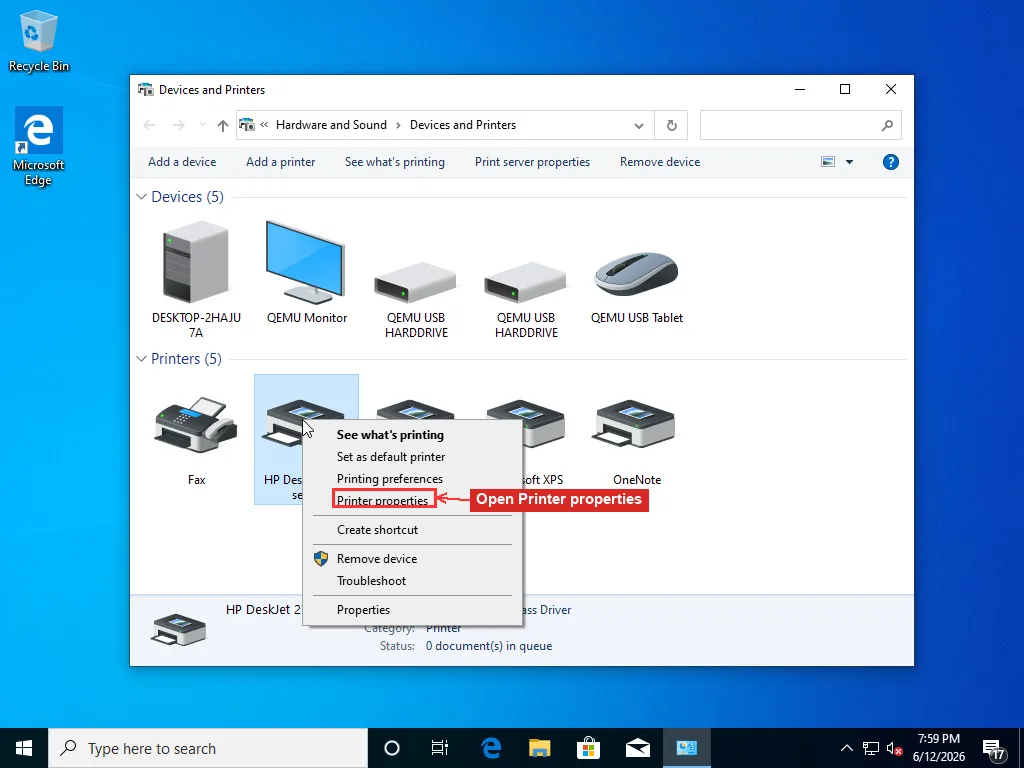
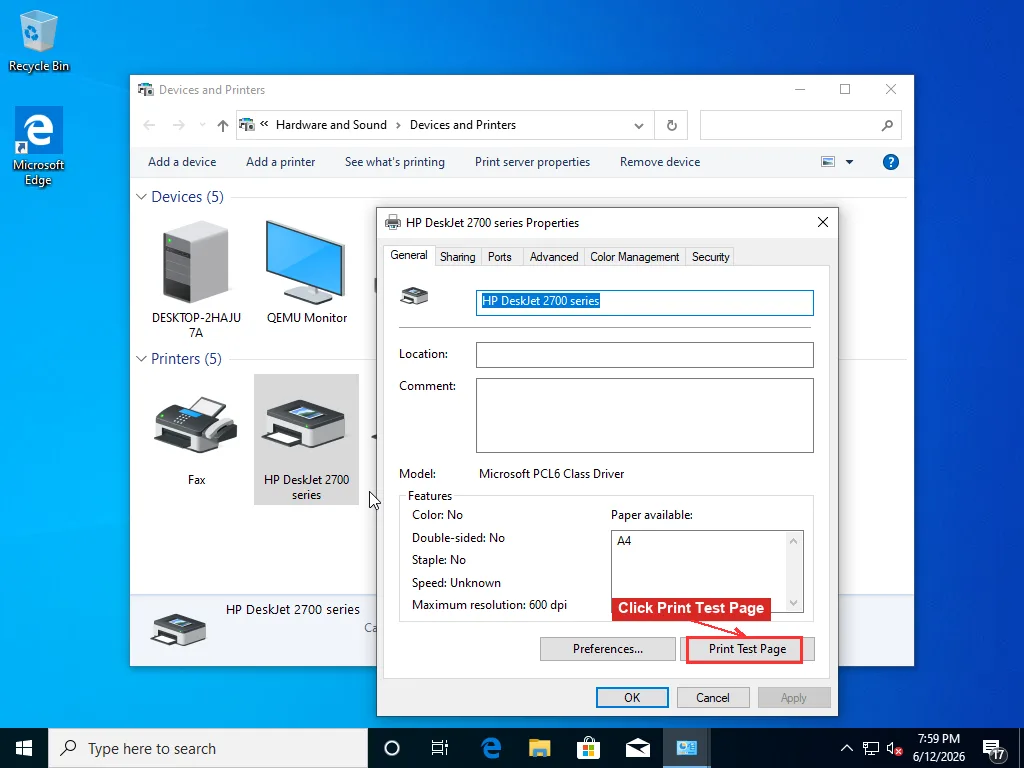
For comparison you can also print the Windows test page. In Windows 11 open Settings > Bluetooth & devices > Printers & scanners, pick the printer and click Printer properties. In Windows 10, or from Control Panel in either version, go to Devices and Printers, right-click the printer and choose Printer properties. The Print Test Page button is on the General tab.
Self-test is blank: inkjet printers
On an inkjet, a blank page almost always means ink isn’t leaving the printhead.
If you’ve just put in a new cartridge, start there. Many cartridges ship with a strip of tape over the nozzles or an orange clip, and some have a sealed air vent on top. Take the cartridge out and look. Reseat it until it clicks.
If the cartridges aren’t new, dried ink is the likely cause. Ink dries in the nozzles when a printer sits unused for weeks, so a printer that rarely prints is the one that tends to clog. Run the printhead cleaning from the printer’s maintenance menu, or from the Maintenance or Services tab in Printing Preferences if the driver has one. Then print a nozzle check pattern. Solid blocks of color mean the nozzles are firing. Gaps or missing lines show which colors are still blocked.
Epson’s own blank pages FAQ gives the same order: nozzle check first, then a head cleaning if the pattern shows gaps. Run one or two cleaning cycles, not ten. Each cycle pushes ink through the head into an internal waste ink pad, and on many printers that pad has a counter that eventually triggers a service error. If two cleanings leave the same gaps, let the printer sit for a few hours, which gives the cleaning fluid time to soften the dried ink, then run one more cycle. Some models also have a deeper “power cleaning” option that uses more ink.
Ink levels shown by the printer are estimates, and refilled or third-party cartridges often report wrong levels. If one color is missing from the nozzle check and nothing else is, try a new cartridge for that color. HP’s guide to black or color ink not printing also covers checking cartridge vents and contacts.
If the head stays blocked after this, the manufacturer’s support page for your model is the next stop. Whether the printhead is part of the cartridge or fixed in the printer makes a big difference: a cartridge with its own printhead is replaced with the cartridge, while a fixed printhead may need a replacement part or service.
Self-test is blank: laser printers
Laser printers don’t clog, so the causes are different. New toner cartridges often have a long plastic strip, sometimes with a colored tab, that keeps toner sealed in during shipping. If it’s still in, the printer can’t get toner to the drum. Pull the cartridge and check.
If the strip is out, take the cartridge out and put it back firmly. If the printer has a separate drum unit (common on Brother printers, for example), make sure both parts are clicked together and fully seated.
Gently rocking the cartridge side to side spreads out the remaining toner and can give you a few more pages. Pages that come out faint rather than completely white usually mean the toner is running out or you’re printing in a toner-save mode.
If the self-test is still blank with a cartridge you know is good, the drum unit or the parts that charge and transfer the toner are the likely cause. A separate drum unit is a consumable you can replace yourself. Beyond that, the printer needs service, and on an inexpensive laser printer the repair can cost more than a new printer.
Self-test is fine: it’s the computer side
The printer works, so something on the way from your document to the printer is producing an empty job.
Check the document and the settings
Look at the document in print preview, not just the editing view. A blank trailing page, white text, or a section break can produce a real blank sheet. If only some pages come out blank, this is the likely cause.
Then open Printing Preferences (right-click the printer in Devices and Printers, or from the printer’s page in Settings) and check:
- Paper size. If the driver is set to A4 and the tray holds Letter, or the other way round, the printout can be shifted or cut off, and on some printers it comes out blank or with an error.
- Color and quality. Grayscale on an inkjet whose black cartridge is empty or blocked can give blank pages while the color cartridges are full. Draft and toner-save modes can make light text almost disappear.
Make sure the printer isn’t printing to a file
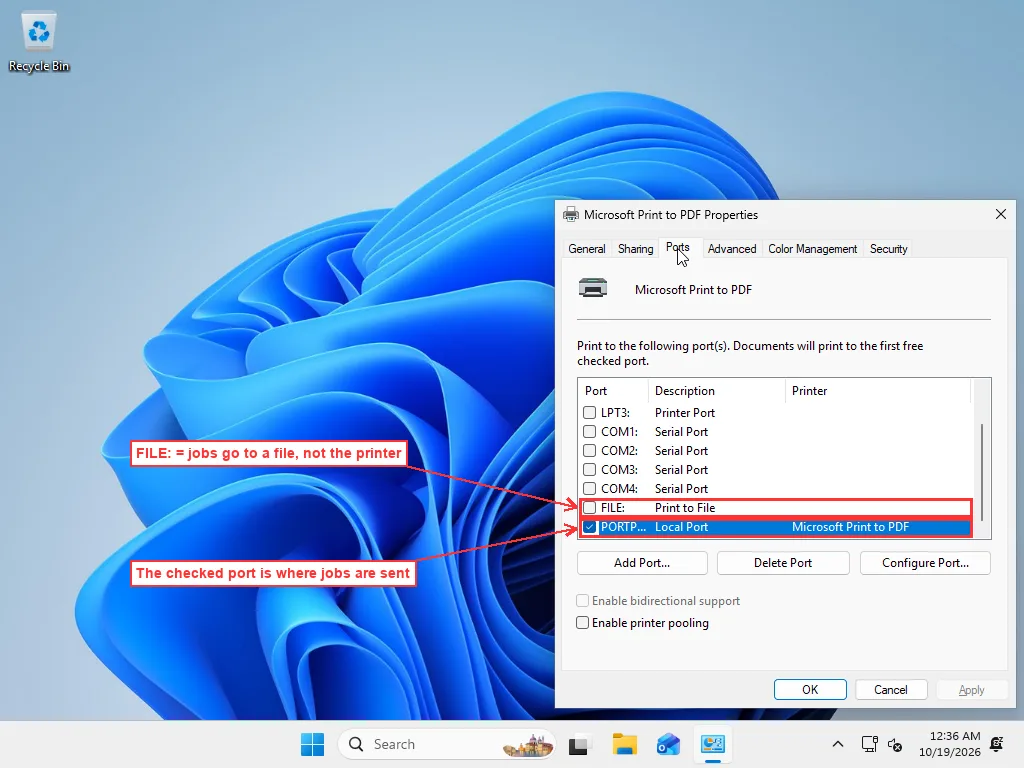
On the Ports tab of Printer properties, the port with a checkmark is where Windows sends the job. If FILE: is checked, every job is saved to a file on the PC and nothing reaches the printer. The printer may still feed a page, or nothing at all, depending on the model. Check the port that matches how the printer is connected: a USB port such as USB001, a WSD port, or a TCP/IP port named after the printer’s IP address.
Restart the Print Spooler
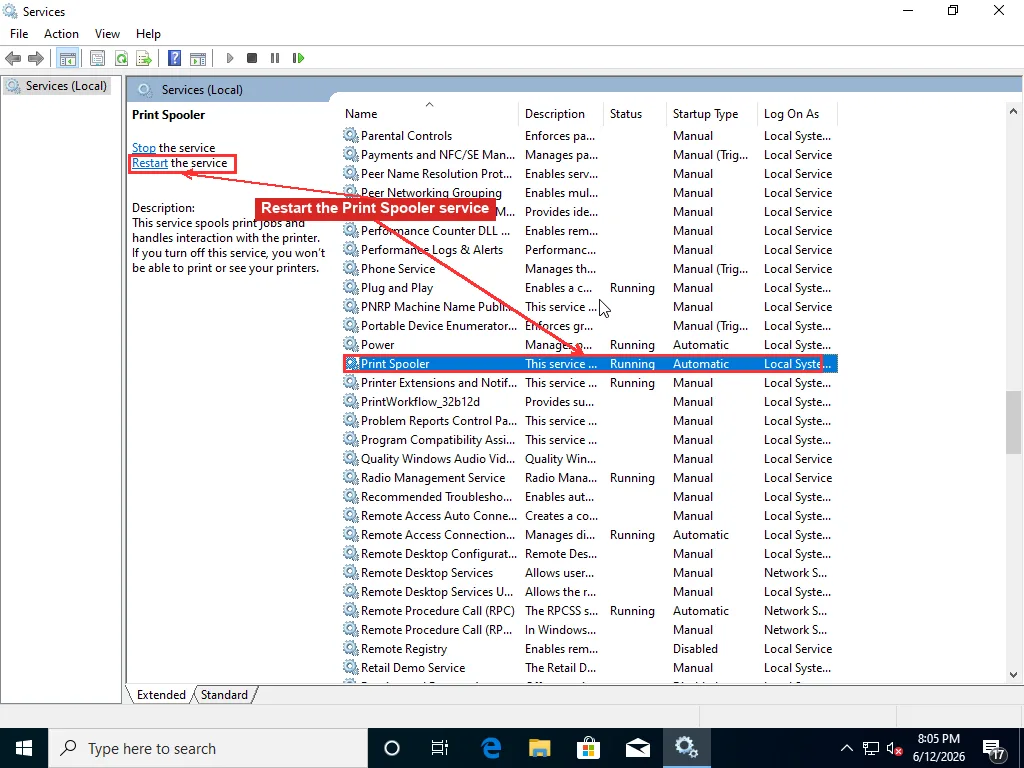
The Print Spooler is the Windows service that queues jobs and hands them to the driver. Press Win+R, type services.msc, find Print Spooler, select it and click Restart the service. Then print again. Microsoft’s page on Print Spooler errors covers what to do if the service won’t stay running.
If jobs are also piling up in the queue and won’t clear, the stuck print queue guide covers clearing the spool folder.
Reinstall the driver
A damaged or wrong driver can turn a normal document into a blank page. Remove the printer in Settings, then download the current full driver for your model from the manufacturer’s website rather than relying on the generic one Windows picks. If Windows reports the driver as unavailable, the driver unavailable guide covers removing the old driver package properly first. The driver update guide covers the general process.
Check the connection
On a wireless printer, a changed IP address after a router restart can leave Windows sending jobs to the wrong place. That usually shows up as jobs that fail or go missing rather than blank pages, but if the printer prints normally over USB and not over Wi-Fi, see the printer offline guide.
One PDF prints blank, everything else works
The PDF may contain fonts or images the driver can’t handle. In Adobe Acrobat Reader, open the Print dialog, click Advanced and tick Print As Image. The page is sent as an image instead, which usually gets around it.
When to get help
If the self-test is blank and cleaning, new cartridges or a new drum don’t change it, the printer needs hardware service, and for many home printers replacing it is cheaper. If the self-test prints but Windows still sends blank pages after a spooler restart and a clean driver install, the cause is usually a leftover driver package or a damaged spooler setup, and a remote technician can track that down without you having to remove driver files by hand. Microsoft’s printer troubleshooting page also lists the built-in Windows troubleshooter steps.
Frequently Asked Questions
Why is my printer printing blank pages when it has ink?
Ink level readings are estimates, and they don't show whether ink is reaching the paper. On an inkjet, dried ink in the printhead nozzles stops output even with a full cartridge, so run a nozzle check and one or two cleaning cycles. On a new cartridge, check that the protective tape over the nozzles was removed. On a laser, a new toner cartridge with its sealing strip still inside reads as installed but prints nothing.
How do I fix an inkjet printer that prints blank pages?
Reseat each cartridge, make sure all tape and clips are off new ones, then run the printhead cleaning from the printer's maintenance menu and print a nozzle check pattern. If two cleanings leave the same gaps, stop running more, because each cycle uses ink. Leave the printer for a few hours and try again, or follow the manufacturer's deeper cleaning routine for that model.
Why does my printer print a test page but documents come out blank?
If the printer's own self-test is fine, the printer works and the problem is between Windows and the printer. Check the document in print preview, check that the paper size matches what's loaded, make sure the printer isn't set to print to FILE on the Ports tab, restart the Print Spooler service, and reinstall the driver from the printer maker's website.
Why is my laser printer printing blank pages?
The most common cause is a new toner cartridge whose sealing strip wasn't pulled out, so no toner reaches the drum. Remove the cartridge and check. If the strip is gone, make sure the cartridge and any separate drum unit are fully seated. If the self-test is still blank with a known-good cartridge, the drum unit or the printer's transfer or high-voltage parts are the likely cause and need service.